



For molecular modelers, efficiently selecting and analyzing specific nodes, such as atoms, residues, or structural components of molecules, is often critical yet time-consuming. The Node Specification Language (NSL) in SAMSON offers a remarkably powerful toolset to address this challenge. Whether you are navigating complex molecular structures or need to identify specific fragments quickly, NSL empowers you to perform precise operations with minimal effort.
Why NSL Matters in Molecular Modeling
When working on large molecular systems, tasks such as selecting groups of atoms by their properties, filtering specific residues, or isolating chains can be cumbersome. NSL is meticulously designed to simplify these processes by allowing modelers to input concise, human-readable queries. Instead of manually searching for details in sprawling molecular structures, NSL allows you to define your exact criteria and retrieve results in an instant.
Searching Like a Pro with the ‘Find’ Command
The NSL-powered Find command in SAMSON is at the heart of efficient node searching. Accessible directly from the search box, it supports auto-completion for NSL strings, providing real-time feedback as you type.
For example, you can input:
"ALA(with the opening quote) and press the Tab key to see all nodes starting with “ALA”, such as:
"ALA 22 Backbone""ALA 28 Side chain"
In addition, you can take advantage of advanced logical operations. For instance:
C or H: Selects all nodes that are either carbons or hydrogens.node.type residue and not residue.type ALA: Selects all residues that are not alanines.
For visual learners, SAMSON includes an AI Assistant option to guide your queries interactively.

Interactive Filtering in the Document View
Another standout feature is the ability to filter nodes using an NSL expression in the Document View. For example, using n.t sg (short for node.type structuralGroup) filters results to show only structural groups. You can then select them by pressing Enter.
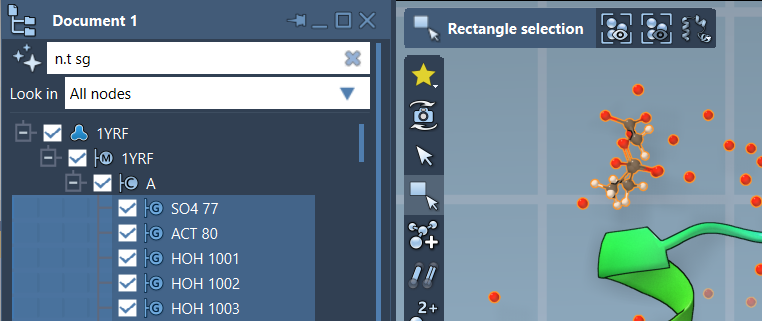
The AI Assistant remains at your side here as well, suggesting relevant NSL strings based on your active document.
Tips for Getting Started
If you’re new to SAMSON or NSL, don’t worry—you can start simple with queries such as:
Carbon: Matches carbon atoms.H linking O: Finds hydrogens bonded to oxygen atoms.
Once you’re comfortable with the basics, dive into advanced logical expressions, topology operators, and even proximity-based queries that use distance or bonding criteria.
Documentation and More Examples
NSL is exceptionally versatile. Whether you’re seeking hydrogens within a specific radius, filtering structural elements using logical conditions, or identifying structural groups with specific properties, NSL offers a complete toolkit to support your workflow.
Learn more about the full range of NSL’s capabilities by visiting the official documentation page.
Note: SAMSON and all SAMSON Extensions are free for non-commercial use. Download SAMSON today at samson-connect.net.