



One of the critical challenges for molecular modelers is ensuring accurate atom typization when working with force fields. Atom typization directly impacts simulation results, and yet it often requires careful customization to suit the unique nuances of each molecular system. In this blog post, we’ll explore how to take advantage of the customization options offered by the Universal Force Field (UFF) in SAMSON, an integrative molecular design platform. These tools empower advanced users to modify typization parameters directly, ensuring greater flexibility while simulating systems.
What is Atom Typization?
Atom typization is the process of assigning specific types to atoms based on their chemical environment. These types define how atoms interact with one another according to a particular interaction model—like UFF. However, default settings may not always capture the nuances of particular molecules or structures. This is where SAMSON provides an edge, by allowing you to customize the typization process as needed.
Customizing Typization in UFF
If you’re diving into the typization process in SAMSON with UFF, here’s a guide to make the most of it:
- Modify Maximum Coordination and Maximum Valence: SAMSON allows you to adjust the default maximum coordination (number of neighbors) and maximum valence (weighted number of neighbors based on bond order) for each atom. To do this, select the atom(s), input a new value, and click Set. However, note that any new value must be lower than the default to be applied.
- Force Bond Orders: You can manually set a bond order for one or multiple selected bonds. After selecting the bonds, assign a bond order value (ranging from 0.1 to 3.9) in the UFF parameter window and press Set. To lock the bond order during future typization rounds, use the Freeze button. Remember, SAMSON also supports non-integer bond orders for enhanced flexibility.
- Force Atom Types: Individual atom types can be forced to specific values. Simply select the atom(s), choose a new UFF type from the parameter window, and click Set. Like bond orders, you can also freeze specific atom types to prevent changes in future rounds of perception.
- Reset and Recompute: If you want to clear all customizations, use the Reset all buttons. Additionally, you can use the Reset perception button to recompute typization based on the current settings and atomic positions.
These features provide granular control, allowing users to tailor typization parameters for complex molecular scenarios.
Why Customize Typization?
While default typizations often work well, they may fall short for unique or complex molecular systems. Customization becomes especially important when dealing with novel compounds, unusual bonding scenarios, or systems where precise interaction modeling is critical. By leveraging SAMSON’s capabilities, you ensure that your simulation parameters align closely with the specific chemistry of your system, reducing potential inaccuracies in results.
Visualizing the Process
Still curious about how customizing typization in UFF looks in practice? Below, you’ll find a visual example showcasing typical customizations:
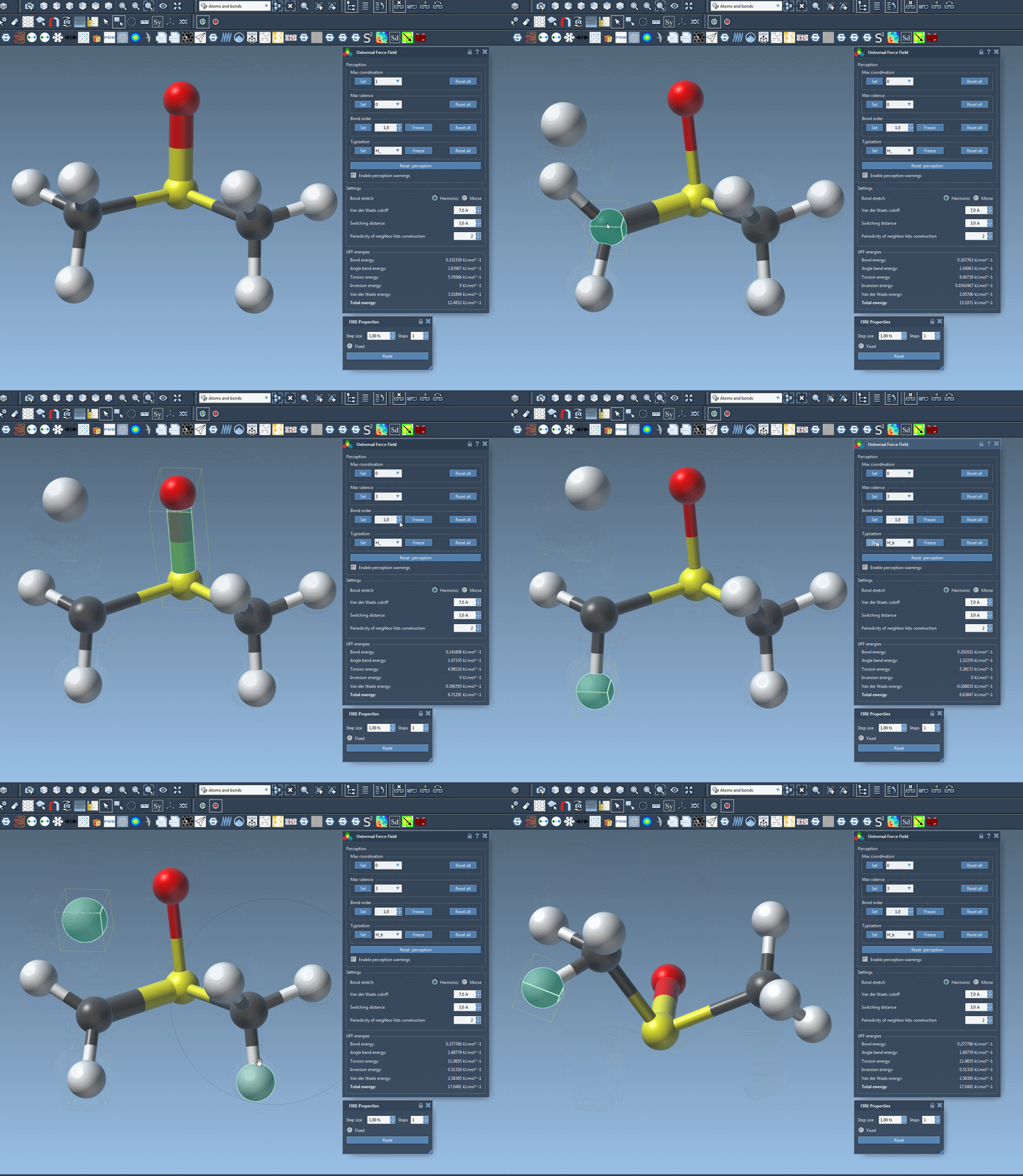
These visual tools enable you to make intuitive adjustments, ensuring you’re confident about each customization step.
Conclusion
Customizing the typization of UFF in SAMSON puts the modeling power in your hands, offering precision and flexibility unmatched by most platforms. If this approach piqued your interest, delve deeper into the details by visiting the full documentation page at https://documentation.samson-connect.net/tutorials/uff/uff/.
SAMSON and all SAMSON Extensions are free for non-commercial use. Download SAMSON today at https://www.samson-connect.net.