



Molecular modelers often face the significant challenge of efficiently selecting specific atoms, residues, or molecular structures in complex datasets. Whether you are identifying ligands, filtering atoms with a certain property, or selecting residues within specific regions, such tasks can quickly become time-consuming. Fortunately, SAMSON’s Node Specification Language (NSL) offers a robust solution to streamline these efforts.
What is NSL, and Why Should You Use It?
NSL, or Node Specification Language, is a remarkably powerful syntax within the SAMSON molecular design platform. It allows users to select nodes (such as atoms or residues) based on their properties. NSL can be leveraged in two main areas:
- The Find Command: Use NSL for search-driven selection of nodes.
- The Document View: Filter nodes interactively to refine your views.
By mastering NSL, you can significantly accelerate your workflow and improve accuracy in your molecular modeling projects.
Quick Start: Essential NSL Expressions to Try
If you are just starting with NSL, here are a few basic expressions to help you get started:
node.type residue: Selects all residues.C or H: Filters atoms that are either carbons or hydrogens."CA" within 5A of S: Finds all “CA” nodes that are within 5 angstroms of sulfur atoms.node.category ligand, receptor: Selects ligands and receptors.

Advanced Selection: Proximity and Logical Operators
NSL goes beyond simple commands. Incorporating logical and proximity operators into your queries can refine results further. For example:
node.type residue and not residue.type ALA: Selects all non-alanine residues.C within 5A of "GLN 2": Matches carbons within 5 angstroms of “GLN 2”.n.t a out of n.t r: Selects atoms that do not belong to residues.
With these tools, you’ll easily handle intricate datasets, such as identifying specific residues near active sites or filtering structural groups based on custom criteria.
How to Implement NSL in SAMSON
To use NSL effectively in SAMSON:
- Find Command: Press Ctrl+F (or Cmd+F on Mac) and enter your NSL expression in the search box. The auto-completion feature can help you refine queries by pressing Tab.
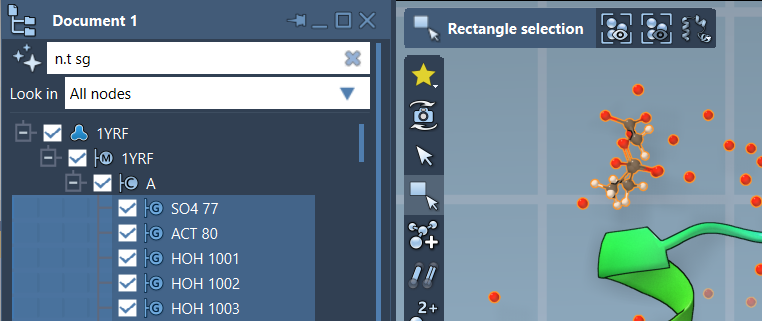
- Document View: Enter your NSL expression into the filter box. Once filtered, press Enter to select nodes directly. This interactive approach is especially useful when working with highly detailed systems.
Refer to the image below for visual guidance on how NSL is used to filter and select nodes interactively:
Helpful Tips for NSL
Here are a few tips to make NSL even more effective:
- Use attribute spaces: Different node types use specific attribute spaces (e.g.,
atomfor atoms,residuefor residues). Refer to the attribute space table for details. - Take advantage of shortcuts: Abbreviations like
n.t(node type) andr.ss(residue.secondaryStructure) save time and improve readability. - Leverage proximity operators: Specify distances with units like angstroms (
A) to narrow down your searches.
Learn More About NSL
NSL is packed with features that enable molecular modelers to work smarter, not harder. Whether you’re filtering by proximity, applying logical operators, or refining structural selections, NSL is a valuable ally in your toolkit.
Explore the full documentation to learn more about advanced NSL commands and their applications.
Note: SAMSON and all SAMSON Extensions are free for non-commercial use. You can get SAMSON here.