



For molecular modelers, nanotechnology enthusiasts, or materials scientists, customizable carbon nanotube (CNT) models are a must-have. But creating these complex structures can be a frustrating challenge if you’re working without intuitive tools. What if you could build single-walled or multi-walled CNTs interactively? Thankfully, SAMSON’s Nanotube Creator Extension makes this possible, offering both precision and simplicity. In this post, we’ll focus on its interactive viewport building mode—ideal for those who want to create models directly in the 3D environment.
The Pain: Manual Nanotube Modeling
Manually defining the geometry, length, and radius of a carbon nanotube is tedious and prone to errors, especially when trying to balance structural accuracy with experimental requirements. If you’re working on nanodevices, molecular simulations, or transport modeling, trial-and-error is the last thing you want slowing you down.
The Solution: SAMSON’s Interactive Viewport Build Mode
The interactive mode in SAMSON’s Nanotube Creator Extension addresses this pain point directly. With just a few mouse gestures, you can visually define important parameters like axis, length, and radius of your carbon nanotube. No guessing, no hassle.
How It Works
Building nanotubes in SAMSON interactively involves two main steps:
1. Set the Axis and Length
To define your nanotube’s axis and length (which determines the n parameter):
- Click and drag the left mouse button in the viewport.
As you do this, you’ll see real-time feedback in the status bar, showing axis orientation and tube length:

The visibility of these measurements ensures you’re in control during each step.
2. Define the Radius
Next, you’ll set the nanotube’s radius (changing the m parameter):
- Release the mouse button.
- Move the mouse to adjust the radius.
- Click the left mouse button again to confirm.
This second step allows you to create tubes of varying sizes with ease:
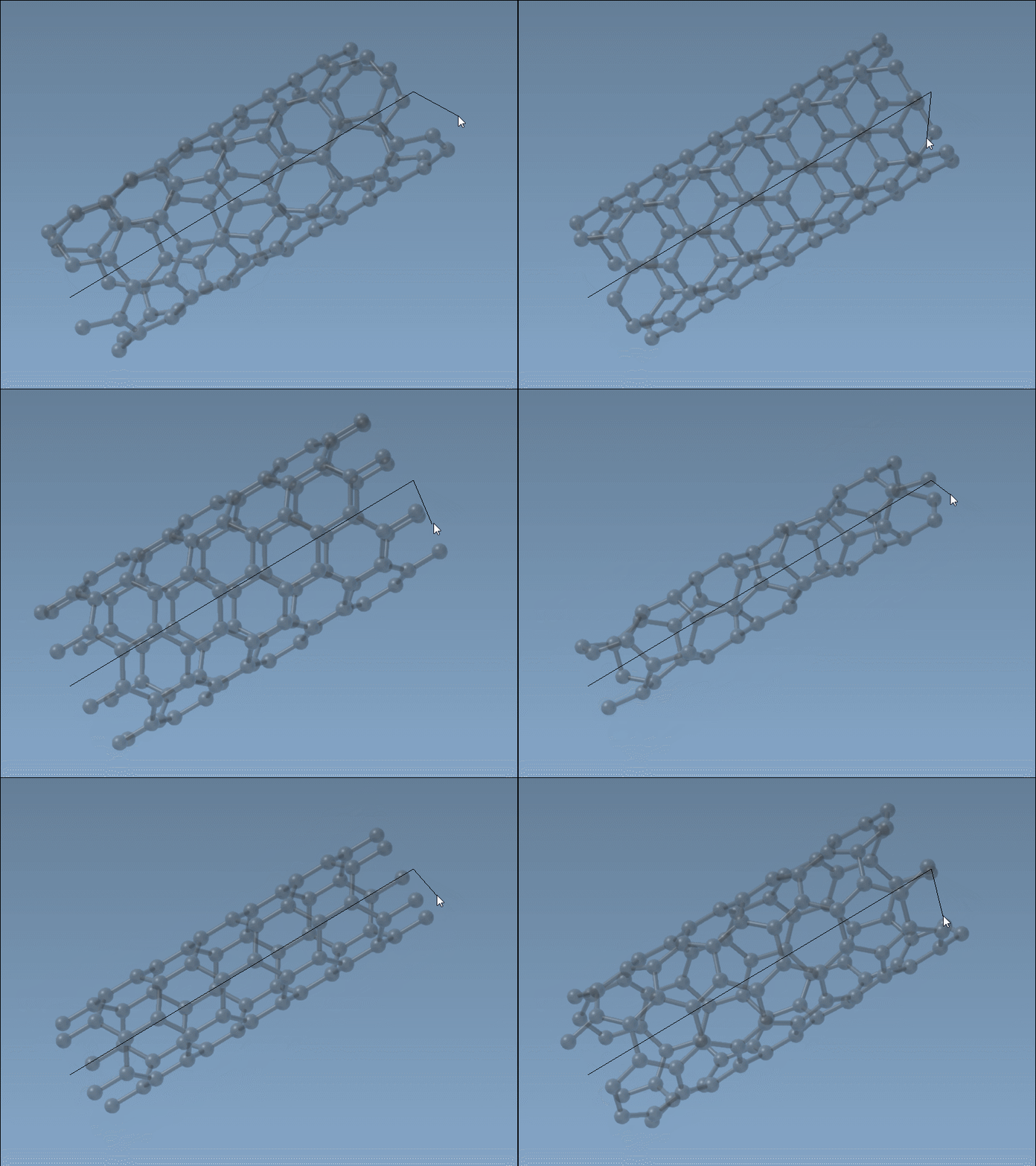
During this process, the status bar continues providing precise updates, so you can fine-tune n and m values as necessary. When you’re satisfied, finalize your structure with a simple mouse click.
When to Use This Mode
The interactive build mode is perfect when speed and visual feedback are priorities. For example, if you’re prototyping molecular transport channels or experimenting with structural properties quickly, this method lets you iterate without diving into complex menus or settings.
Prefer more precision or a multi-walled setup? You can always switch to the graphical interface mode for additional control.
Next Steps
Once you’ve built your nanotubes, you can use SAMSON for further modeling, simulation, or visualization. To learn more about SAMSON’s interactive modeling capabilities, check out the full tutorial page here: SAMSON Carbon Nanotube Modeling Guide.
SAMSON and all SAMSON Extensions are free for non-commercial use. Get started by downloading SAMSON from SAMSON Connect.