



For molecular modelers working with complex structures, finding the right components quickly within massive molecular datasets can be a challenging task. Whether you’re trying to isolate ligand atoms, filter hydrogen atoms, or select residues within a certain distance from a target, this process can sometimes feel overwhelming. Luckily, SAMSON equips you with a powerful tool: the Node Specification Language (NSL), designed specifically for precise and efficient node filtering.
What is the Node Specification Language?
The Node Specification Language (NSL) is a flexible query syntax that allows users to quickly select and filter molecular nodes—such as atoms, residues, or even entire structures—based on their properties. For example, you can identify all carbon atoms, select residues within 5 angstroms of a given atom, or isolate backbone nodes in protein structures.
Where Can You Use NSL?
NSL can be applied in two key locations within SAMSON:
- Find Command: Accessible via Select > Find, this tool allows for search-driven selections. Learn more in the Find command section.
- Document View Filter: Use the filter box in Document View for live filtering of nodes in your molecular documents.
These tools put precision selection at your fingertips, reducing hours spent manually searching through structures.
Examples to Try Right Now
If you’re just getting started with NSL, here are a few practical expressions to try:
node.type residue: Selects all residue nodes.C or H: Selects all carbon and hydrogen atoms."CA" within 5A of S: Finds nodes named “CA” that are within 5 angstroms of sulfur atoms (ensure to use quotes for names with spaces).node.category ligand, receptor: Matches ligand and receptor nodes.
Learn more about creating smart NSL expressions in the dedicated Examples section.
Leveraging Auto-Suggestions
One of SAMSON’s most helpful features is the auto-completion functionality available in the Find command. As you build your NSL expressions, pressing Tab in the search box provides context-sensitive suggestions. For example, typing "ALA and pressing Tab will display potential matches like:
"ALA 22 Backbone""ALA 28""ALA 22 Side chain"
Auto-completion not only boosts speed but also helps you discover valid names and node types in your document.
Filtering Nodes from Document View
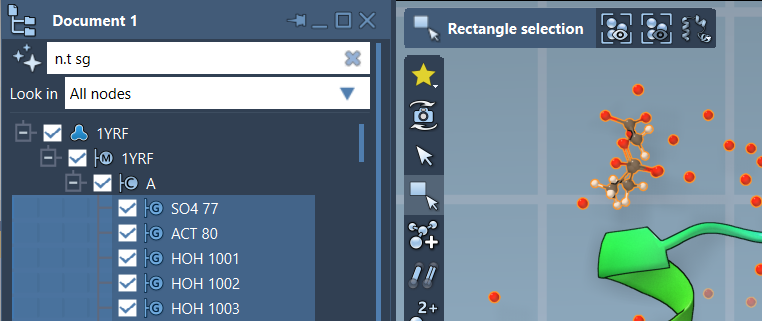
Another way to harness NSL is by using the filtering feature in the Document View. For example, entering n.t sg filters structural groups with a precise name or characteristic, enabling you to explore visual selections in real time. You can complete your action by pressing Enter to apply the filter.
Need Help Crafting NSL Strings? Ask AI
For users who are unsure about building the right NSL queries, SAMSON offers the AI Assistant. By clicking the AI icon next to the query input, you can request the tool to generate a relevant NSL expression tailored to your document. For instance, you can ask the Assistant to “select all hydrogens in Chain A,” and it will present a ready-to-use NSL query.
Conclusion
The Node Specification Language provides molecular modelers with an exceptional level of control and precision in managing structural data. From simplifying repetitive tasks to offering shaders of customization in filtering molecular nodes, NSL transforms tedious selection processes into a streamlined experience.
To understand the full capabilities of NSL, explore its logical, proximity, and topology operators in the official documentation. Mastering NSL will undoubtedly elevate your productivity and unlock new ways of working with molecular structures.
SAMSON and all SAMSON Extensions are free for non-commercial use. You can download SAMSON here.