



If you’re a molecular modeler analyzing molecular interactions, chances are that deriving a Potential of Mean Force (PMF) profile is a key step in your workflow. However, the process can be daunting, especially when transitioning from umbrella sampling data to meaningful insights. This is where the GROMACS Wizard in SAMSON comes to the rescue by streamlining PMF analysis using the Weighted Histogram Analysis Method (WHAM).
Why PMF Analysis Matters
PMF profiles are crucial for determining the free energy landscape along a specified reaction coordinate. This can help modelers make critical decisions about molecular interactions and energy barriers in various systems. But poor organization or insufficient sampling can hinder reliable results. This blog post will guide you through using GROMACS Wizard for PMF analysis, ensuring robust and reproducible outcomes from your umbrella sampling simulations.
Preparation Before Starting
Before diving into the PMF analysis, make sure you’ve already performed an umbrella sampling workflow. It’s essential to confirm that your input data is well-structured:
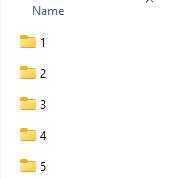
- Check that your input folder contains subprojects for the same system and reaction-coordinate setup. Each subfolder should clearly correspond to a window in your umbrella sampling simulation.
Step-by-Step Guide to Compute the PMF
Once you’ve completed the umbrella-sampling workflow, follow this streamlined approach in GROMACS Wizard:
- Navigate to the WHAM Analysis tab. Select the project path manually or use the auto-fill feature if you’re continuing directly from the umbrella sampling step.
- Ensure the project folder is correctly organized with matching subfolders. If needed, reorganize your data before proceeding.
- Choose the reaction coordinate from the list provided by GROMACS Wizard.
- Adjust optional settings such as custom bounds, time range, or energy units based on your specific goals.
- Finally, click Compute and let GROMACS Wizard do the heavy lifting.
Visualization and Interpretation
Once computed, GROMACS Wizard generates two essential visuals for interpretation:
- A PMF profile, showing the free energy landscape.
- A histogram of reaction-coordinate space coverage to identify regions requiring additional sampling.
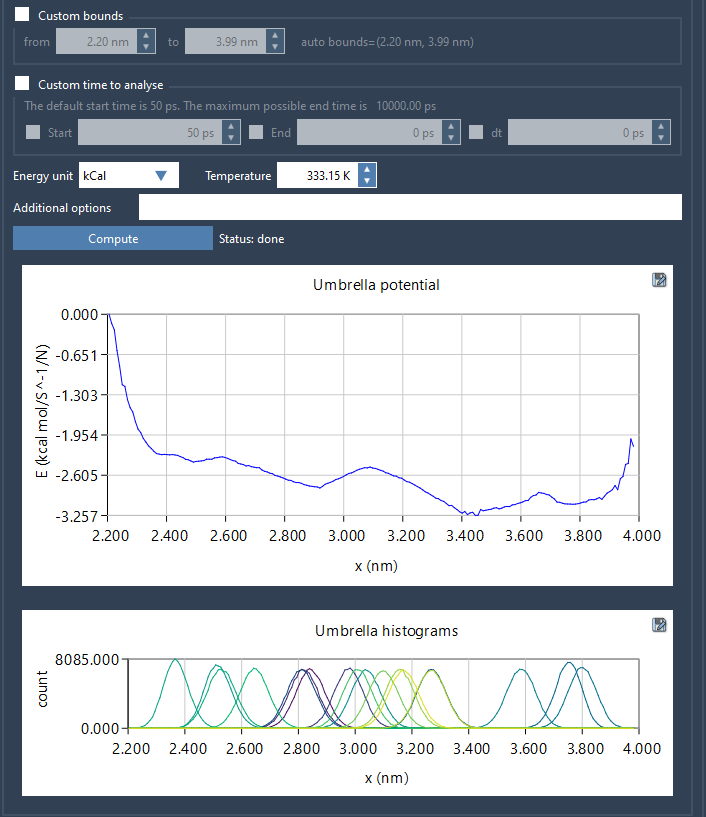
The histogram is particularly useful for quality control, ensuring that the reaction-coordinate space is adequately sampled and pinpointing areas that may need further refinement. For projects with large trajectories, computation may take a few minutes, so patience might be needed.
Save and Reuse Data
GROMACS Wizard saves computed profiles, histograms, and plots in the wham_results subfolder of your project. Importantly, if you switch between reaction coordinates later, the tool can reuse pre-computed data for identical parameters, saving time in iterative workflows.
Final Thoughts
With GROMACS Wizard, PMF analysis becomes a more approachable task, helping molecular modelers efficiently move from simulation to actionable insights. Beyond just computing the PMF, the tool aids in identifying gaps and ensuring the robustness of your sampling strategy.
To delve deeper into these concepts, visit the original documentation page here: https://documentation.samson-connect.net/tutorials/gromacs-wizard/pmf-analysis/
Note: SAMSON and all SAMSON Extensions are free for non-commercial use. Download SAMSON today at https://www.samson-connect.net.