



If you’ve ever tried to model carbon nanotubes (CNTs), you’ve probably run into the challenge of selecting the right n and m parameters. These parameters define the chirality and radius of a CNT—fundamental structural elements that impact its electronic and mechanical behavior. But what if you’re exploring a new nanostructure and don’t yet know what values to use? Here’s a lesser-known but powerful feature in SAMSON that helps solve this exact problem: building carbon nanotubes interactively, directly in the viewport.
Instead of predefining parameters, you can visually define both the length and radius of a nanotube by simply clicking and dragging your mouse. It’s especially useful during exploratory phases of your modeling workflow, when you’re experimenting with different topologies or just trying to get a ‘feel’ for spatial relationships in your system.
Step-by-Step: Building a CNT with a Mouse 🖱️
- Activate the Nanotube Creator Editor in SAMSON:
– Either go to … > Materials > Nanotube Creator in the viewport menu
– Or press Shift + E and type “Nanotube Creator” - Set the axis and length:
Press and drag the left mouse button to define where the nanotube starts, ends, and which direction it orients.
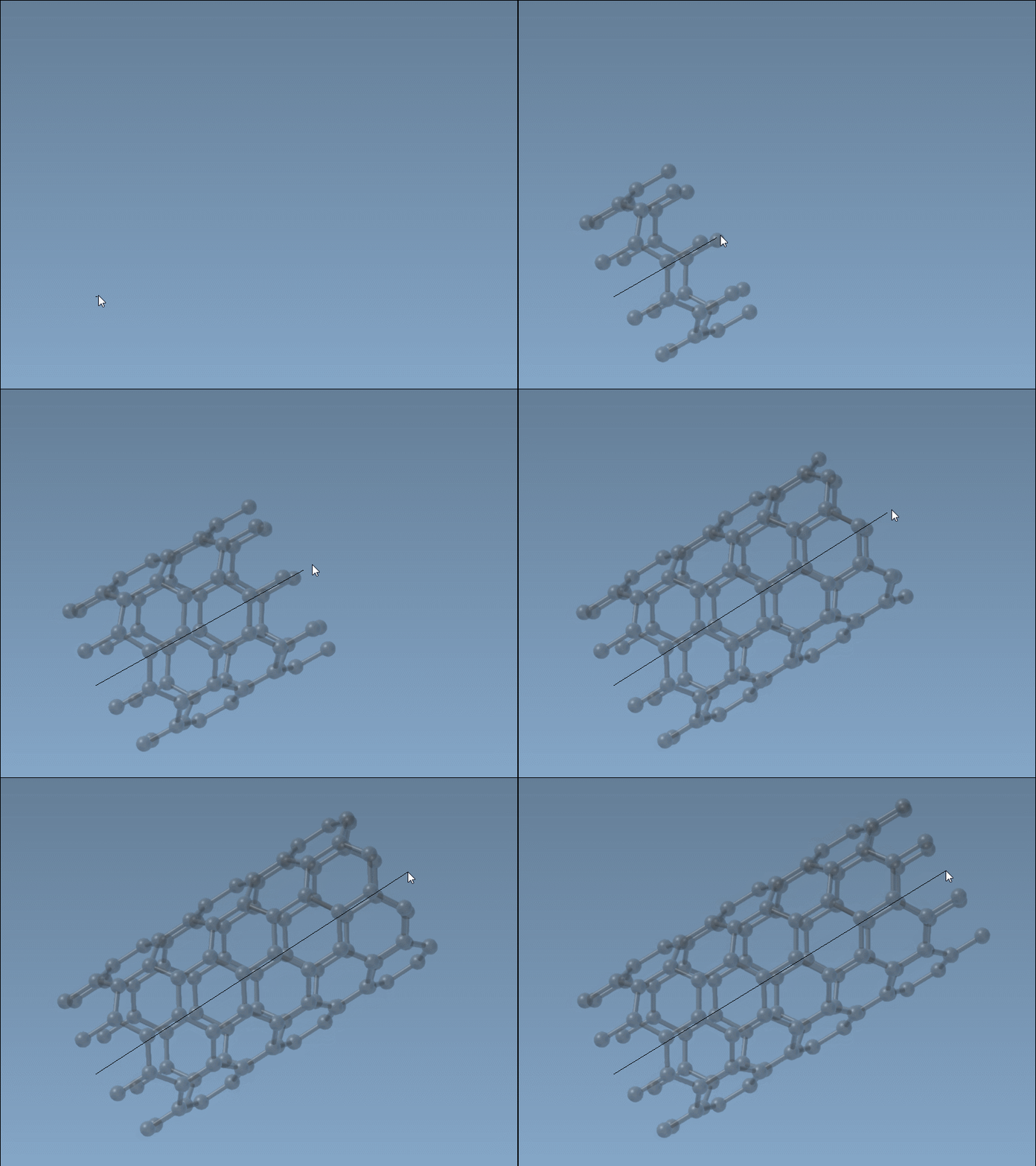
- Adjust the radius:
Once you’ve set the axis, release the mouse button, move your mouse to change the tube’s radius (and the underlyingmparameter), and click again to confirm it.
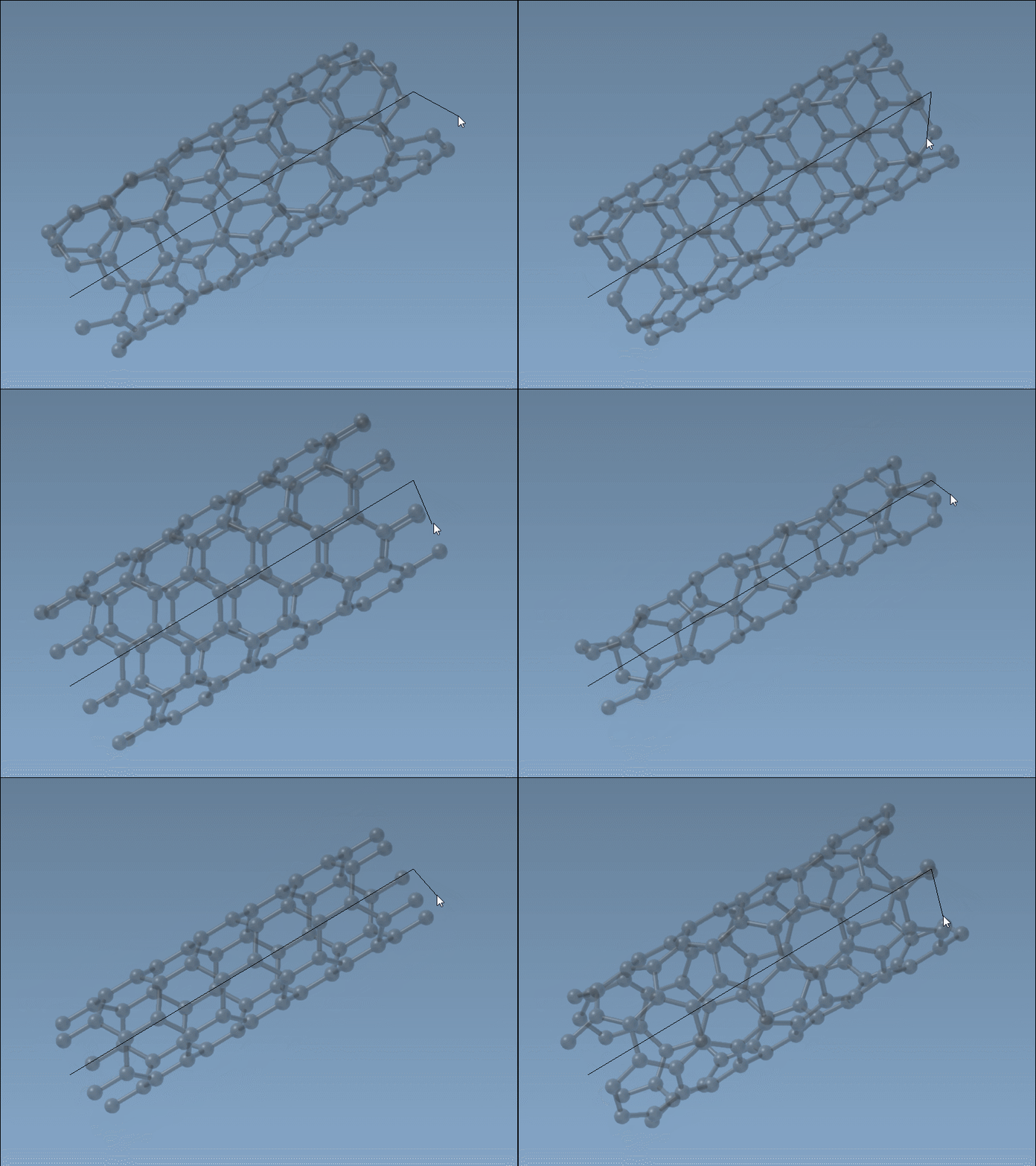
Why Use This Approach?
- Visual feedback: As you build, the status bar shows the current
nandmvalues being generated. This enables you to hit structural targets without trial-and-error parameter guessing. - Faster prototyping: You can quickly sketch out tubes for testing before refining them via the graphical interface or editing tools.
- Spatial control: You define the position and alignment of the CNT manually—useful when docking or integrating with other molecular parts.
Of course, once you have a better idea of the parameters you want, you can always switch to the GUI-based interface to input precise values. The interactive and GUI-based methods in SAMSON complement each other well depending on whether you’re brainstorming or fine-tuning designs.
Advanced Tip 💡
This method is ideal for creating custom nanotube environments for molecular transport or drug delivery simulations, especially when structure-function relationships rely heavily on geometry. Matching dimensions visually instead of guessing parameter sets can save time, especially in early-stage model design.
For more information, including how to export or simulate your CNT designs, visit the full documentation page here:
Build carbon nanotube models – SAMSON Documentation
SAMSON and all SAMSON Extensions are free for non-commercial use. You can download SAMSON at https://www.samson-connect.net.