



For molecular modelers and nanoscientists working with carbon nanotubes (CNTs), setting up accurate atomic models can be a time-consuming and error-prone process. Whether you’re studying transport mechanisms, conducting materials simulations, or designing nanodevices, being able to generate and customize CNTs efficiently can greatly accelerate your workflow.
SAMSON’s Nanotube Creator Extension offers a flexible and intuitive way to create CNTs tailored to a wide range of applications. One useful feature is your ability to define nanotubes by directly manipulating parameters in a graphical interface. Here’s a closer look at how this mode works and can help with detailed modeling.
Why Use a Graphical Interface for CNT Models?
While interactive building modes (e.g., mouse-based drawing) are perfect for quick sketches, simulations usually require precise, reproducible structures. For this reason, SAMSON’s GUI mode within the Nanotube Creator gives you full control over parameters like axis orientation, chirality, and wall structure.
How to Access the Graphical Interface
Once you’ve added the Nanotube Creator extension from SAMSON Connect and restarted SAMSON, activate the extension either from the left menu under Materials > Nanotube Creator or by using the shortcut Shift + E and searching “Nanotube Creator”.
If the GUI isn’t visible immediately, re-select the editor to bring it forward.
Defining the CNT Parameters
The interface allows you to set:
- Start / End Position: Defines the orientation and length of your CNT in 3D space. For example, from
(0, 0, 0)to(40, 0, 0)for a tube 40 Å long along the x-axis. - n / m values: Control the tube’s chirality and radius. These directly determine whether you’re building armchair, zigzag, or chiral structures.
Once parameters are set, click Build to generate the structure.
Create Multi-walled CNTs in Seconds
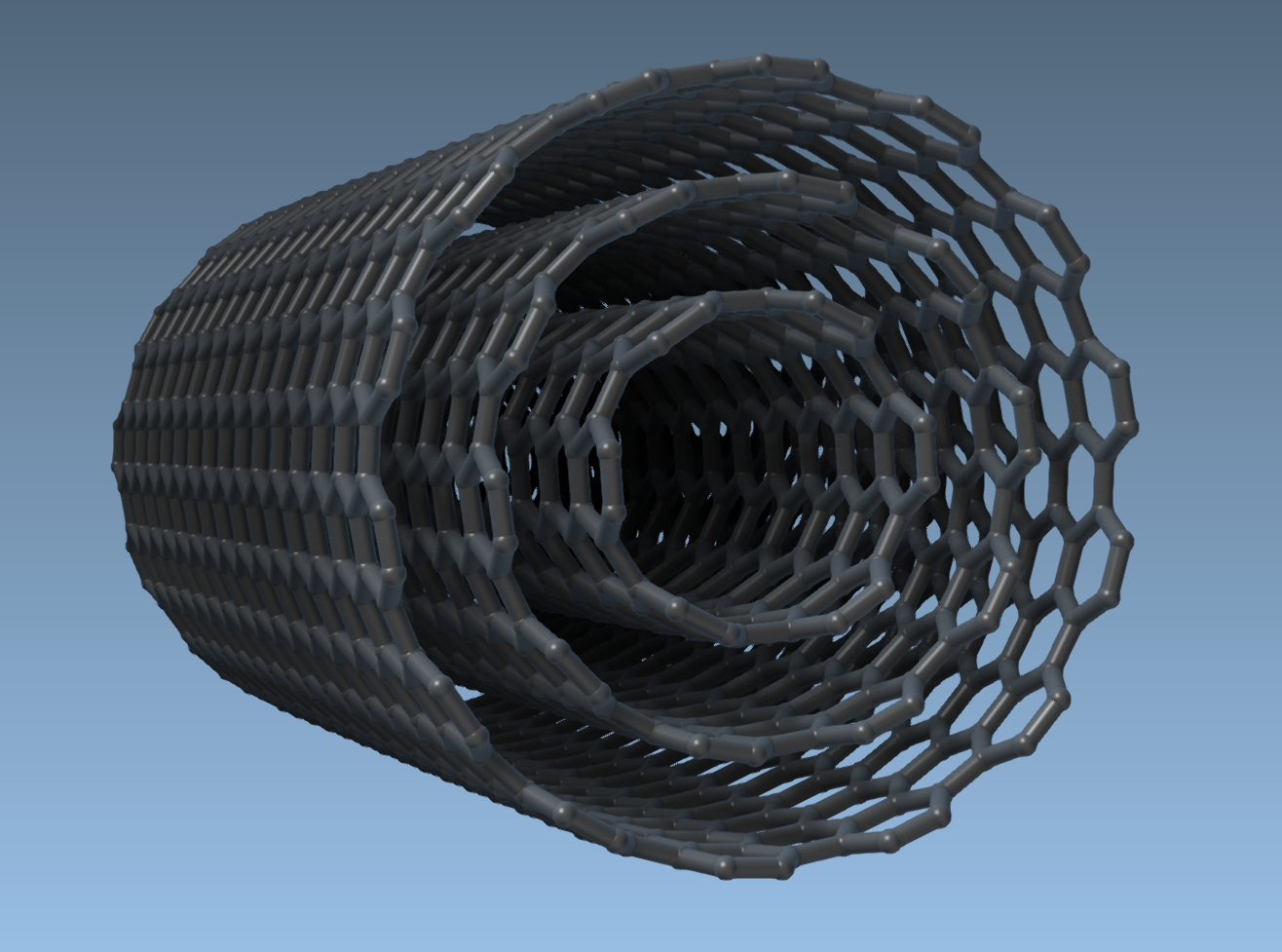
Need multi-walled CNTs? Just repeat the build process with increasing n and m values while keeping the same axis. For example:
- First tube:
n = 6,m = 6 - Second tube:
n = 10,m = 10 - Third tube:
n = 14,m = 14
This builds a 3-layered structure ideal for studying interlayer interactions, mechanical shielding, or composite behavior.
Why It Matters
Building reliable CNTs manually is challenging, especially when aiming for specific radii and orientations. Using SAMSON’s GUI mode not only reduces modeling time but ensures accuracy in geometry — essential for downstream simulations involving mechanical or electronic properties.
Moreover, the GUI helps visualize structure modifications in real-time, so you can experiment with different designs, simulate their behavior, and optimize parameters — all within the same environment.
From Model to Simulation
Once your nanotube is built, you can:
- Simulate CNT behavior using classical potentials like Brenner.
- Integrate with molecules for constructing nanopores or hybrid nanomaterials.
- Export visuals for presentations or publications.
To learn more or explore other creation methods (like interactive building with the mouse), visit the full tutorial here: https://documentation.samson-connect.net/tutorials/nanotubes/building-nanotubes-models/
SAMSON and all SAMSON Extensions are free for non-commercial use. You can get SAMSON at https://www.samson-connect.net.