



For molecular modelers, creating environments such as solvent boxes or lipid membranes around molecular systems can be time-consuming and intricate. The Molecular Box Builder app for SAMSON simplifies this process by enabling users to populate 3D boxes with molecules efficiently. In this blog, we’ll explore how to use this powerful extension to generate solvent boxes step by step, making it easier to proceed with your simulations.
Why Use Molecular Box Builder?
Imagine needing to simulate a protein in an aqueous solution. Manually positioning thousands of water molecules to populate a solvent box is not only tedious but prone to error. With the Molecular Box Builder, this task is automated. It predicts how many molecules can fit in a defined 3D box and inserts them without overlaps, significantly saving time and effort.
Step-by-Step Guide: Building a Solvent Box
1. Set the Molecule to Populate the Box
First, choose the molecule(s) you want to use for populating the box. For instance, if creating a water box, you should have a water molecule in your workspace. Here’s how to set it:
- Select the molecule or molecular system, such as structural groups or atoms, in the Document view or Viewport of SAMSON.
- Open the Molecular Box Builder app via Home > Apps > Assembly > Molecular Box Builder, or use the shortcut Shift + E to search for it.
- Click Set in the app to confirm your choice. SAMSON will analyze the bounding box of the molecule, allowing you to move to the next step.
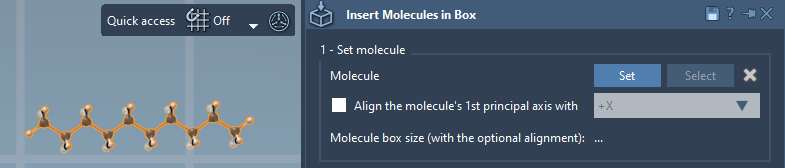
Tip: You can clear the selected molecule at any time by clicking X in the app.
2. Define the 3D Box
Next, define the dimensions of the box and how it is oriented in the SAMSON workspace:
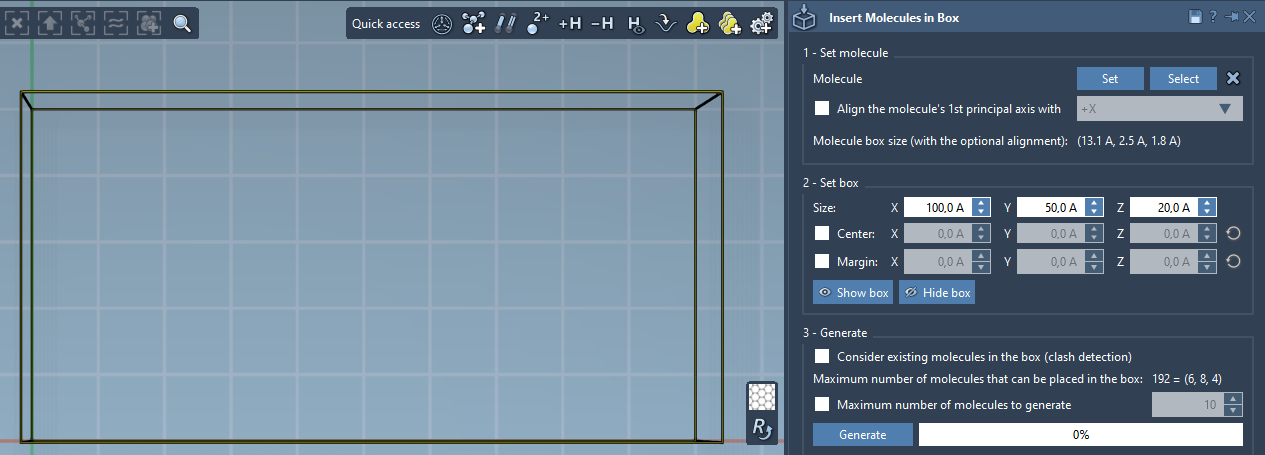
- Enter the box’s dimensions using length, width, and height (
X, Y, Z). - If you want the box centered around a specific point, check Center and input the desired coordinates. By default, the box is aligned with the origin.
- Specify the margin between molecules. A positive margin ensures spacing, while a negative value condenses the molecules.
The app will automatically calculate how many molecules can fit along each axis and display the total number. Adjusting box dimensions or margins updates this prediction dynamically.
3. Generate the System
Once your box is defined, it’s time to populate it with molecules:
- If necessary, limit the number of molecules by checking Maximum number of molecules to generate and entering a cap.
- Click Generate. The app fills the box with non-overlapping copies of your selected molecule. This typically takes only a few seconds, depending on the system’s size.
Here’s an example of a generated box populated with decane molecules:
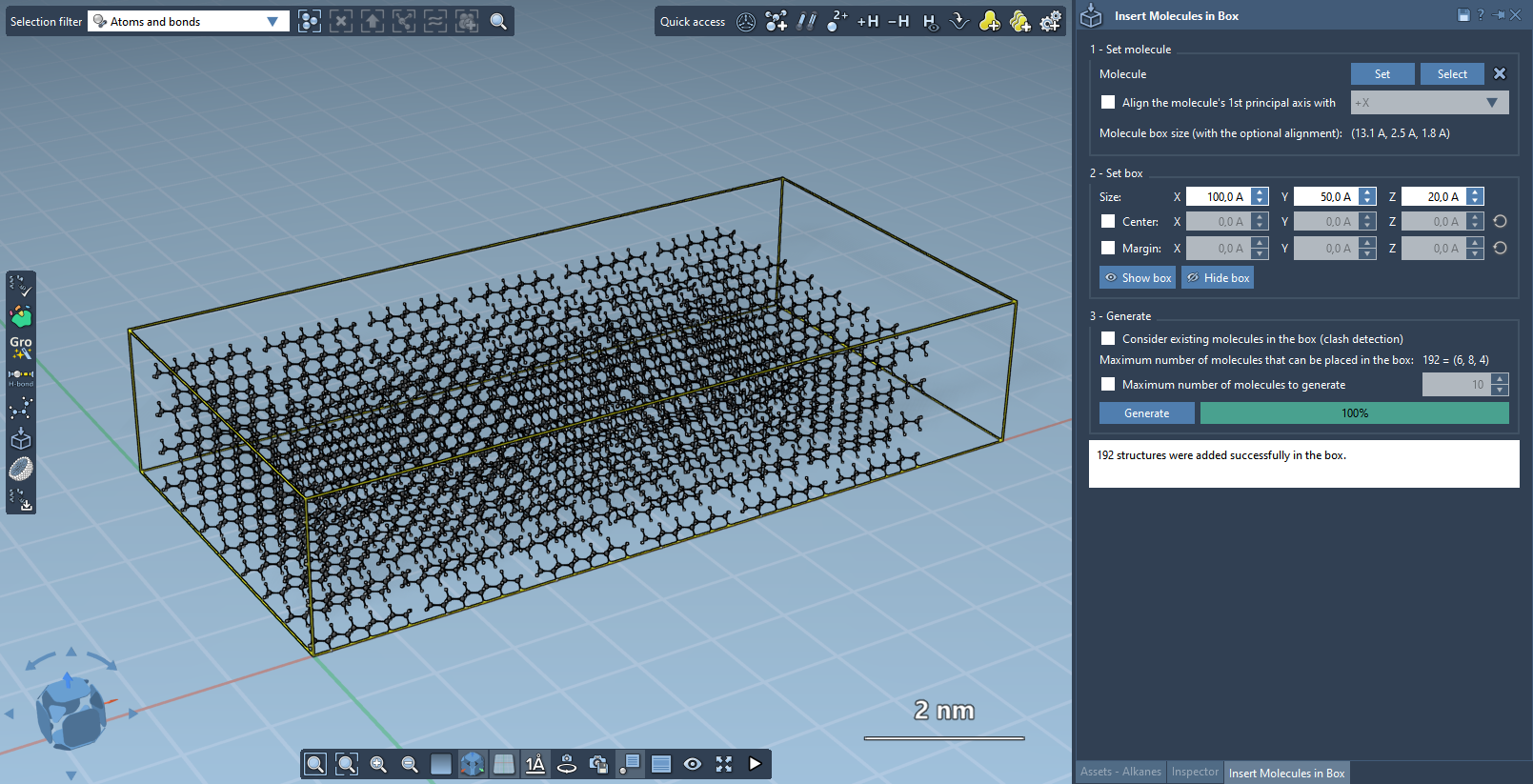
Result: a solvent box filled with your molecule of choice, ready for further processing or simulation.
What’s Next?
After generating your molecular box, you can minimize, equilibrate, and simulate your system with tools like the GROMACS Wizard. By building solvent boxes or similar environments quickly, you free up time to focus on your research rather than setup intricacies.
To learn more about Molecular Box Builder and its extended functionalities, visit the official documentation page.
Note: SAMSON and all SAMSON Extensions are free for non-commercial use. Download SAMSON at https://www.samson-connect.net.