



Molecular modelers often grapple with the challenge of finding stable and realistic structures that align with energy minima. This is where geometry optimization becomes essential. Without refined molecular geometries, simulations risk becoming inefficient or inaccurate. A common bottleneck arises with large systems and collective motions, where traditional algorithms may prove too slow. Thankfully, SAMSON’s FIRE Minimizer (Fast Inertial Relaxation Engine) provides an efficient alternative.
Why Choose the FIRE Minimizer?
The FIRE Minimizer is notable for its speed and versatility. Compared to the widely used steepest descent algorithm, it converges significantly faster, especially for large-scale molecular motions where potential energy changes are minimal, but spatial adjustments remain significant. FIRE is compatible with any interaction model in SAMSON, making it suitable for diverse workflows such as pre-simulation clean-up or structural relaxation.
Step-by-Step: Using the FIRE Minimizer
If you’re new to using the FIRE Minimizer, here’s a practical guide to navigate the process smoothly:
1. Load a Molecular System
Start by loading your molecular structure. SAMSON supports formats like PDB and MOL2, or you can explore other supported formats. To make the effect of the minimization settings more noticeable, it’s advisable to begin with a small test system.
Tip
Check out the Loading Molecules Guide if you need help.
2. Add a Simulator
Once your system is loaded:
- Navigate to Edit > Add Simulator.
- Choose the desired interaction model.
- Under State Updaters, select FIRE from the list.
Tip
Need help with simulators? Visit the Simulators Overview for more details.
Fine-Tuning: Key FIRE Minimizer Settings
To optimize the FIRE Minimizer for a specific task, it helps to adjust its settings:
| Setting | Description |
|---|---|
| Step size | Defines the initial integration step for minimization. Smaller steps may increase precision but reduce speed. |
| Steps | Determines the number of FIRE steps between updates. Increasing this value means fewer, but more pronounced, updates in the viewport. |
| Fixed | Enforces a constant step size for optimization if required. |
If you manually move atoms during minimization and notice unwanted effects, simply press Reset to clear the optimization history. This ensures fresh minimization calculations.
FIRE vs. Steepest Descent: A Comparison
To better understand FIRE’s advantages, consider its efficiency compared to the steepest descent method. While steepest descent can handle energy changes iteratively, its pace slows significantly during intricate collective motions. By contrast, FIRE significantly accelerates convergence in these situations.
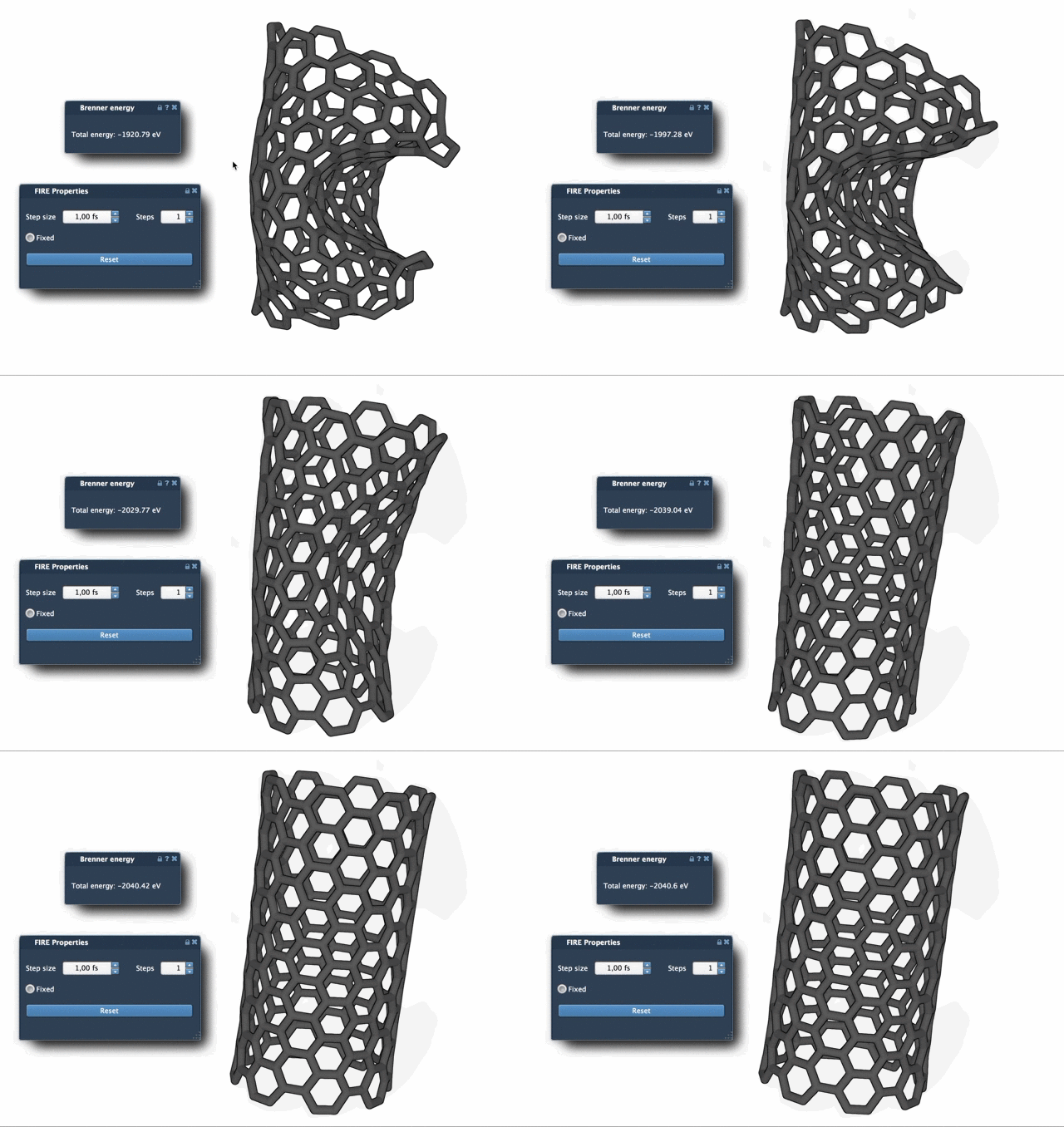
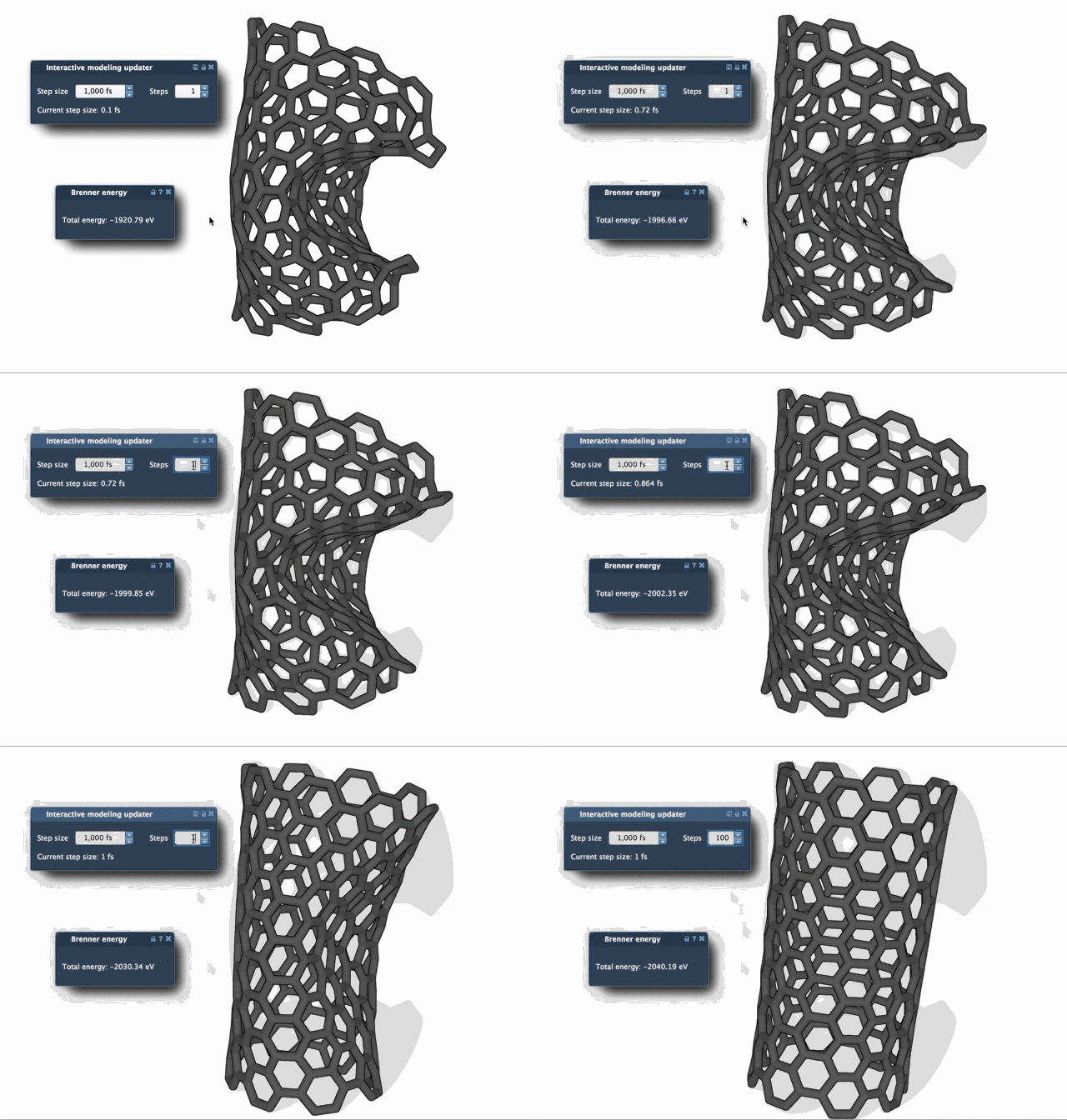
To further emphasize the FIRE minimizer’s effectiveness, you can increase the Steps parameter to make the progress of the updates more visually apparent.
Ready to Get Started?
By leveraging the FIRE Minimizer in SAMSON, you can refine molecular geometries more effectively, accelerate your workflows, and ensure accurate results for your simulations.
If you’re interested in exploring more detailed instructions and applications of the FIRE Minimizer, visit the official FIRE Minimizer Documentation Page.
SAMSON and all SAMSON Extensions are free for non-commercial use. Get started today by downloading SAMSON from SAMSON Connect.