



Why Relaxing Transition Paths Matters
Molecular modelers often face the challenge of resolving biologically or chemically significant transition states between different conformations or structures. These transitions, though critical to understanding molecular behavior, tend to start from rough, physically ambiguous paths that lack realism. This is where the Parallel Nudged Elastic Band (P-NEB) method in SAMSON becomes an invaluable tool.
In this blog post, we will explore a step-by-step approach to optimizing transition paths using P-NEB, a method designed to refine rough pathways into smooth, physically meaningful transitions.
What is P-NEB?
The P-NEB app in SAMSON is a powerful extension that enables users to relax and refine a set of conformations or a transition path into a realistic trajectory. It works using the nudged elastic band method, maintaining evenly distributed states with spring forces while optimizing intermediate conformations.
For example, you can use P-NEB to analyze the transition pathway of a ligand unbinding from a protein, an essential step in drug discovery workflows. P-NEB ensures the final path is not only physically accurate but retains its significance for further analysis, such as free energy computations or visualization.
Setting Up: Before You Start
Here’s everything you need before embarking on transition path optimization:
- Install the P-NEB Extension from the SAMSON Connect platform.
- Install the FIRE (Fast Inertial Relaxation Engine) state updater extension for molecular minimization.
- Ensure you have imported a candidate path or a group of conformations into SAMSON. You can use available sample data, such as Zinc ligand unbinding trajectory or lactose permease unbinding data.
These datasets are available in the Home > Download section of SAMSON or can be found in the related documentation link provided below.

How to Use the P-NEB App
Follow these steps to refine your transition paths:
-
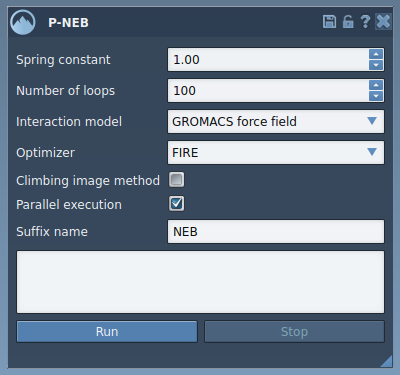
Open the P-NEB app: Navigate to Home > Apps > All > P-NEB. Alternatively, use the “Find everything…” search box.
-
Configure the P-NEB settings: Fine-tune essential parameters, such as:
- Spring constant: Determines the spring force. A typical value is 1.00.
- Optimizer: Choose “FIRE” to optimize molecular states.
- Parallel execution: For faster performance, enable parallel execution.
- Suffix: Choose a tag to distinguish the optimized paths, such as “NEB.”
-
Run the optimization: Click the Run button to begin the refinement process. During the computation, progress is displayed in the status bar:

Once finished, the optimized path or conformations will appear in the Document view for further inspection and analysis:

Tips for High-Efficiency Modeling
Although P-NEB can operate on both paths and conformations, prioritizing paths can save computational effort. If your input only includes conformations, you can convert them to a path by right-clicking on the selected conformations and choosing Conformation > Create path from conformations in the SAMSON interface.
Conclusion
The P-NEB app in SAMSON provides molecular modelers with an efficient, dependable way to refine rough transition paths into physically meaningful trajectories. With straightforward settings and parallel computing capabilities, it is a user-friendly solution to a common challenge in molecular modeling. Whether you’re working on ligand binding or protein conformational changes, P-NEB helps bring clarity to transition states.
For a detailed step-by-step guide and additional insights, visit the official documentation page here: Learn more.
Note: SAMSON and all SAMSON Extensions are free for non-commercial use. Get SAMSON at SAMSON Connect.