



Preparing molecular modeling simulations often requires generating precise input files that include the movement of specific atoms or groups of atoms along paths. This can be time-consuming and prone to errors. Did you know you can significantly simplify this process using the Export Along Paths extension in SAMSON?
The Export Along Paths extension allows you to export atomic coordinates along defined paths, whether for all atoms or a customizable subset. These paths can then be used in reaction coordinate studies, free energy calculations, or trajectory analysis workflows. Let’s dive into how to use this feature effectively and tackle common molecular modeling challenges.
Why Exporting Trajectories Matters
When working on ligand unbinding studies or protein transition analyses, researchers often need the exact movements of specific atoms or molecules along computed paths. For example, extracting the trajectory of a ligand as it exits a binding pocket is crucial for generating reaction coordinate files and performing free energy profiling. Without an efficient tool, manually preparing these files can be tedious and prone to mistakes.
Step-by-Step: How to Export Atom Trajectories
The Export Along Paths extension makes exporting atomic trajectories an intuitive process. Here’s a step-by-step guide to get you started:
Load a Sample System
To practice, begin by loading the structural model of Lactose permease (PDB code: 1PV7) with its ligand, Thiodigalactosid (TDG), and pre-generated unbinding paths. Follow these steps:
- Click on Home > Download in SAMSON.
- Paste the URL: https://www.samson-connect.net/documents/046f1acd-c799-40f6-8185-cb4847eff795, then click Download.

This document contains the protein structure, ligand, and two pre-defined paths for unbinding the ligand, simplifying your learning process.
Open the Export Along Paths App
Access the app via Home > Apps > All > Export Along Paths, or type Shift + E in the “Find everything…” bar. The app’s interface makes it easy to manage and export paths.
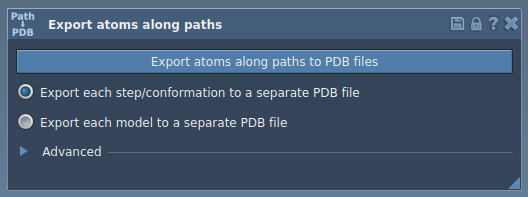
Two Export Options
The extension supports two primary options for exporting:
Option 1: Export All Atoms
- Select one or more paths in the Document view.
- Choose an export format:
- All frames in a single PDB file.
- Each frame as a separate PDB file.
- Click Export atoms along paths to PDB files, then specify a destination folder and file prefix.
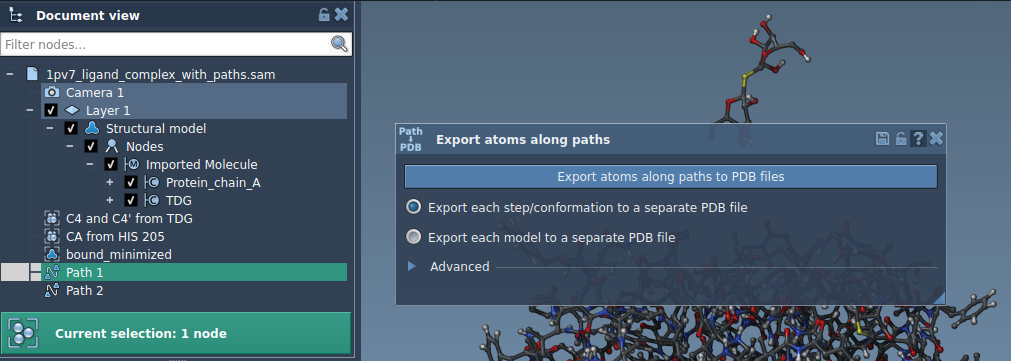
Option 2: Export a Subset of Atoms
If you need the trajectory of a specific molecule, such as the ligand TDG, here’s what to do:
- Expand the Advanced panel in the app interface.
- Select the molecule in the Document view, then click Add in the app to define it as a model for export.
- Customize the export settings, including renaming the model or adding additional atom subsets.
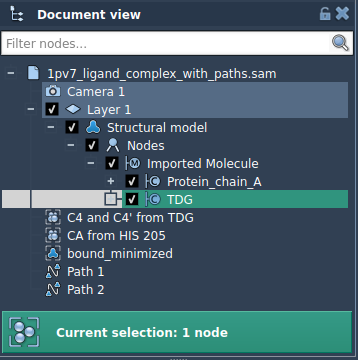
Once models are added, proceed to export the coordinates by selecting paths and choosing the desired output format (single or multiple PDB files).
Applications in Molecular Modeling
The ability to export atom trajectories along defined paths has multiple applications:
- Streamline the generation of reaction coordinate files.
- Export ligand trajectories for enhanced sampling techniques.
- Generate intermediate states for simulations and visualizations.
- Work specifically with defined atomic subsets, like binding sites or ligand molecules.
Learn More
If you’re ready to incorporate this efficient tool into your workflow, head over to the detailed tutorial for the Export Along Paths extension: Export Atom Trajectories Along Paths.
Note: SAMSON and all SAMSON Extensions are free for non-commercial use. Download SAMSON at https://www.samson-connect.net.