



Working on complex molecular systems often means jumping back and forth between different parts of a structure—ligands, receptors, water molecules, or specific chains. Manually reselecting these parts again and again is time-consuming and can break your flow.
That’s where Quick Groups in SAMSON come in. Quick Groups let you rapidly store, recall, and switch between selections using simple keyboard shortcuts. If you regularly work with large biomolecular assemblies, this feature can streamline your workflow and help you avoid repetitive clicks.
What Are Quick Groups?
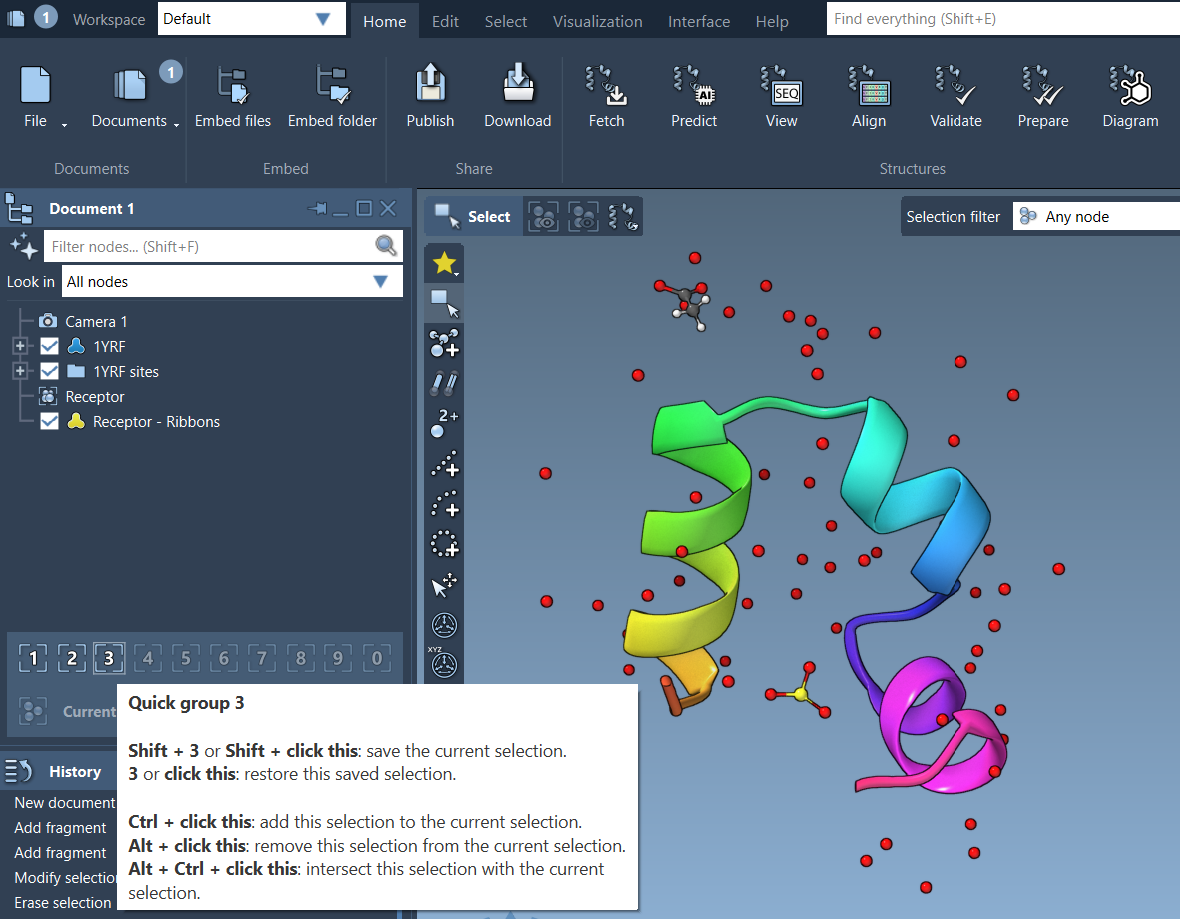
Quick Groups are temporary, unnamed selection slots that appear in the lower section of the Document View. They store references to your selected nodes (atoms, residues, molecules, etc.) and can be used to quickly recall these selections with the push of a button.
This is especially useful when:
- You want to toggle quickly between multiple regions of a protein complex.
- You’re applying visual changes, running analyses, or preparing simulations.
- You’re demonstrating different molecule parts in a teaching session.
How to Use Quick Groups
Step 1: Select Your Nodes
Start by selecting a set of nodes in the viewport or in the Document View (e.g., by using rectangle selection or node filtering).
Step 2: Assign to a Quick Group
You have two easy options for assigning:
- Mouse method: Hover over a Quick Group slot in the Document View and press Shift + click.
- Keyboard method: Press Shift + number key (e.g., Shift + 2) to assign the selection to Quick Group 2.
Step 3: Switch Between Selections
- Press 1, 2, 3, etc., to re-select the corresponding Quick Group.
- Double press a number key (e.g., 1 + 1) to center the camera on that selection.
- Click a Quick Group icon in the Document View directly.
This feature works similarly to control groups in strategy games—if you’ve used those before, the experience will feel familiar 🧠
Example Workflow
- Select a ligand in your structure and assign it to Quick Group 1.
- Select the receptor and assign it to Quick Group 2.
- Select the water molecules and assign to Quick Group 3.
- Use keys 1, 2, and 3 to toggle between them for analysis or visualization.
This way, you can always return to each region with one click—no need to redraw selections or open menus.
Notes
- You can store up to 10 quick groups (1–0).
- Quick Groups are session-based and temporary. For permanent organization, use named groups instead.
- Selections in Quick Groups can be instantly combined with other tools like visual models, interaction measurements, or export options.
If you’re working frequently with repeating selections, Quick Groups are worth integrating into your SAMSON routine. You’ll spend less time clicking—and more time modeling. 😌
To learn more, visit the full selection documentation here: https://documentation.samson-connect.net/users/latest/selecting/
Note: SAMSON and all SAMSON Extensions are free for non-commercial use. You can get SAMSON at https://www.samson-connect.net.