



For molecular modelers, the ability to analyze atomic movements along defined paths is essential for tasks like reaction coordinate studies, free energy calculations, and pathway visualization. Extracting such trajectory data, however, can often feel cumbersome due to inadequate tools or complex workflows. Luckily, SAMSON’s Export Along Paths extension alleviates this pain by offering a streamlined method to export atom trajectories efficiently for further analysis or simulation workflows. In this blog, we dive into how to leverage this tool and extract high-value trajectory data with ease.
Why Use Atom Trajectory Exports?
In molecular modeling, the movement of atoms along a defined path can reveal crucial insights, such as:
- Reaction coordinates for profiling free energy changes.
- Ligand and protein pathways for drug discovery efforts.
- Visualization of intermediate states during molecular transitions.
The SAMSON Export Along Paths extension enables you to easily export this data, either for all atoms in your model or specific subsets, offering flexibility for diverse use cases.
Step-by-Step: Export Atom Trajectories
Let’s explore how to utilize this tool effectively in SAMSON:
Step 1: Load Your Molecular System
Begin by loading a sample system or your project:
- Navigate to Home > Download.
- Paste the sample system link provided in the documentation.
- Click Download to load the model. For example, the sample tutorial uses Lactose permease with its ligand Thiodigalactosid and unbinding paths generated with the Ligand Path Finder.

Step 2: Open the Export Along Paths App
To access the app:
- Go to Home > Apps > All > Export Along Paths.
- Alternatively, locate it through the Find everything… shortcut (Shift + E).
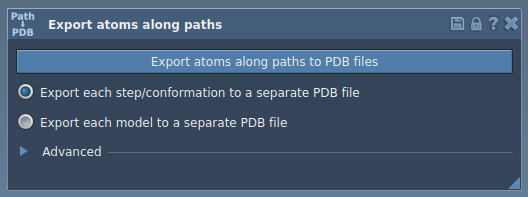
Step 3: Choose Your Export Mode
The app offers two export approaches, suitable for different analysis needs:
Option 1 – Export All Atoms
- Select one or more paths in the Document view.
- Choose your preferred export mode:
- All frames in a single PDB file.
- Each frame as a separate PDB file.
- Click Export atoms along paths to PDB files.
- Specify a destination folder and file prefix.
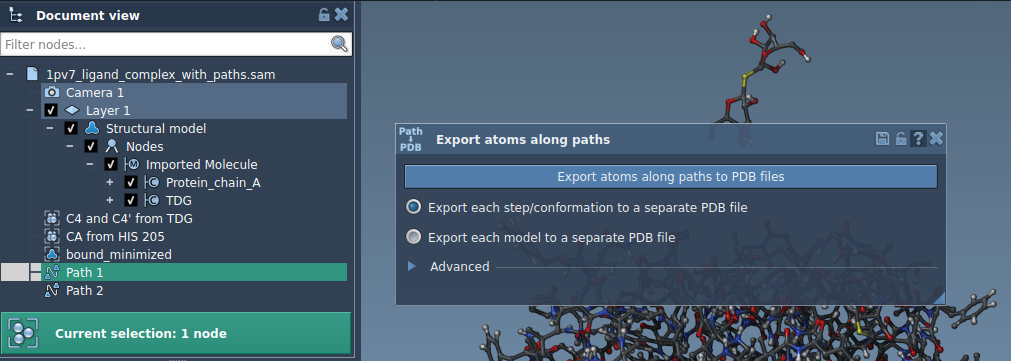
If needed, adjust frame intervals by expanding the Advanced section.
Option 2 – Export a Subset of Atoms
- Open the Advanced panel and select a subset of atoms, such as a ligand.
- Click Add to define this group as a model for export.
- Repeat if needed for additional atomic groups.
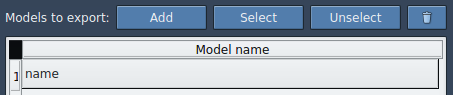
When ready, choose the export format, select the relevant path(s), and click Export atoms along paths to PDB files.
Practical Applications
The flexibility of the Export Along Paths extension supports a wide range of tasks:
- Preparing files for free energy profiling.
- Studying ligand entry or exit pathways.
- Visualizing intermediate states in molecular transitions.
- Exporting targeted atom subsets, like ligands or binding sites.
Learn More
Ready to enhance your molecular design workflow? Visit the full tutorial for detailed guidance: Export atom trajectories along paths.
Note: SAMSON and all SAMSON Extensions are free for non-commercial use. Get SAMSON now at SAMSON Connect.