



As a molecular modeler, one of the recurring challenges is efficiently analyzing reaction coordinates or studying ligand pathways. This often requires exporting atom trajectories from specific paths in your molecular models. Good news! SAMSON’s Export Along Paths extension offers an intuitive workflow to tackle this with ease, allowing you to focus on diving deep into your simulations and data.
This article will guide you through exporting atomic trajectories along predefined paths in SAMSON—an essential step for free energy profiling, reaction coordinate studies, and beyond. Let’s explore how this powerful feature can make your workflows smoother.
Why Export Atom Trajectories?
For many modeling scenarios, you need precise atom coordinates along defined paths. For instance:
- Generating reaction coordinate files for free energy profiling.
- Visualizing ligand exit or entry trajectories.
- Inspecting intermediate states during transitions.
- Focusing on specific subsets of atoms, like a ligand or a binding site.
The Export Along Paths extension in SAMSON is specifically designed for such purposes, enabling you to export paths for later analysis or simulation workflows with just a few clicks.
Getting Started
Here’s how you can quickly start exporting trajectories:
- Add the Export Along Paths Extension from SAMSON Connect and restart SAMSON.
- Load your sample molecular system or predefined paths.
- Open the Export Along Paths app using Home > Apps > All > Export Along Paths, or simply use the shortcut (Shift + E).

Exporting Atom Trajectories—Step by Step
Once you open the app, you’ll have two main options for exporting trajectories:
Option 1: Export All Atoms
- Select the desired path(s) in the Document view.
- Choose your export mode:
- All frames saved in a single PDB file.
- Each frame saved as a separate PDB file.
- Click Export atoms along paths to PDB files.
You’ll be prompted to select a destination folder and file prefix. Optionally, use the Advanced section to adjust frame export intervals.
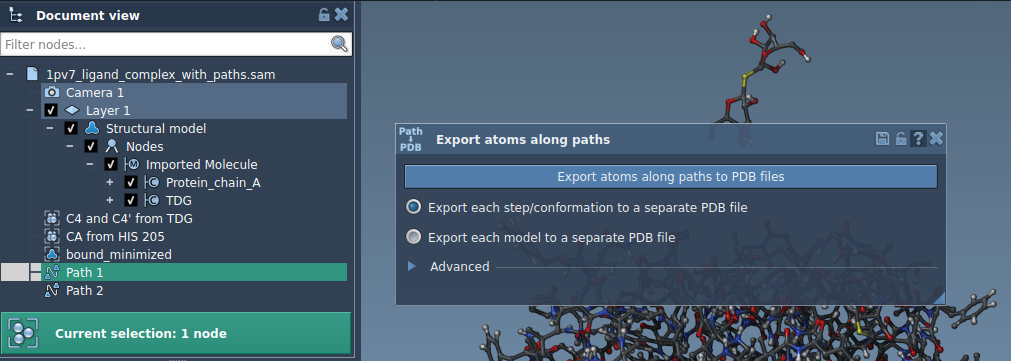
Option 2: Export a Subset of Atoms
If you want to focus on a specific subset of atoms (like a ligand), follow these steps:
- Expand the Advanced panel in the app.
- Select the subset in the Document view (e.g., ligand
TDG).
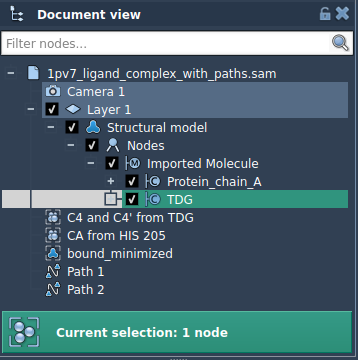
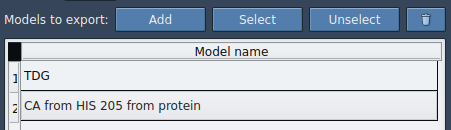
- Click Add to define the subset as a model to export.
After adding a named model, you can rename it, add multiple sets of atoms, or easily manage inclusions using the provided interface. When ready, Export atoms along paths to PDB files just like in Option 1.
Practical Applications
Here are a few key use cases where exporting trajectories shines:
- Creating input files for free energy calculations or enhanced sampling techniques.
- Inspecting and documenting ligand unbinding or transition paths.
- Outputting intermediate structural states for detailed visualization.
Once your files are exported, you can incorporate them into your analysis or simulations to extract meaningful insights from your data.
Learn More
For detailed steps and additional context, visit the official documentation page. Mastering the Export Along Paths feature will save you time and effort in capturing meaningful dynamics from your molecular models.
SAMSON and all SAMSON Extensions are free for non-commercial use. Start exploring SAMSON by downloading it from SAMSON Connect.