



Molecular modelers often face the challenge of efficiently optimizing transition paths between two states of a system. These paths are crucial for understanding molecular mechanisms, such as ligand binding or unbinding, conformational changes, and catalytic processes. However, generating a realistic transition path that balances physical accuracy with computational efficiency can be a daunting task. This is where the Parallel Nudged Elastic Band (P-NEB) app in SAMSON comes into play.
The P-NEB app is a powerful tool in the SAMSON platform designed to refine pre-existing, rough transition paths or sets of conformations into physically meaningful trajectories. By applying the Nudged Elastic Band (NEB) methodology, it optimizes intermediate conformations while maintaining an even distribution of states along the path, achieved via spring forces. Importantly, this tool also supports parallel execution, reducing computational time significantly when working with larger datasets.
When Should You Use P-NEB?
The P-NEB app is ideal for optimizing paths between relaxed states obtained using other SAMSON tools, such as the FIRE minimizer. For instance, if you’ve generated a crude sequence of conformations through linear interpolation or the Ligand Path Finder, P-NEB takes over to refine the path. However, it’s essential to note that P-NEB is meant for improving existing paths, not creating them from scratch.
How to Use P-NEB for a Path
To begin, ensure that you have added the P-NEB extension to your SAMSON environment, along with any required state updaters, like the FIRE minimizer. Then, load or create an initial transition path.
Next, follow these steps:
- Open the P-NEB App via Home > Apps > All > P-NEB.
- Configure the app settings, including the spring constant, the number of optimization loops, and the interaction model. For example, you might set the spring constant to 1.00, the loops to 100, and choose “Universal Force Field” as the interaction model.
- Optionally, enable the climbing image method for finding saddle points and/or parallel execution for faster computation. (The climbing image method can be activated later if needed.)
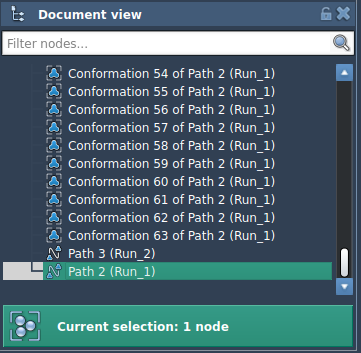
- Select your initial path in the Document view, then click Run to start the computation.
The progress of the computation appears in SAMSON’s status bar, and a summary is provided upon completion. The refined path is then added to the Document view, enabling further inspection and utilization:

Prefer Using Paths Over Conformations
If your starting data consists of individual conformations, consider combining them into a path. Applying P-NEB directly to a pre-defined path is computationally more efficient than refining a loosely connected set of conformations. To achieve this, select conformations in your Document view and use the context menu option Conformation > Create path from conformations.
Explore and Build on Your Results
Once your path is optimized, explore it further using SAMSON’s Inspector or animation tools. Double-clicking a path enables you to animate and dynamically observe the transition. You can also integrate the optimized path into energy simulations or free-energy calculations to gain deeper insights into your molecular system’s behavior.
For further guidance, refer to the official documentation: https://documentation.samson-connect.net/tutorials/pneb/optimize-transition-paths-with-parallel-nudged-elastic-band/.
Note: SAMSON and all SAMSON Extensions are free for non-commercial use. Download SAMSON today at https://www.samson-connect.net.