



Carbon nanotubes (CNTs) have become an invaluable resource in the fields of molecular design, nanotechnology, and materials science. Their unique properties make them essential for building nanodevices, studying electronic properties, or even simulating molecular transport systems. However, designing accurate CNT models efficiently can be a challenge without the right tools. That’s where SAMSON’s Nanotube Creator Extension comes into play.
This blog post will guide you through creating single-walled and multi-walled CNTs in SAMSON—an essential task for researchers and modelers in molecular design—all while addressing common hurdles in CNT modeling.
Why should you use the Nanotube Creator?
Designing CNTs from scratch manually often involves labor-intensive processes, from defining chirality vectors (n and m parameters) to configuring lengths, radii, and spatial orientation. The Nanotube Creator Extension in SAMSON streamlines this process with interactive tools and graphical interfaces, providing greater precision and efficiency.
Here’s how SAMSON can revolutionize your CNT modeling experience:
- Save time by interactively building tubes directly in the viewport.
- Quickly adjust parameters such as axis length and tube radius.
- Fine-tune details to create multi-walled nanotubes with ease.
- Visualize and model nanostructures for downstream molecular simulations.
Interactive Nanotube Creation
The intuitive interactive workflow for CNT creation is designed to help you build models effortlessly. Here’s a step-by-step guide:
-
Set the axis and length: Activate the Nanotube Creator from SAMSON’s left-side menu (… > Materials > Nanotube Creator) or by searching “Nanotube Creator” using Shift+E. Then, press and drag the left mouse button in the viewport to define the axis orientation and tube length. The status bar provides live feedback:
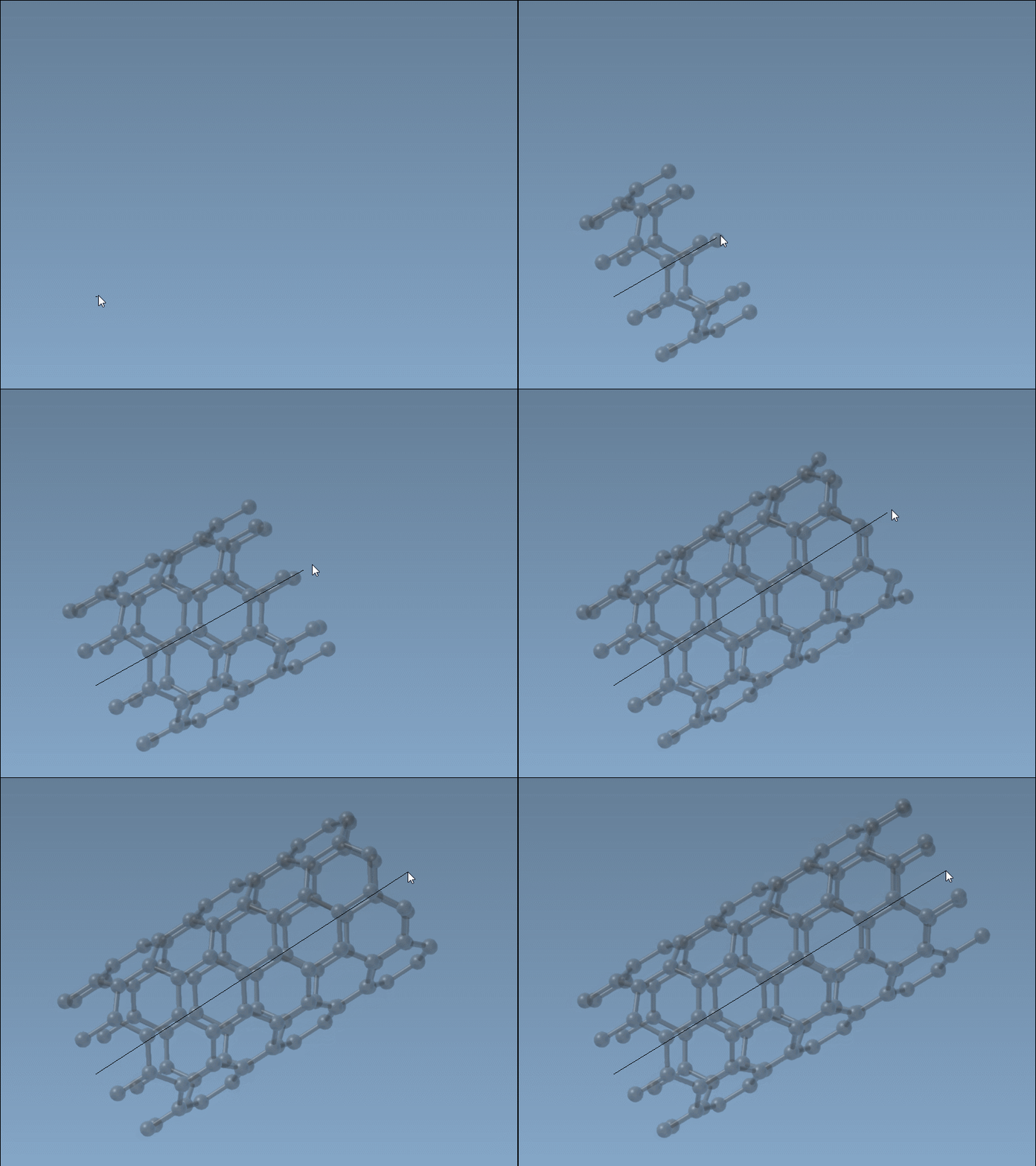
-
Set the radius: Release the left mouse button, then move your mouse to adjust the tube’s radius. Click again to confirm. The radius corresponds to the
mparameter of the chiral vector.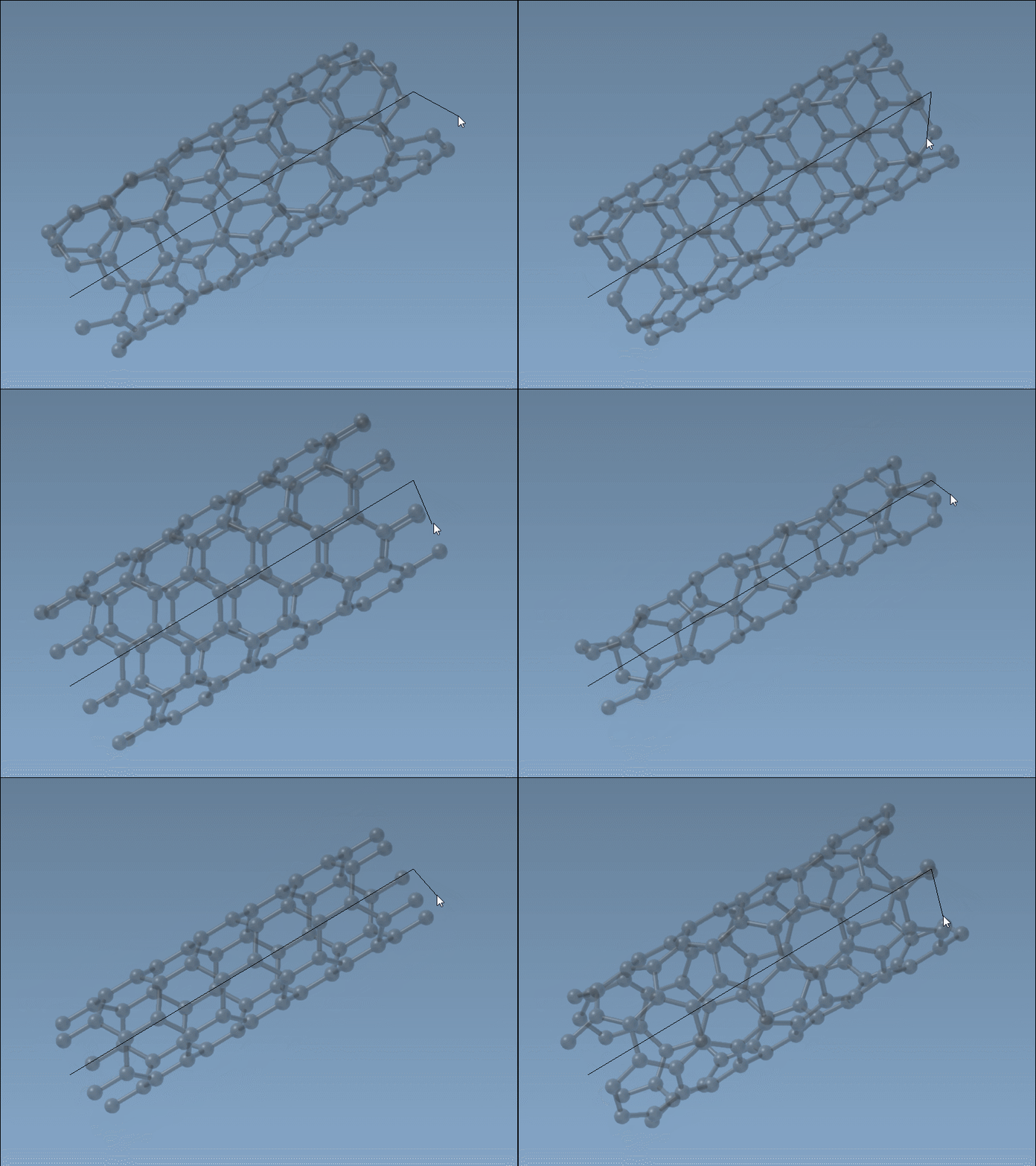
Using live visual and numeric feedback in the status bar, you can achieve precise control over key parameters when building nanotubes interactively.
For Those Seeking More Control: The GUI
If greater precision is required, the Nanotube Creator’s graphical interface (GUI) is the ideal solution. Activating the editor automatically displays a dedicated area for controlling parameters like start/end positions and n/m values. The GUI provides specific options, such as multi-layer nanotube configurations, with just a few clicks.
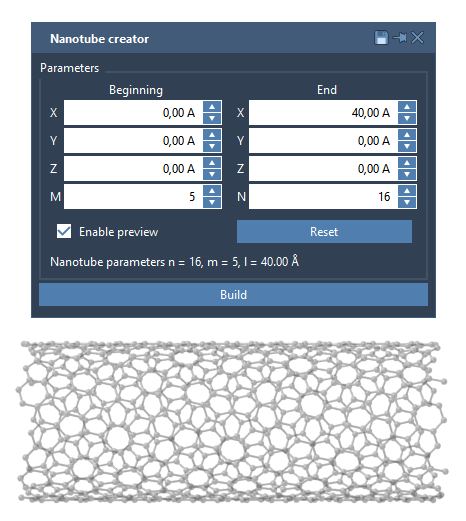
For instance, to create a multi-walled CNT:
- Set the start/end positions in 3D (
(0,0,0)to(40,0,0)for a length of 40 Å). - Define chiral parameters for individual layers and click Build. For example:
n = 6,m = 6n = 10,m = 10n = 14,m = 14
The resulting structure will consist of three concentric nanotubes:
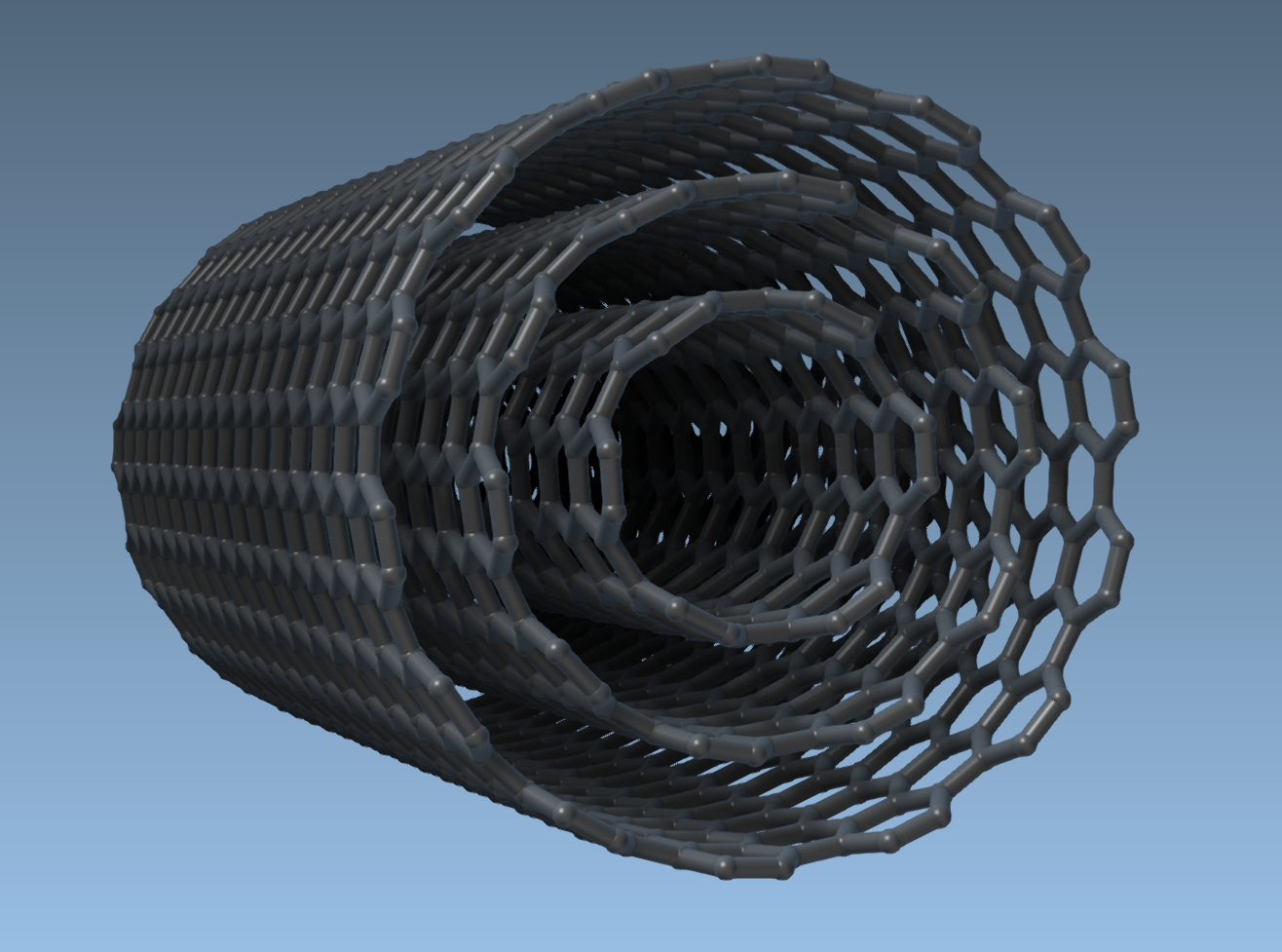
Broader Applications of CNT Models
Once created, CNTs can be used in diverse contexts, such as:
- Building CNT-based nanodevices.
- Exploring mechanical, electronic, and thermal properties for materials science.
- Simulating molecular transport through CNT-based membranes.
- Designing hybrid nanostructures by combining CNTs with other molecules.
Whether you’re modeling drug delivery systems or designing nanoelectromechanical systems (NEMS), the Nanotube Creator will simplify your work by producing accurate and customizable molecular models.
For a deeper dive into the Nanotube Creator and its features, visit the original documentation page: https://documentation.samson-connect.net/tutorials/nanotubes/building-nanotubes-models/.
Note: SAMSON and all SAMSON Extensions are free for non-commercial use. Get SAMSON today at https://www.samson-connect.net.