



For molecular modelers, exploring analogue series to study variations in chemistry can be a tedious process. Wouldn’t it be convenient to quickly replace or attach atoms or groups in a molecule based on patterns, and immediately visualize the results? With SAMSON’s Positional Analogue Scanning feature in the SMILES Manager, this process becomes streamlined, enabling efficient analog exploration for your research.
This blog uses one specific sub-process—replacing or attaching atoms or groups in a molecule based on a searched pattern—to elucidate how to make quick and informed molecular modifications using a powerful combination of SAMSON and SMARTS pattern recognition.
Why Pattern-Based Replacement?
Modelers often need to analyze how structural modifications in a molecule affect interactions with targets, docking performance, or other properties. The old ways of manually editing structures can be painstakingly slow, prone to user error, and visually overwhelming. By defining specific patterns using SMARTS (SMiles ARbitrary Target Specification), you can automate this process while maintaining precise control over your changes.
Step 1: Define Your Pattern
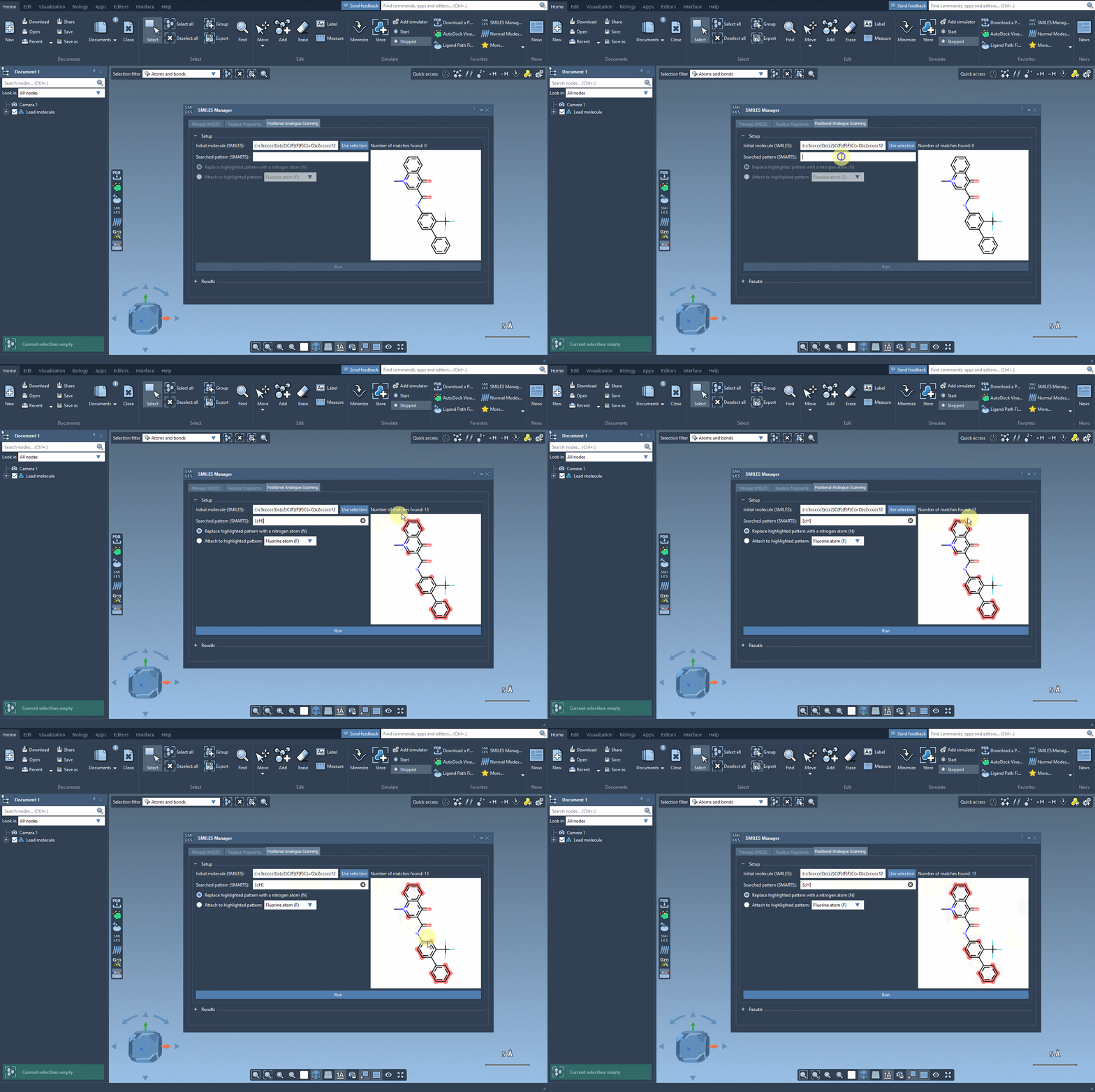
Start by identifying the pattern in your molecule to replace or modify. As an example, suppose you want to work with aromatic carbon atoms. Using the SMARTS code [cH], the SAMSON interface can spotlight all instances of this pattern in your molecule. This precise search ensures that you target only the areas in need of modification. Below, a gif demonstrates the simplicity of defining and visualizing these patterns:
Step 2: Replace or Attach Groups
Once your pattern is highlighted, decide what modifications you’d like to make. For instance:
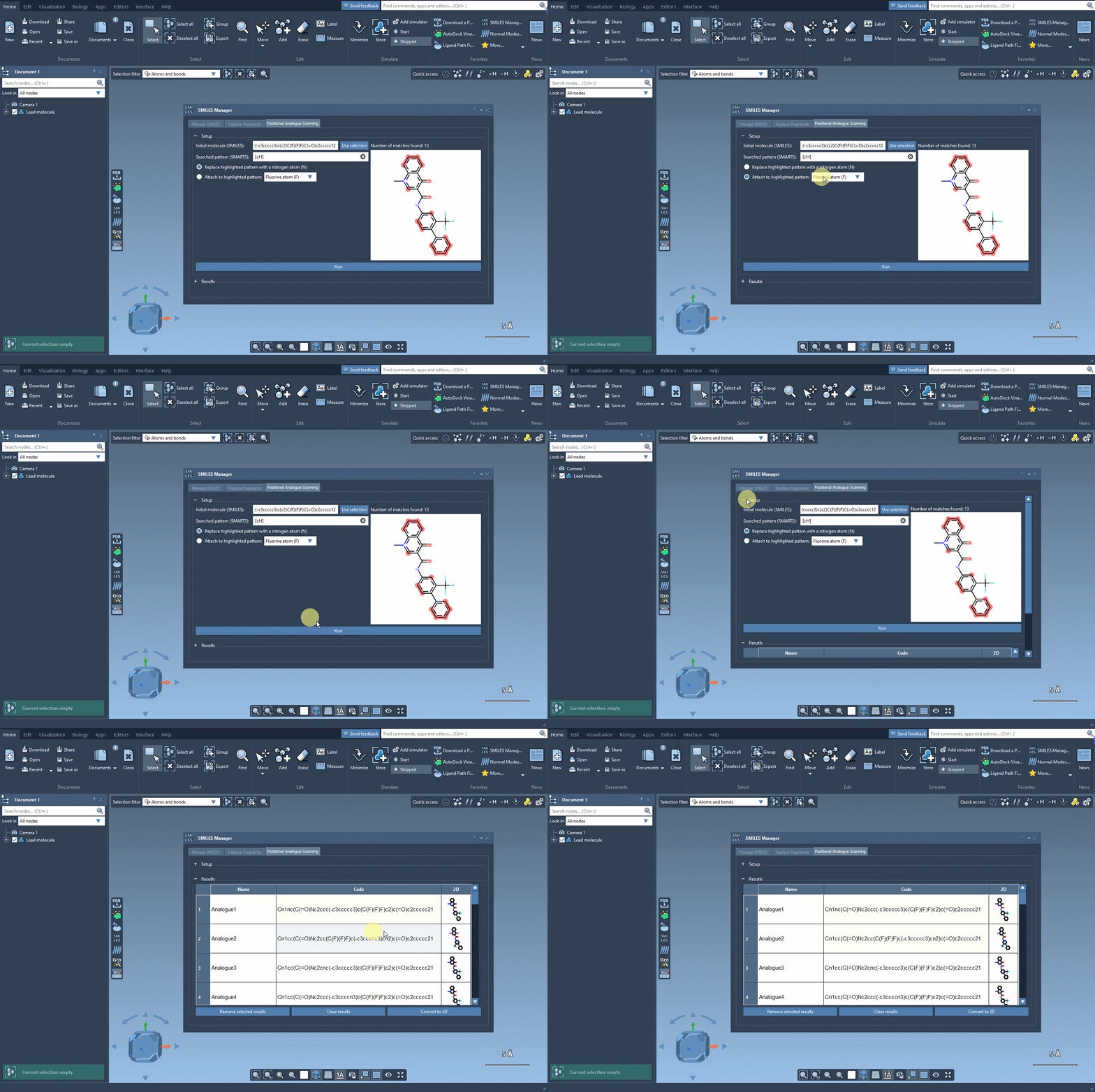
- Replace targeted atoms with new ones, e.g., substituting aromatic carbon with nitrogen (N).
- Attach functional groups such as fluorine (F) or methyl (CH3).
After defining the intent, simply press the Run button to generate the desired analogs. The interface will not only produce the SMILES codes but also illustrate the 2D depictions of the modified molecules. These results are generated remarkably quickly, allowing you to rapidly iterate through ideas. Here’s how it works:
Step 3: View and Refine Results
SAMSON provides flexibility post-generation. You can:
- Edit the names and SMILES strings of generated analogs directly in the results table.
- Examine the generated analogs’ 2D depictions by opening images in larger windows.
- Remove specific analogs or clear the entire table as needed.
This customization ensures that the generated series remains manageable and relevant to your project goals.
Why Use SAMSON for Molecular Editing?
The Positional Analogue Scanning tool takes the complexity out of the molecular editing process. By automating repetitive tasks such as fragment replacement, researchers gain more time to focus on analyzing results and planning subsequent steps. Further, seamless links to 3D structure generation and docking workflows ensure that you’re always moving forward in the molecular design pipeline.
Learn More
The simplicity of pattern-based replacements makes the Positional Analogue Scanning feature in SAMSON a must-have for molecular modelers. For a deeper dive into this functionality and details on related workflows, visit the original documentation at this page.
Note: SAMSON and all SAMSON Extensions are free for non-commercial use. Download SAMSON today at https://www.samson-connect.net.