



Carbon nanotubes (CNTs) are essential in nanotechnology, molecular design, and advanced material science. Their unique properties make them invaluable for designing nanodevices, sensors, and membranes, as well as exploring electronic and mechanical behaviors. However, creating precise CNT models can be complex. Fortunately, the SAMSON platform offers a powerful tool to simplify this process: the Nanotube Creator.
The Challenge of Building Carbon Nanotube Models
Creating accurate models of single- and multi-walled CNTs often requires precision and an intuitive interface. Without specialized tools, this task can become time-consuming, especially when designing nanostructures for simulations or exploring CNT properties in molecular transport and nanodevices. Through SAMSON’s Nanotube Creator, this challenge transforms into a streamlined process.
How to Build Carbon Nanotube Models in SAMSON
The Nanotube Creator Extension offers two intuitive methods for generating CNTs: interactively within the viewport or through the extension’s graphical interface (GUI). Below, we delve into these two approaches for a user-friendly experience.
Method 1: Create CNTs Interactively
The interactive mode enables a hands-on approach. Here’s how:
-
Define the nanotube axis and length:
- Click and drag the left mouse button in the viewport to establish the axis orientation and length. As you do this, observe live feedback on axis and tube length in the status bar.

-
Set the nanotube radius:
- Release the mouse button to finalize axis and length.
- Move the mouse to adjust the radius, which alters the
mparameter. - Left-click again to confirm the radius.
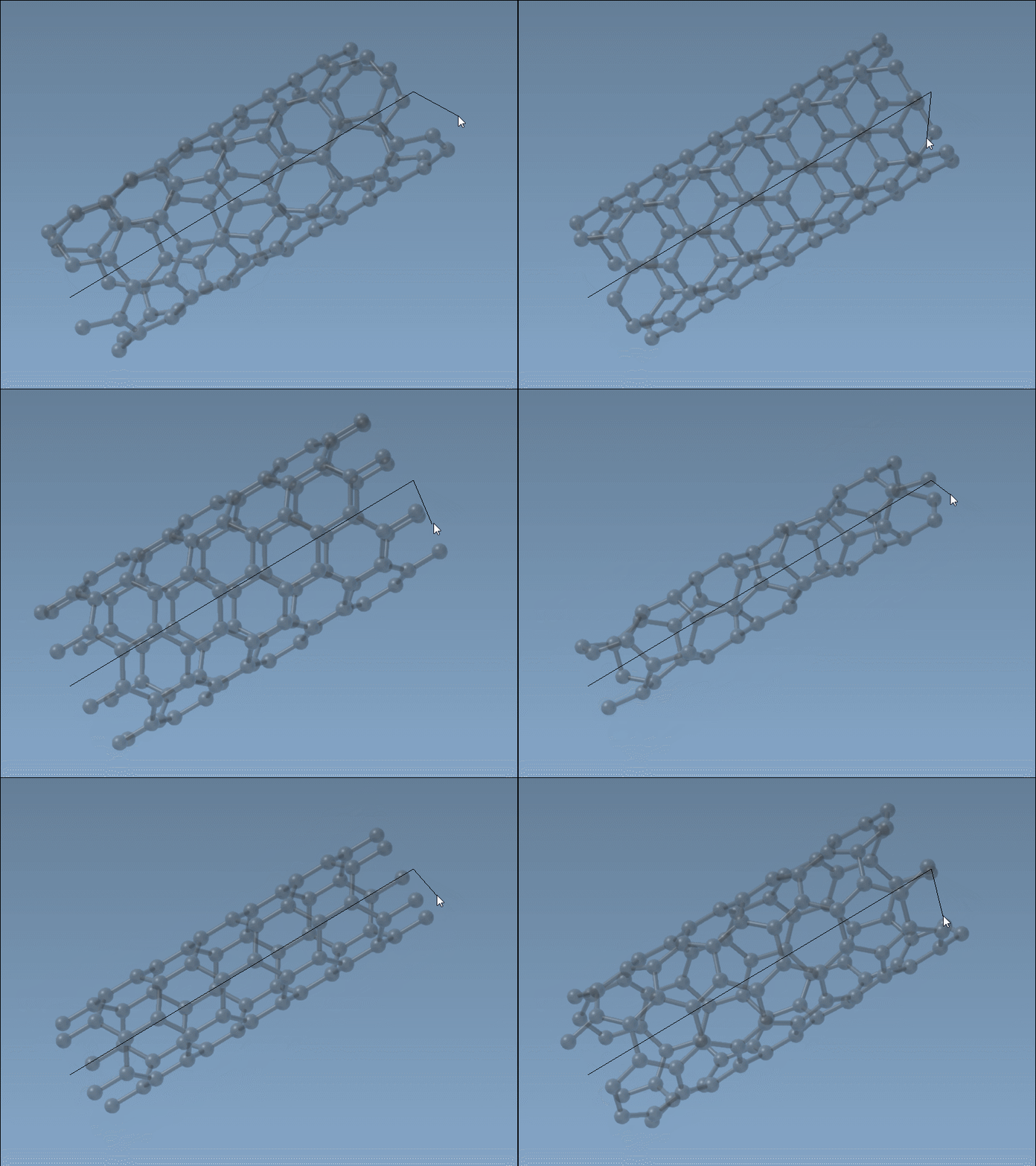
During these steps, the status bar offers useful feedback, allowing precise control over n and m parameters.
Method 2: Use the Graphical Interface (GUI)
For finer precision and control, the GUI is an excellent choice. Activate the editor, and if the interface is hidden, reselect the editor to toggle visibility. The intuitive GUI allows users to:
- Define start and end positions to outline the CNT’s spatial extent.
- Input
nandmvalues for chiral vector control.
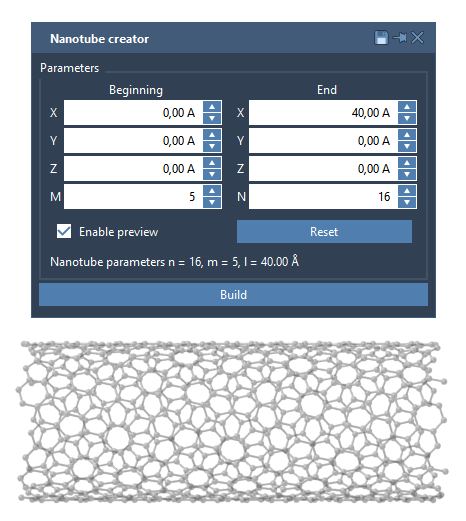
Once parameters are set, click Build to generate the nanotube. Using the GUI is particularly helpful when creating multi-walled CNTs.
Example: Building a Multi-Walled Nanotube
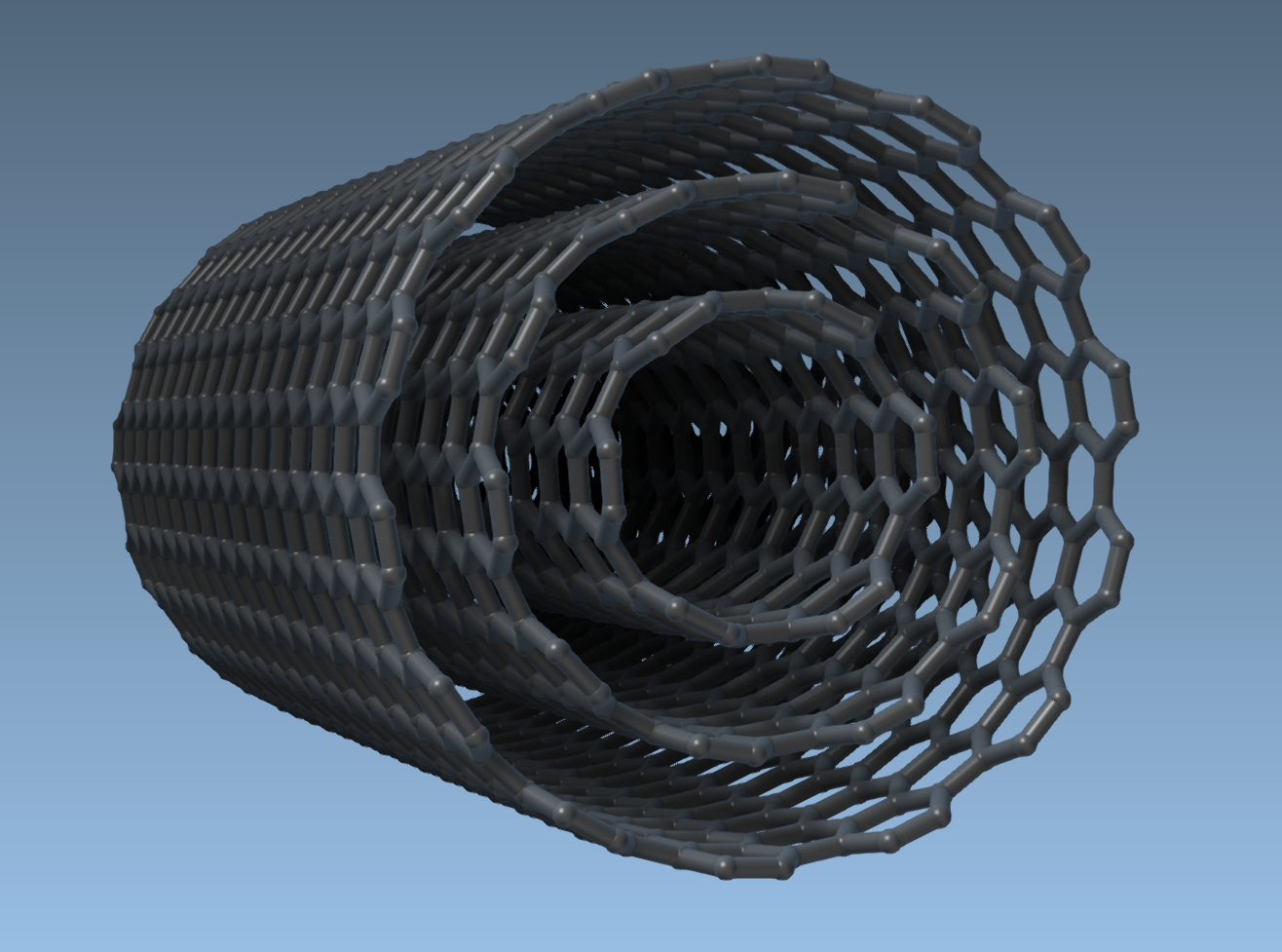
To better understand the Nanotube Creator’s capabilities, try making a three-walled CNT:
- Set start and end positions to
(0, 0, 0)and(40, 0, 0)for a 40 Å nanotube along the x-axis. - Add three CNTs with the following parameters:
- CNT 1:
n = 6,m = 6 - CNT 2:
n = 10,m = 10 - CNT 3:
n = 14,m = 14 - Click Build after each configuration.
This process results in a multi-walled CNT like the one below:
Further Exploration
The applications for CNTs are extensive. With these basic structures, users can:
- Simulate electronic, mechanical, or thermal properties interactively.
- Design sensors, nanostructures, and drug delivery channels.
- Create advanced NEMS and molecular transport systems.
To explore additional modeling techniques, visit the official documentation page.
Note: SAMSON and all SAMSON Extensions are free for non-commercial use. Download SAMSON today at samson-connect.net.