



Finding the right atoms in a large molecular model can feel like searching for a handful of needles in a very detailed haystack. You may need every carbon near a ligand, a particular residue range, or atoms outside a binding-site group. Clicking through the structure one node at a time is slow—and broad searches can return more than you intended.
SAMSON’s Node Specification Language (NSL) lets you describe the selection you want, then use that expression in Select > Find or in the filter box of the Document view. The key to dependable queries is to specify both what kind of node you want and which property or relationship it should satisfy.
Start with a small, explicit query
Try a few simple expressions first:
node.type residueselects residue nodes.C or Hselects carbon or hydrogen atoms.node.category ligand, receptormatches ligands and receptors."CA" within 5A of Sfinds nodes named CA within five angstroms of sulfur atoms.
These illustrate two useful habits: use a node type when you need to constrain the kind of result, and use quotes around names that may contain spaces. Attribute names also have short forms, so node.type residue can be written as n.t r. Start with the full form while learning; use short forms when you are comfortable reading them.
Search by name without guessing every full name
Quoted names support exact matching and simple patterns. For an exact name, use "ALA 22". To match a family of names, use glob wildcards: * stands for zero or more characters, and ? stands for exactly one. For example, "ALA*" can match an ALA residue and associated nodes whose names begin with ALA, while "C?" matches two-character names beginning with C.
If you are unsure of the full name, type the opening part of a quoted name in Find and press Tab. Context-sensitive completion can show matching names, such as ALA residues and their backbone or side-chain nodes. This is especially helpful when the document’s naming hierarchy is unfamiliar.
For more complex patterns, prefix a quoted expression with re. For example, re"^Chain [A-C]$" matches names such as Chain A, Chain B, or Chain C. Prefer glob patterns for straightforward searches; regular expressions are useful when you need alternatives, character ranges, or stricter formatting.
Make spatial selections safer
Distance queries are powerful, but a query that does not specify a node type can return an unexpected level of the document hierarchy. For example, * within 5A of "GLN 2" can match the document node because atoms belonging to GLN 2 are within the requested distance. If the intended results are atoms, say so explicitly:
n.t a within 5A of "GLN 2"
This includes atoms that belong to GLN 2 itself. To select nearby atoms while excluding that group, add an exclusion:
n.t a within 5A of "GLN 2" out of "GLN 2"
The general lesson is worth keeping: a proximity condition describes distance, not necessarily the type or membership of the results. Add a node-type condition, then use out of if you need to remove a group from the result.

Use the Document view to inspect and select
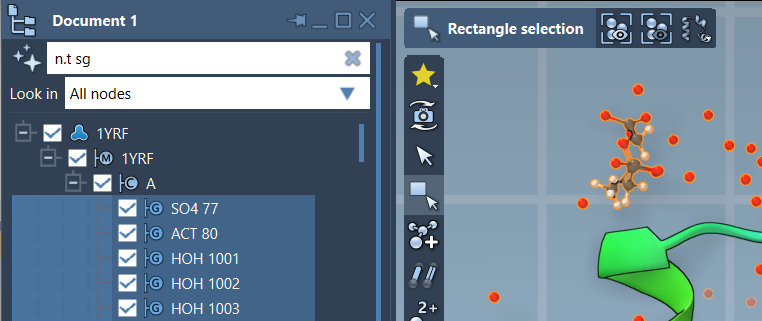
NSL is not limited to one-off searches. In the Document view, enter an expression in the filter box to narrow the visible nodes; press Enter to select them. For example, n.t sg (the full form is node.type structuralGroup) filters for structural groups. This makes it practical to inspect the matching part of the hierarchy before acting on the selection.
A few useful combinations
n.t r and not r.t ALAselects residue nodes that are not alanine. The type condition matters:not r.t ALAalone can also match non-residue nodes.O in n.t scselects oxygen atoms in side-chain nodes.n.t sc having Sfinds side-chain nodes that have at least one sulfur atom.residue.id 20:40, 50:60matches residues in either of two ID ranges.
When a query returns too much, first check whether you specified the intended node type. Then check whether a name needs quotes, whether the distance includes the reference group itself, and whether a logical operator such as not needs a positive type condition beside it. These checks often turn a confusing result into a precise, reusable selection.
For the full syntax and attribute references, see the SAMSON Node Specification Language documentation.
Note: SAMSON and all SAMSON Extensions are free for non-commercial use. Get SAMSON at www.samson-connect.net.