



Few things interrupt molecular modeling like selecting what appears to be one residue, then discovering that the selection contains several related nodes—or trying to return to a useful ligand or receptor selection and having to rebuild it. In SAMSON, the key is knowing whether you are filtering by a node’s name, selecting a particular node type, or setting the level at which viewport tools operate.
Why a name search can select more than you expect
In the Document view, the Filter nodes… box accepts either a name string or a Node Specification Language (NSL) expression. A name string filters by node names, and pressing Enter selects the matching nodes. That can be convenient, but names may be shared by related parts of a structure.
For example, typing LYS can select more than the lysine residues themselves: backbone and side-chain nodes may also match because their names contain LYS. If your goal is to select only lysine residues, use the more specific NSL expression residue.type LYS. The shorter form r.t LYS works as well. Enter the expression in the filter box and press Enter to select its matches.

Choose the right tool for the selection
For a quick selection of a visible atom or region, use the rectangle selection editor in the viewport. It supports point selection with a click and rectangle selection by dragging. Hold Ctrl or Cmd to add items; hold Alt to remove them. The editor’s selection level depends on the selection filter in the viewport’s upper-right corner. For instance, with the filter set to Residues, clicking an atom selects at the residue level.
This is different from the Document view’s filter box: the viewport selection filter sets the node level used by selection tools, while the Document view filter finds nodes by name or NSL expression. Keeping that distinction in mind helps avoid using a broad name search when you need a specific molecular category.

Turn a useful expression into a reusable filter
If you often need the same selection, save its NSL expression as a custom selection filter. Open Select > Find (or press Ctrl/Cmd + F), enter the expression, click Save, and give the filter a name. For example, r.t LYS or r.t HIS can be saved as a filter for lysine and histidine residues. The filter then appears in the selection-filter list.
Custom filters are useful when a selection is part of a repeated analysis or modeling routine: save the rule once, then choose it again instead of reconstructing the expression. If you want to remove a custom filter, make it active and right-click the selection-filter list. Resetting selection filters removes all custom filters you added.
Keep important selections close at hand
For sets of nodes you want to revisit, SAMSON offers two options. A saved group is added to the document and refers to the selected nodes; it does not contain copies of them. Quick Groups are temporary, unnamed selections that can be assigned to number keys. Select a region, then press Shift plus a number to assign it. Press the number to switch to that selection, or double-press it to zoom to the group’s selection.
A practical sequence might be to select a ligand and assign it to Quick Group 1, select the receptor and assign it to Quick Group 2, then switch between them as you inspect the system. This is especially handy when comparing parts of a structure without repeatedly navigating the Document view.
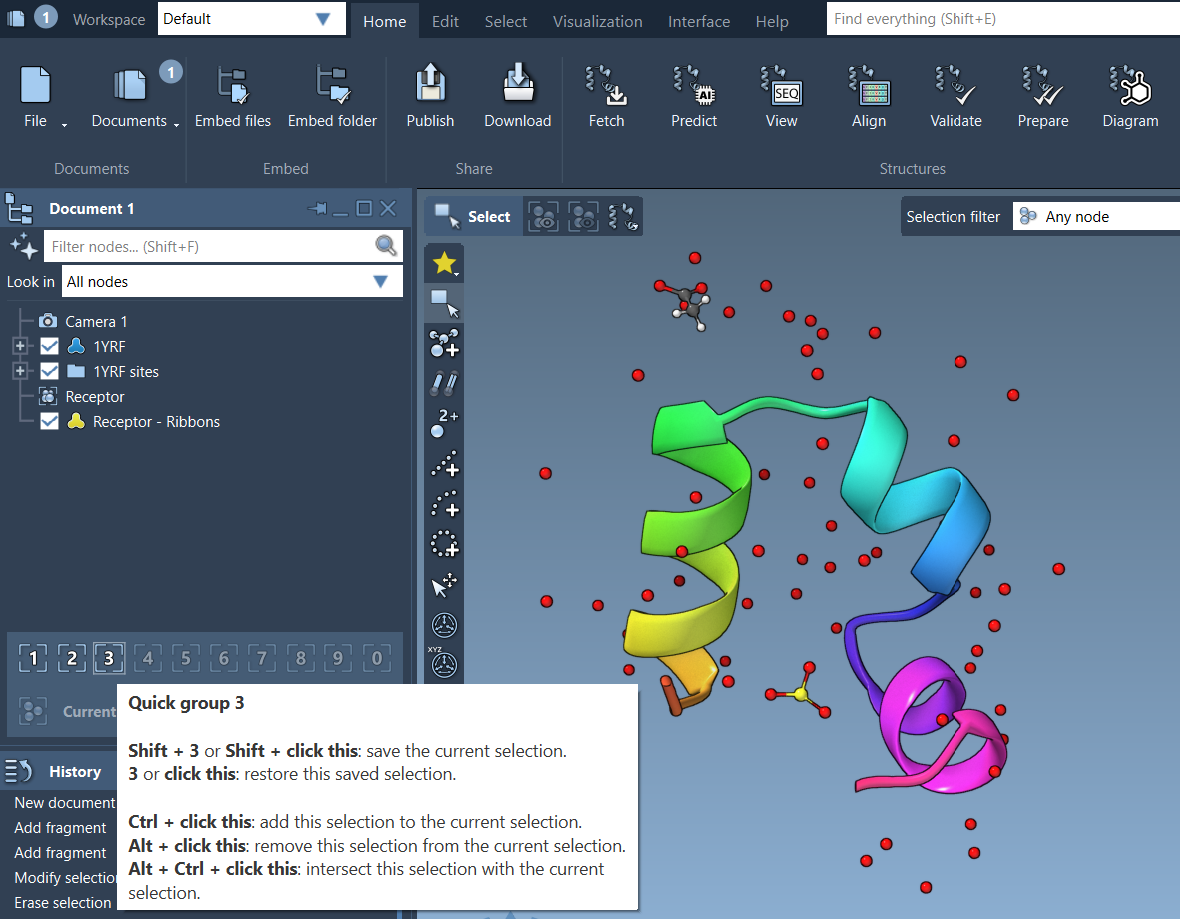
The general lesson: use name filtering for quick discovery, NSL when you need a property-specific match, and viewport selection filters when the level of selection matters. Save recurring rules or selections so the next pass through the model starts from a useful place.
For more details, see the SAMSON selection guide.
Note: SAMSON and all SAMSON Extensions are free for non-commercial use. Get SAMSON.