



It’s a familiar molecular-modeling frustration: you search for atoms near a residue, select a group, or try to exclude one type of node—and the result includes unexpected objects. A query may match a residue, its atoms, a containing group, or even a higher-level node in the document hierarchy. The key to more reliable selection in SAMSON is to specify not only what you want, but also what kind of node should be returned.
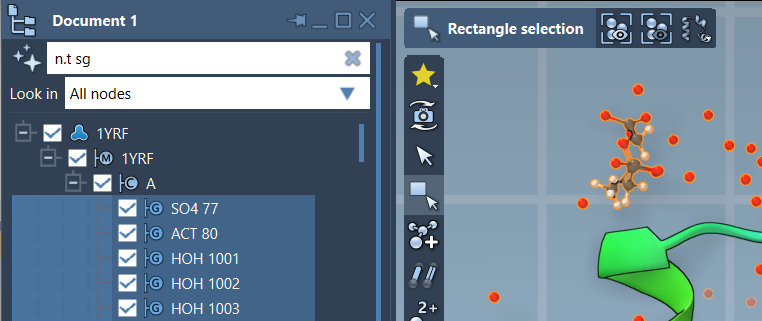
The Node Specification Language (NSL) lets you search for nodes by properties, names, relationships, and distance. You can enter an expression in Select > Find, or use the filter box in the Document view. The same language works in both places, but the interaction differs: Find selects matching nodes, while the Document view lets you filter the hierarchy and select results with Enter.

Start by naming the node type
A broad expression can match more than the atoms you had in mind. For example, a proximity query can match a container node if that node contains atoms near the target. If you want atoms within five angstroms of a named group, make the intended result type explicit:
n.t a within 5A of "GLN 2"
Here, n.t a means “node.type atom.” The distance condition then narrows the atom nodes to those within five angstroms of the named group. This query can include atoms that belong to "GLN 2" itself. If you want nearby atoms but not atoms that are part of that group, add an exclusion:
n.t a within 5A of "GLN 2" out of "GLN 2"
This small habit—state the node type, then add the condition—is useful whenever a query returns an unexpected mix of hierarchy levels.
Make exclusions specific
The same issue arises with not. A query such as not r.t CYS does not mean “return residues that are not cysteines.” It can match any node that is not a cysteine residue, including folders. If the result should consist only of residues, say so explicitly:
n.t r and not r.t CYS
This asks for residue nodes and excludes cysteine residues. In general, pair a negative condition with a positive condition that defines the kind of object you want. It makes the query’s intent clearer and helps avoid unrelated nodes in the result.
Build a query in small steps
When a selection is complicated, construct it progressively. First select the node category, then add an identifying property, and finally add a relationship or distance condition. For example, to find carbon atoms near a named group, begin with C, then add the proximity expression: C within 5A of "GLN 2". If the result needs to be restricted to atoms outside that group, add out of "GLN 2". Check each stage in the selection before adding the next condition; this makes it easier to spot which part of the expression changed the result.
Names deserve a little care, too. Quoted strings match full names exactly unless you use wildcards or a regular expression. For instance, "ALA 22" searches for that exact name, while "ALA*" uses a simple pattern to find names beginning with ALA. In Find, you can also type the beginning of a quoted name and press Tab to see matching completions. This is handy when the document contains similarly named residues, backbones, or side chains.
Choose the right place to work
Use Find when you want to enter a search expression and select its matches directly. Use the Document view filter when it helps to see matching nodes in the context of the document hierarchy. In either place, short forms can make frequent queries quicker—for example, n.t a is the short form of node.type atom—but the longer form can be easier to read while you are building or sharing an expression.
For a quick starting point, try node.type residue to identify residues, C or H to match carbon or hydrogen atoms, or "CA" within 5A of S to find nodes named CA within five angstroms of sulfur atoms. As you refine these, keep checking two things: whether the result has the right node type, and whether the target group itself should be included.
For the full syntax, attribute references, and more examples, see the SAMSON Node Specification Language documentation.
Note: SAMSON and all SAMSON Extensions are free for non-commercial use. Get SAMSON.