



In a molecular model, selecting a residue by name can seem straightforward—until the selection includes its backbone, side chain, and other nodes whose names happen to contain the same text. That kind of over-selection is easy to miss, and it can lead to extra cleanup before you can inspect, edit, or analyze the region you meant to work on.
A reliable approach is to use the Document view to filter nodes, then refine the query with SAMSON’s Node Specification Language (NSL). Once you have a useful query, you can save it as a selection filter and keep frequently revisited regions handy with Quick Groups.
Why a name search may select too much
In the Document view, the Filter nodes… box can filter by a name string or an NSL expression. Typing LYS and pressing Enter selects matching nodes. But this is a name-based search: nodes associated with a lysine residue may also have “LYS” in their names. The result can therefore include more than the five lysine residues you intended to select.
For a more specific selection, query the residue’s type instead. Enter residue.type LYS, or use the shorter equivalent r.t LYS, then press Enter. This targets nodes identified as lysine residues rather than every node whose name contains the letters “LYS.”

Keep the query close to where you work
The Document view filter is useful when you want to inspect matching nodes in the hierarchy. It filters the displayed nodes first; pressing Enter selects the matches. For more complex expressions, you can also use the Find window, available from Select > Find or with Ctrl/Cmd + F.
If you expect to reuse an NSL expression, save it as a selection filter. Open Find, enter the expression, click Save, and give the filter a name. For example, r.t LYS or r.t HIS can be saved as “LYS and HIS residues.” The custom filter will then appear in the selection-filter list, ready to be chosen again.

It helps to distinguish a saved selection filter from a saved selection: the filter stores the rule you can use to select matching nodes, while a group or Quick Group helps you return to particular nodes or selections. A custom filter can be removed by making it active and right-clicking the selection-filter list. Use Reset selection filters only if you want to remove all the custom filters you added.
Return to important regions quickly
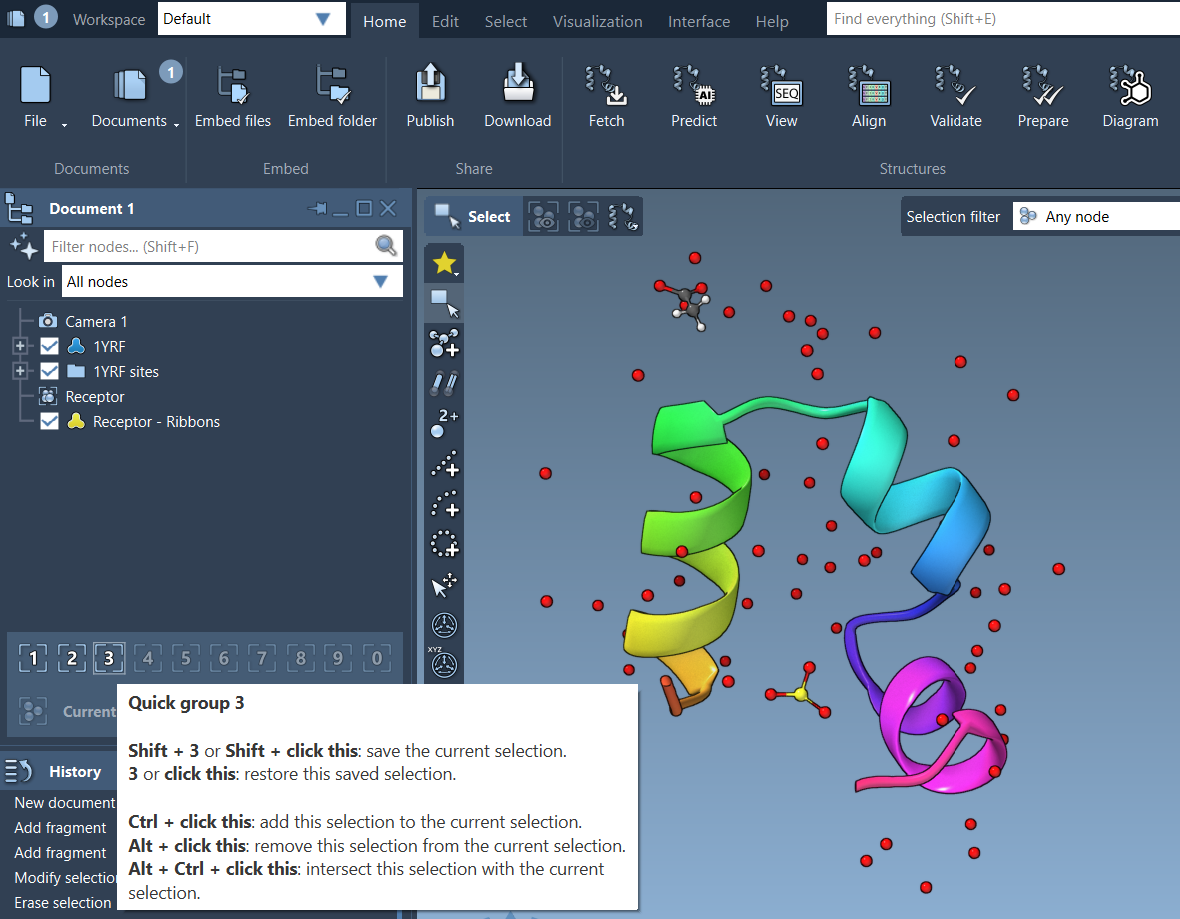
When you are comparing parts of a structure, Quick Groups can save time switching between selections. Select a region, then assign it to a slot with Shift plus a number—for example, Shift + 2 assigns the current selection to Quick Group 2. You can create up to 10 Quick Groups, switch between them with their number keys, or click their icons in the Document view. Double-pressing a number key zooms to that group’s selection.
For example, assign a ligand, receptor, and water molecules to separate groups. You can then switch among those regions without rebuilding each selection every time. Quick Groups are temporary and can be cleared or redefined, so treat them as convenient working slots rather than permanent saved groups.
The practical sequence is simple: use an NSL expression when a text search is too broad, save queries you expect to reuse, and use Quick Groups for regions you need to revisit during the current workflow. For more selection methods and details, see the SAMSON selection documentation.
Note: SAMSON and all SAMSON Extensions are free for non-commercial use. Get SAMSON.