



For molecular modelers, one persistent challenge is efficiently exploring chemical space to identify potential analogues of a given molecule. What if there was a quick way to systematically test substitutions and uncover structural variations that could lead to better interactions with a target protein or new functionalities? The Positional Analogue Scanning tool in the SMILES Manager can help you do just that, directly within SAMSON. Let’s dive into how you can leverage this feature to simplify analogue generation and structure comparison.
What is Positional Analogue Scanning?
Positional analogue scanning focuses on examining a starting molecule by systematically substituting or attaching chemical groups at specific positions. By using SMARTS patterns to define the parts of a molecule to modify, the workflow becomes flexible and powerful, letting you explore chemical diversity efficiently.
How Does It Work?
The process is fairly straightforward. Here’s how you can get started:
1. Define Your Starting Molecule
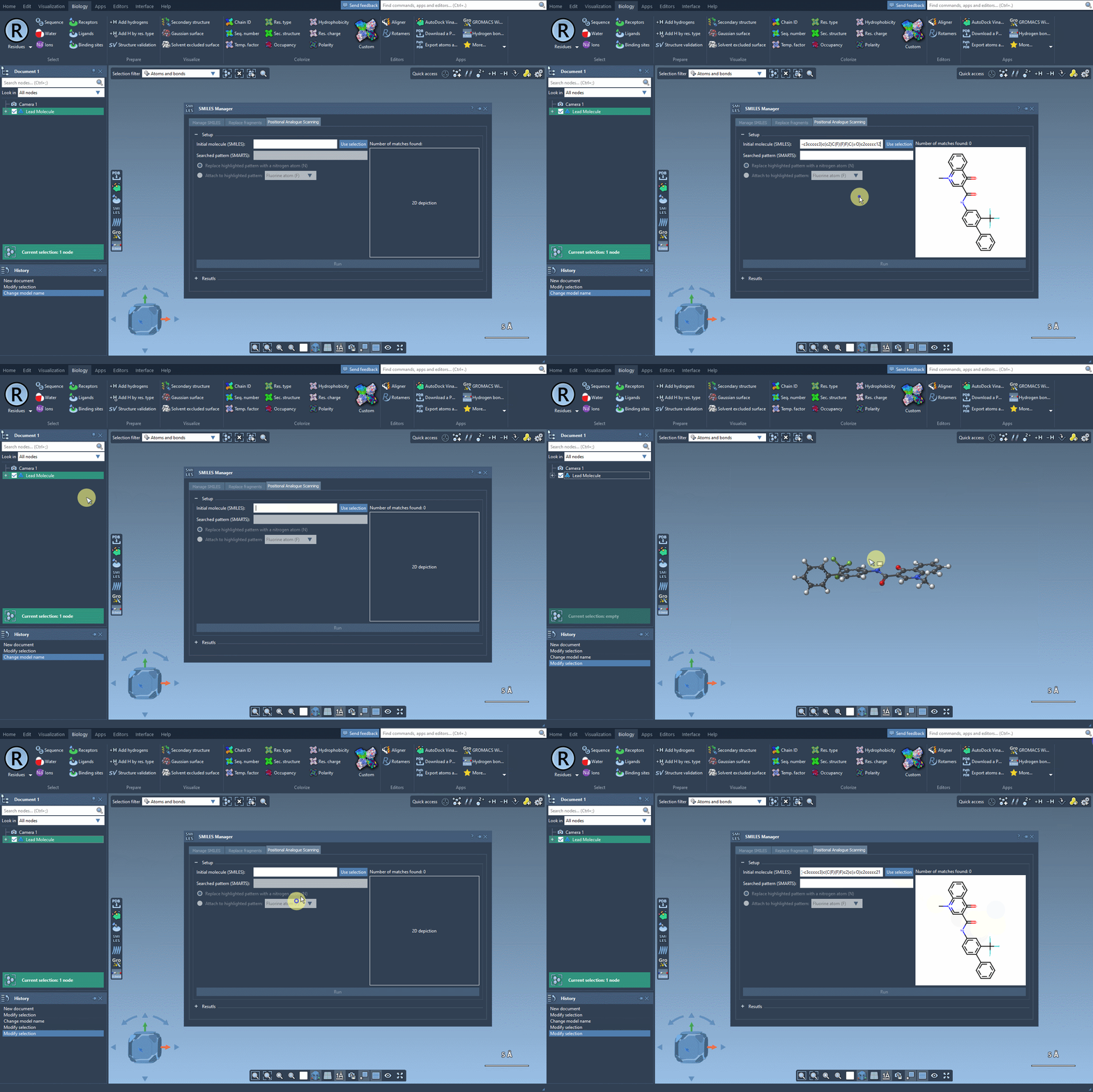
In SAMSON, you can either enter the SMILES code of your molecule of interest or simply select the molecule already present in your working document and click the Use selection button. The tool automatically initializes the input structure for positional scanning.
2. Specify the Pattern To Modify
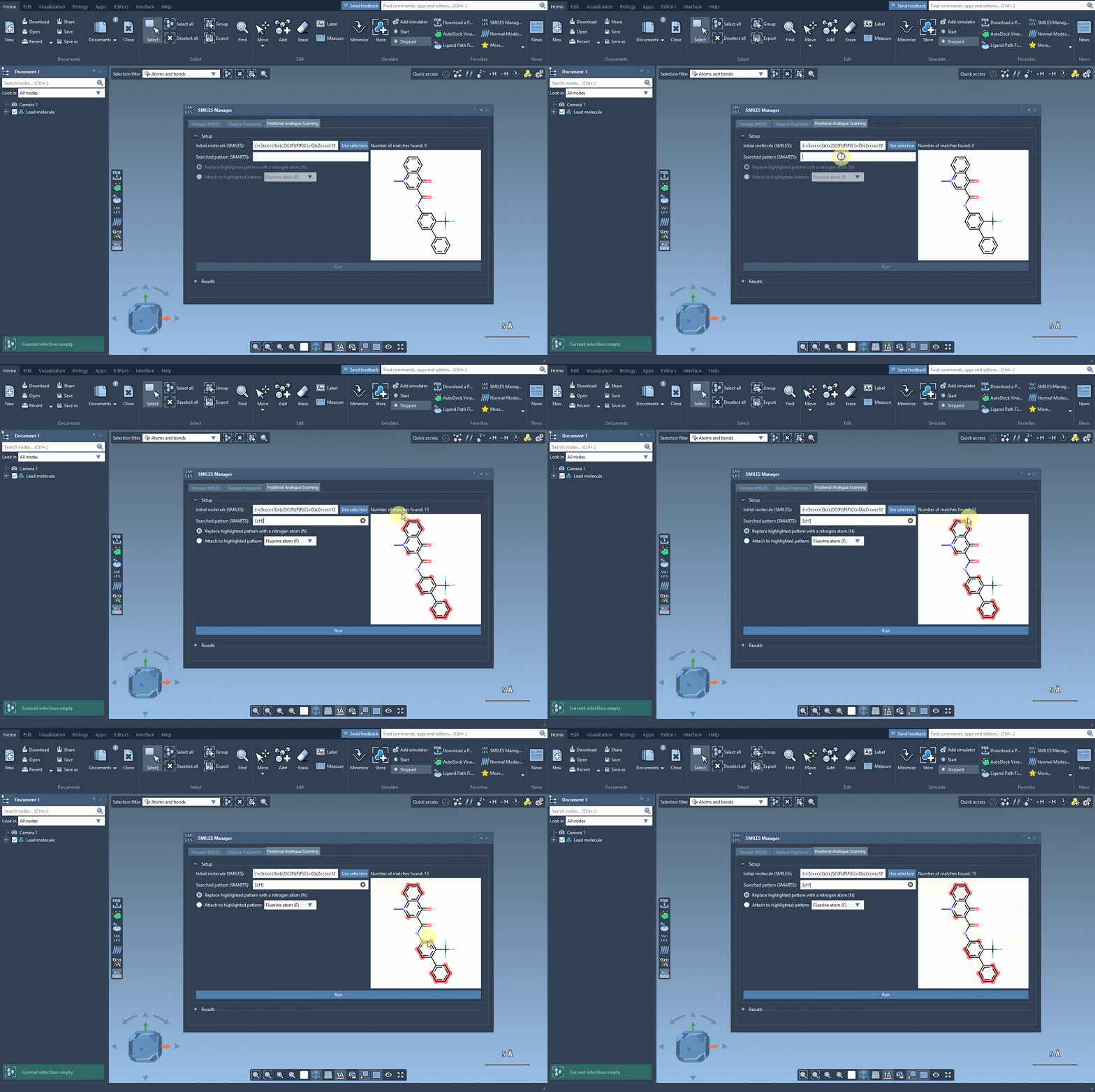
The next step is to define the “searched pattern” – the chemical motif in the molecule that you would like to replace or augment. For example, using the SMARTS code [cH] allows you to target aromatic carbons in your molecule. Once the pattern is specified, the tool highlights occurrences of the pattern in the structure for easy visualization.
3. Generate Analogues
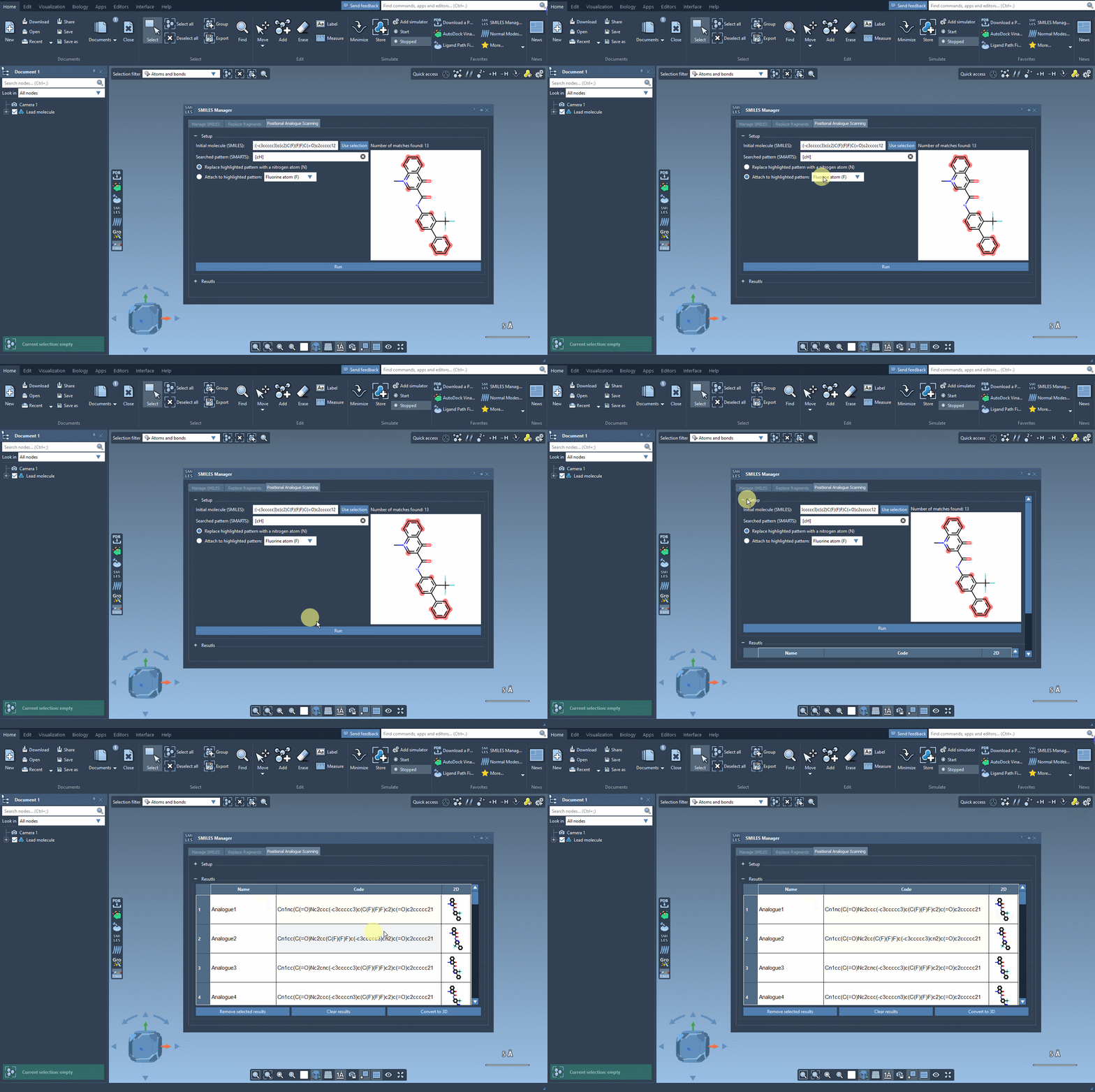
With the pattern set, you can choose how you’d like to modify it. Replace it with atoms such as nitrogen (N) or add groups like fluorine (F) or methyl (CH3). Simply select your option and click the Run button. In seconds, SAMSON generates your analogues along with their 2D depictions and SMILES codes, which are displayed in a convenient results table.
Refining and Using Your Results
The results table isn’t just a summary; it provides tools for deeper analysis:
- Edit Analogues: Modify SMILES codes or molecule names directly in the table.
- View 2D Structures: Click or right-click on 2D depiction images to examine them in detail.
- Generate 3D Structures: Right-click an analogue image and choose to convert it into a 3D structure for further simulation or docking studies.
Where To Go From Here?
After generating 3D structures, you can use SAMSON’s tools, such as the AutoDock Vina Extended extension, to assess binding to a target protein. This workflow enables quick evaluations to determine which substitutions preserve beneficial interactions or potentially create new ones.
Learn More
Ready to try positional analogue scanning? Check out the full tutorial on SAMSON’s documentation page: Generate analogue series with positional analogue scanning.
Note: SAMSON and all SAMSON Extensions are free for non-commercial use. You can download SAMSON here.