



In molecular modeling, managing and navigating complex structures can be time-consuming and frustrating. How often have you found yourself juggling selections, only to lose track of the key groups you’re working with? Quick Groups in SAMSON are here to make this process seamless, letting you save, switch, and manipulate selections effortlessly.
What are Quick Groups?
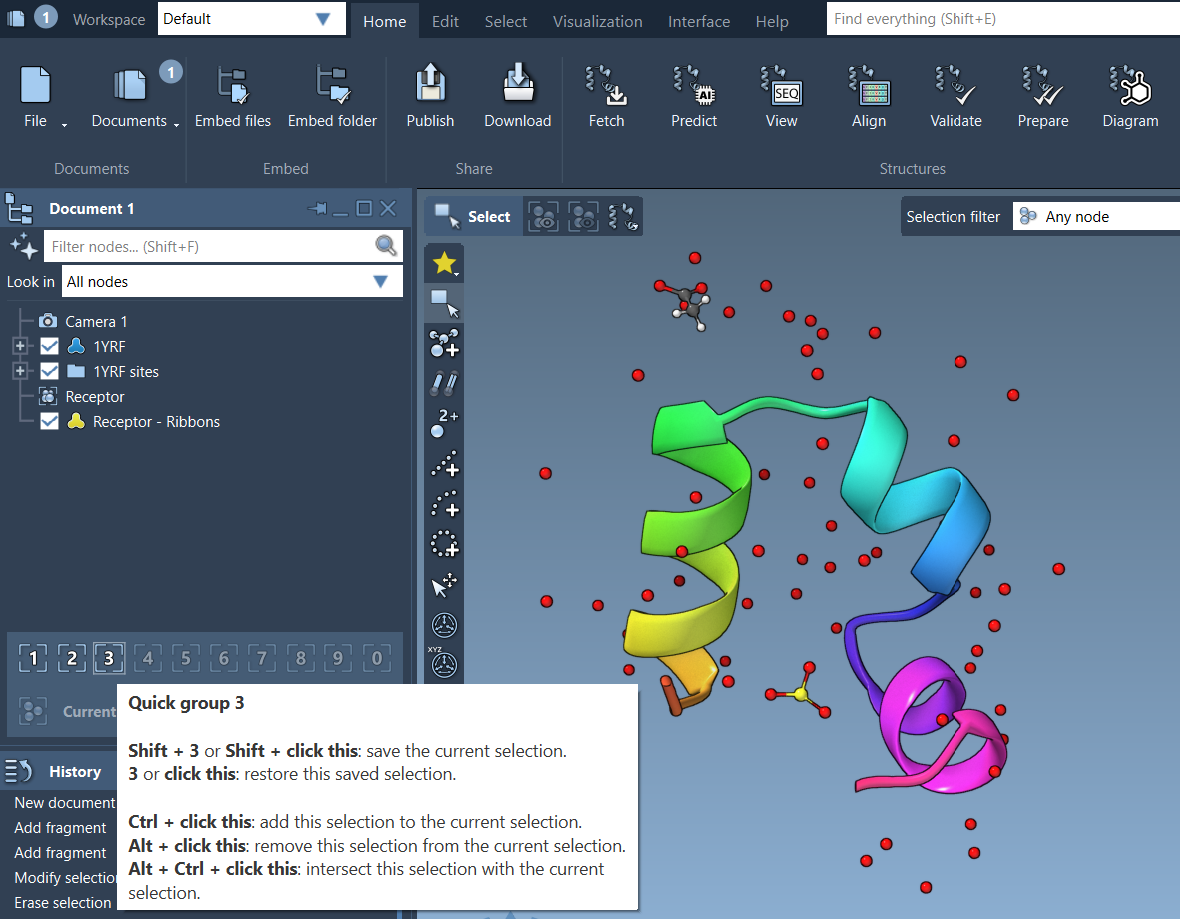
Quick Groups are temporary groups that allow you to save and toggle between multiple selections in a SAMSON document. You can use them to quickly navigate and manipulate different regions of your molecular structure. For example, you can assign selections like ligands, receptors, or water molecules to distinct Quick Groups, enabling swift transitions between areas of interest.
Why Use Quick Groups?
- Retrieve and navigate different structural elements effortlessly.
- Analyze and design intricate molecular systems with ease.
- Compare regions of a system without losing track.
- Apply visual styles or transformations to specific selections.
They’re particularly useful for iterative workflows such as simulation preparation or educational demonstrations, as they allow you to efficiently store and swap between selections.
How to Assign Quick Groups
1. Make a selection in the SAMSON document, such as atoms or residues.
2. Assign the selection to a Quick Group using one of the following methods:
- Mouse Method: Hover over a Quick Group slot in the Document View and press Shift + click.
- Keyboard Method: Press Shift + the desired group number (e.g., Shift + 2).
You can assign up to 10 Quick Groups (indexed 1 to 10). Best of all, these can be cleared or redefined any time during your workflow.
Switching and Navigating with Quick Groups
Once assigned, switching between Quick Groups is effortless. You can:
- Press the associated number key (e.g., 1, 2, etc.) to activate the selection in that Quick Group.
- Double-press the number key (e.g., 1 + 1) to zoom in on the group’s selection.
- Click directly on the Quick Group icons in the Document View.
For instance, toggle between a ligand, receptor, and water molecules by pressing 1, 2, and 3, respectively, making it simple to focus on different system features.
A Quick Example
- Select the ligand and assign it to Quick Group 1.
- Select the receptor and assign it to Quick Group 2.
- Select water molecules and assign them to Quick Group 3.
- Switch between these groups using the corresponding keys.
- Apply different visual models to highlight each group specifically.
Flexible and Efficient
The flexibility of Quick Groups is instrumental for tasks such as pinpointing active sites, analyzing interaction regions, or comparing molecular structures. Whether for research, teaching, or presentations, Quick Groups ensure you don’t waste time re-selecting elements manually.
Discover more about Quick Groups and other selection tools by visiting the official SAMSON documentation.
Note: SAMSON and all SAMSON Extensions are free for non-commercial use. You can get SAMSON at https://www.samson-connect.net.