



For molecular modelers, navigating and working with intricate structures can sometimes feel like finding a needle in a haystack. Whether it’s locating specific residues or filtering structures based on properties, managing complex molecular data can be cumbersome and time-consuming. Fortunately, SAMSON offers a powerful solution: the Node Specification Language (NSL). This concise and intuitive language allows you to efficiently select, filter, and interact with molecular data in SAMSON. Let’s dive into how you can streamline your workflow using NSL.
What Exactly is NSL?
The Node Specification Language (NSL) in SAMSON is a highly flexible syntax designed for selecting and filtering nodes based on their properties. A “node” can refer to atoms, residues, structural groups, and more within your molecular model. NSL expressions can be used in two primary ways:
- Selecting using the Find command: Quickly search for nodes based on specific criteria.
- Filtering in the Document View: Use NSL to dynamically filter nodes for focused analysis.
Quick Start: NSL in Action
If you’re new to NSL or looking for practical starting points, here are a few starter expressions:
node.type residue: Matches all residues in the document.C or H: Selects all Carbon or Hydrogen atoms."CA" within 5A of S: Finds carbon alpha atoms within 5 angstroms of any sulfur atom.node.category ligand, receptor: Filters ligands and receptors in the molecular structure.
You can input these expressions in the “Find” command under Select > Find or in the filter box within the Document View for interactive filtering.
Pro Tips to Optimize Your Workflow
Here are some tips to help you leverage NSL more effectively:
- Intelligent Autocomplete: When using the Find command, pressing Tab in the search box provides context-sensitive suggestions. For example, entering
"ALA(with the opening quote and no closing quote) and pressing Tab will show matching nodes such as"ALA 22 Side chain"or"ALA 28 Backbone". - Condense Your Queries: NSL supports short versions of attributes to make expressions more concise. For example,
n.t residueis equivalent tonode.type residue. - Ask AI for Help: SAMSON’s AI Assistant can generate NSL expressions tailored to your active document’s hierarchy. Simply click the
 Ask AI button for suggestions.
Effortlessly Specify by Name
Need to target a specific node? NSL allows exact name matching, glob patterns (like * and ?), and even advanced regular expressions (prefixed with re). For example:
"CA": Matches nodes named exactlyCA."ALA*": Matches nodes with names starting withALA, like residues and side chains.re"^Chain [A-C]$": Matches chain names that are A, B, or C.
These features make it easier to pinpoint specific structures, saving time during modeling tasks.
Empowering Proximity and Topology Searches
NSL can select nodes based on geometric proximity and connectivity:
"CA" within 5A of S: Finds carbon alpha atoms within 5 angstroms of a sulfur atom.residue.type ALA withinBond 4 of residue.type GLY: Matches alanine residues that are within 4 or fewer bonds of glycine residues.
With these operators, you can quickly explore spatial relationships within your molecular system.
Visual Demonstration of NSL
Below is an example of how NSL expressions can help filter and select nodes using the Document View:
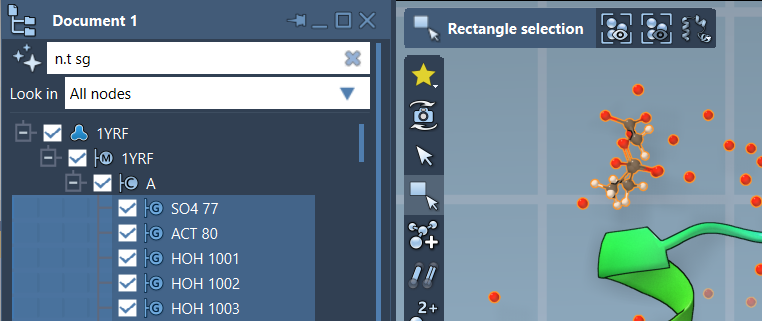
As seen, typing n.t sg in the filter box dynamically narrows the view to structural groups. Press Enter to select the filtered items.
Conclusion
Ready to enhance your molecular design experience? NSL is a game-changer in SAMSON, offering a streamlined approach to dealing with complex molecular data. Whether you’re after precise selections, proximity-based filtering, or interactive exploration, NSL is your go-to tool.
For an in-depth guide to NSL, head over to the official documentation page at https://documentation.samson-connect.net/users/latest/nsl/.
SAMSON and all SAMSON Extensions are free for non-commercial use. Get SAMSON today at https://www.samson-connect.net.