



Designing and visualizing molecules can be a complex task, especially when switching between different dimensions. Ever wished you could seamlessly create and edit your molecules in a unified, interactive environment? That’s where SAMSON’s Interaction Designer comes into play! In this blog, we’ll explore its ability to create new molecules in 2D while synchronizing with a 3D viewport—an essential feature for molecular modelers looking for efficiency and precision.
Why 2D Molecular Design Matters
While 3D visualization is crucial for understanding molecular structures, 2D designs often provide a more intuitive workspace for quick sketching, editing, and exploration. However, many platforms fail to maintain synchronization between 2D and 3D environments, leading to inefficiencies. With SAMSON, you no longer need to worry about losing consistency; edits in 2D are directly reflected in 3D and vice versa!
Starting Your Molecular Journey
To begin designing a new molecule in SAMSON’s Interaction Designer, navigate to the Edit > Design command. You have several options to start with:
- Build entirely from scratch.
- Use an existing molecule in the document as a template.
- Start from a selected fragment within your scene.
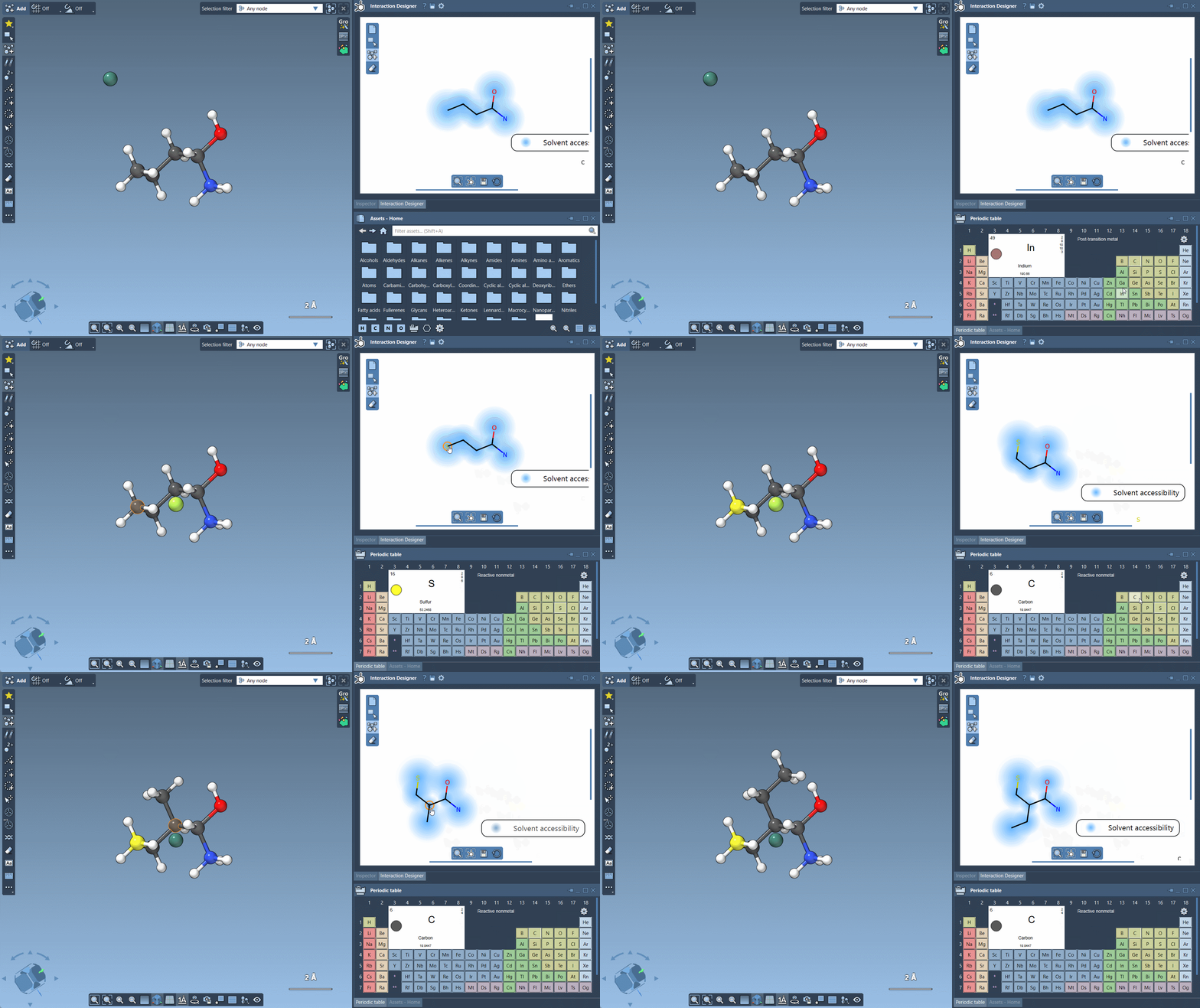
Once in design mode, the Interaction Designer switches to a building interface with the Carbon atom set as the default building block. This ensures you can quickly start adding atoms and bonds without unnecessary setup steps.
Effortless Atom and Fragment Building
Adding new atoms is as simple as clicking on the workspace to create them. To connect new atoms, click on an existing atom as your starting point. Not only does this streamline design, but it also keeps your 2D and 3D representations tightly linked.
You’re not limited to Carbon atoms—SAMSON provides an Asset Browser for seamless customization. For elements like Hydrogen, Nitrogen, and Oxygen, you can switch directly using dedicated buttons. For other elements, simply open the Periodic Table, select a new element, and continue designing. Your molecules are yours to shape!
Fragments: A Powerful Shortcut
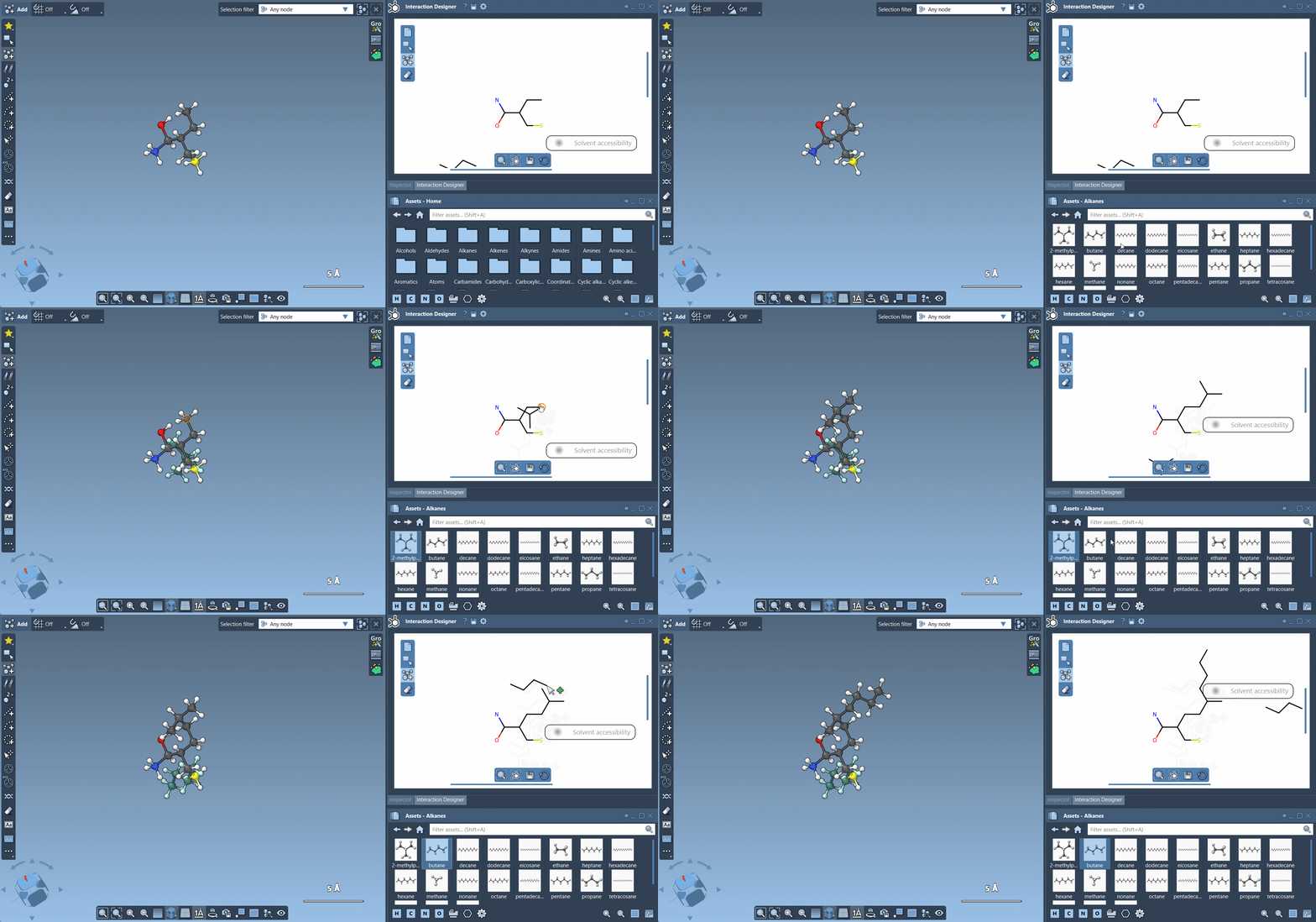
Need complex structures? Build molecules faster by assembling larger fragments! Head to the Asset Browser, select the fragment you need, and place it in your design. You can even adjust pivot atoms (the connection point of the fragment) by holding Ctrl (or Cmd on Mac) and choosing the desired atom. This level of flexibility saves time and reduces repetitive edits.
Editing and Customizing
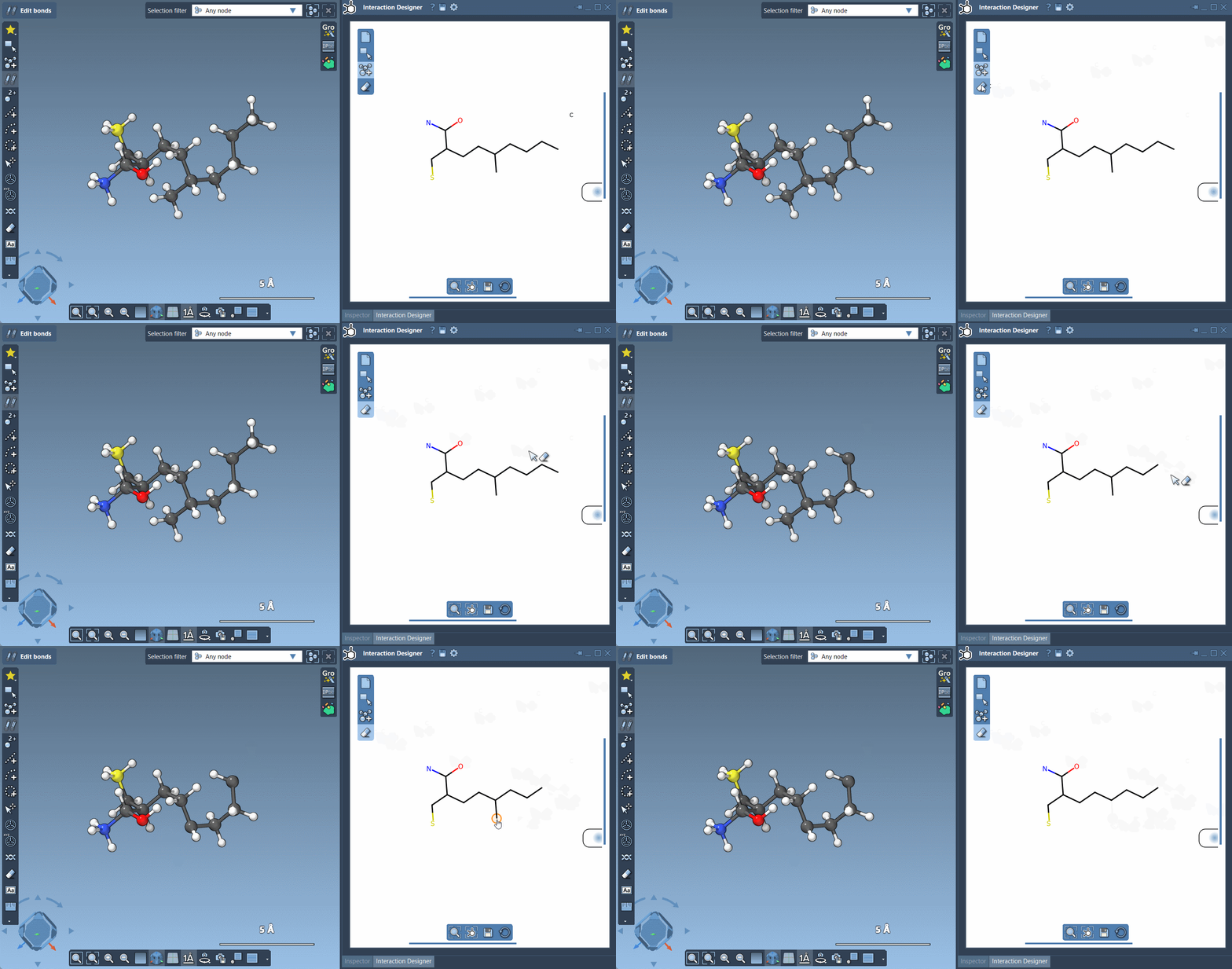
Need to make changes? Whether you want to replace an atom or remove it altogether, SAMSON makes it intuitive. Clicking on an atom while a different element is selected changes its type, letting you experiment freely with molecular configurations. To erase, activate the Erase command and click on any atom you wish to remove—it’s that simple!
Why It’s Worth Trying
The combination of 2D sketching and real-time 3D synchronization truly sheds light on how molecules behave in space, improving clarity and understanding for molecular modelers. You can even export your diagrams and sketches in formats like PNG, JPEG, and SVG, ensuring that your work is always presentation-ready.
To dive deeper into these tools, explore the full documentation at SAMSON Interaction Designer Documentation.
SAMSON and all SAMSON Extensions are free for non-commercial use. You can get SAMSON at SAMSON Connect.