



Molecular modelers often need to analyze and visualize atom trajectories along defined paths—whether for reaction coordinate studies, free energy calculations, or examining ligand exit/entry pathways. But this process can feel cumbersome without the right tools. Fortunately, the Export Along Paths extension within SAMSON offers a streamlined way to handle this task, saving you effort and making your workflow smoother. Let’s explore how you can do it efficiently.
Why Exporting Trajectories Matters: Solving Real Workflow Challenges
When modeling molecular motion, tracking the precise movements of atoms or groups of atoms along specific paths provides critical insights. This could be for generating reaction coordinates for free energy profiling, outputting ligand trajectories, or observing specific subsets like binding site residues. Each of these tasks becomes significantly easier when atom trajectory data is extracted effectively.
However, modelers often face challenges in exporting these trajectories in formats that are ready for further analysis. This is where SAMSON’s Export Along Paths extension excels, by making trajectory exports straightforward, intuitive, and customizable.
How to Export Atom Trajectories Using SAMSON
The Export Along Paths app in SAMSON is designed to make trajectory export quick and versatile. Here’s how you can use it:
Exporting All Atoms Along a Path
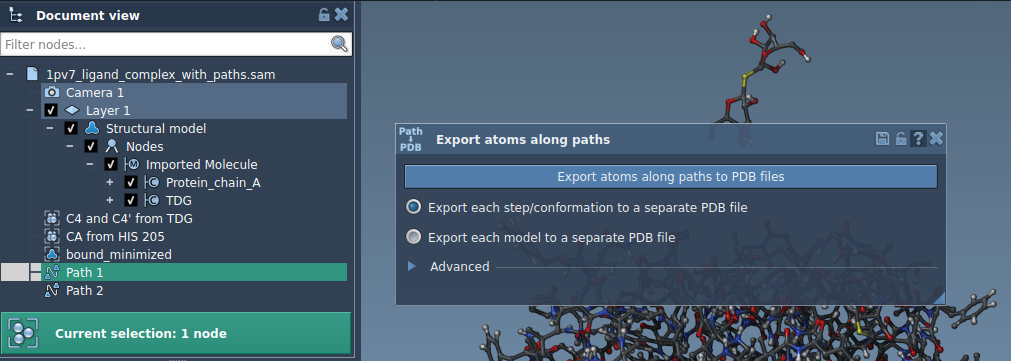
If you want to export the positions of all atoms along determined paths, follow these steps:
- Select one or more paths in the Document view.
- Choose your export mode:
- All frames in a single PDB file, or
- Each frame as a separate PDB file.
- Click Export atoms along paths to PDB files.
You’ll be prompted to specify a destination folder and a file prefix. The process is seamless, enabling you to focus on data analysis rather than format challenges.
Exporting a Subset of Atoms
In many cases, it is more practical to only track specific atoms, such as a ligand or residues in a binding site. The Export Along Paths app allows for this:
- Expand the Advanced section in the app interface.
- Select the specific group of atoms in the Document view. For example, you might select a ligand, such as
TDG, for focused trajectory analysis.
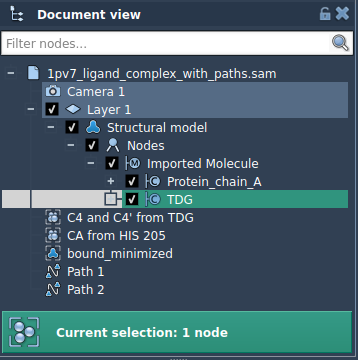
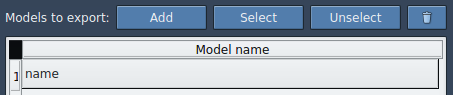
- Click Add to define this group as a model to export.
You can rename the model, add multiple atom subsets, or redefine your selections. This creates unparalleled flexibility in how you manage exports for tailored needs.
Applications and Benefits in Molecular Modeling
Whether you’re visualizing the motion of atoms for presentation purposes or generating reaction coordinate files for deeper studies, these exporting capabilities fit seamlessly into workflows like these:
- Free energy profiling using reaction coordinate files.
- Analyzing ligand exit/entry trajectories from active sites.
- Exporting intermediate states for simulation visualization.
- Isolating the motion of specific atoms like protein backbones or active site residues.
Interested in Learning More?
For a more detailed guide and additional features, visit the tutorial documentation: https://documentation.samson-connect.net/tutorials/export-along-path/export-atoms-trajectories-along-paths/.
Note: SAMSON and all SAMSON Extensions are free for non-commercial use. Download SAMSON today at https://www.samson-connect.net.