



Molecular modelers often face significant challenges when it comes to interactively editing complex molecular systems. Identifying and making topology changes, such as forming or breaking covalent bonds, can be tedious and error-prone without the right tools. If this resonates with you, the Interactive Modeling Universal Force Field (IM-UFF) in SAMSON provides an efficient solution.
IM-UFF is an extension of the well-known Universal Force Field (UFF) that empowers users to perform real-time molecular modeling with the flexibility to handle topological changes, including creating and breaking covalent bonds, modifying bond orders, and adjusting atom types. This tool facilitates a seamless editing experience while being guided by physically-based inter-atomic forces. Here, we walk you through how to set up and use IM-UFF for smoother workflows.
How Does IM-UFF Simplify Molecular Editing?
The IM-UFF approach is particularly valuable in dynamic scenarios where molecular systems undergo significant changes. Here’s what sets it apart:
- Interactive Modeling: IM-UFF allows for the creation and breaking of covalent bonds and smooth transitions between different topologies while you edit molecular systems interactively. This means you can precisely control the structure of your system as you simulate or manipulate it.
- Dynamic Topological Updates: IM-UFF automatically adjusts bonds, bond orders, and atom types as you move atoms within the system, ensuring that topological changes reflect the current organization of atoms.
- Simple Bond Manipulation: Unlike static workflows, users can move atoms with the mouse, causing bonds to form or break based on proximity, reducing manual intervention and accelerating the modeling process.
Setting Up IM-UFF
Follow these steps to get started with IM-UFF:
- Add the IM-UFF Extension: Ensure you have the IM-UFF extension loaded into your SAMSON workspace. You can find the extension here.
- Select a Molecular System: Open a molecular system document for simulation using IM-UFF.
- Add a Simulator: Navigate to
Edit > Simulate > Add simulatoror use the shortcutCtrl + Shift + M(orCmd + Shift + Mon macOS). - Choose IM-UFF: Select “Interactive Modeling Universal Force Field” from the list of interaction models.
- State Updater: Choose the appropriate state updater, like the FIRE minimizer, for energy minimization and press OK.
IM-UFF runs with a parameter window similar to that of UFF, but with added interactive modeling options. Adjust these options based on your system’s size and behavior, and you’re ready to interactively edit your model.
Visualizing IM-UFF in Action
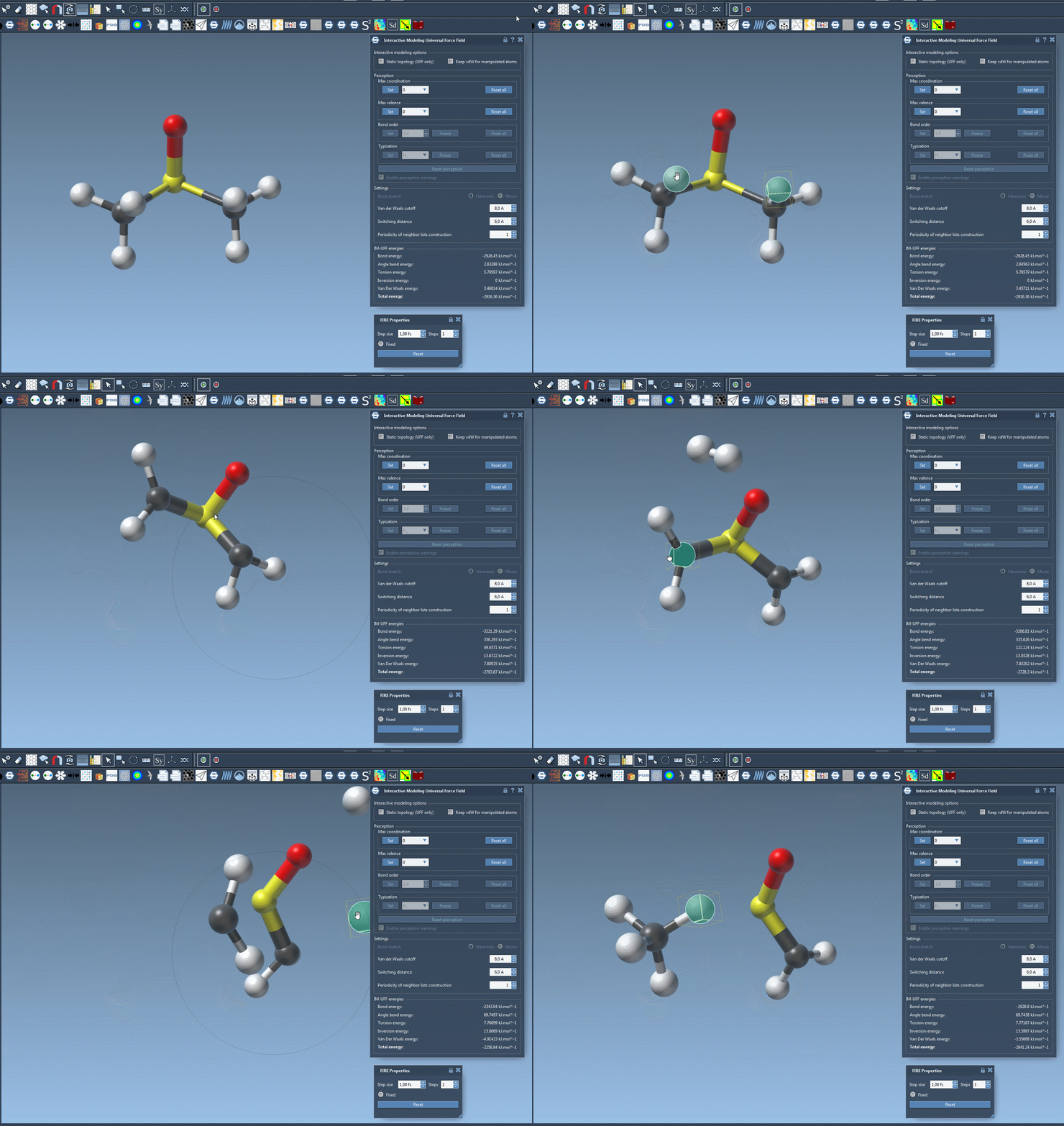
Once your simulation is running, you’ll notice how intuitively IM-UFF reacts to your manipulations. For example, moving atoms closer leads to new bond formation, while pulling them apart breaks bonds. This flexibility ensures molecular systems evolve naturally based on the physical forces governing atomic interactions.
Tips for Customization
IM-UFF offers advanced customization options, such as controlling van der Waals cutoff distances and toggling topology settings. Notably, the “Keep vdW for manipulated” option allows users to ignore repulsive van der Waals forces for manipulated atoms, simplifying bond creation tasks during interactive modeling.
You can even add or remove atoms on the fly, with automatic typization ensuring the system updates dynamically to reflect these changes. These settings allow modelers to tailor the simulation for optimal performance during both standard UFF and IM-UFF workflows.
Next Steps
If you’re ready to enhance your molecular modeling experience, start exploring the IM-UFF capabilities by interactively editing a simple structure. Compare how topology updates dynamically with IM-UFF versus a standard UFF approach, and see how it makes topological adjustments effortless and intuitive.
For more information, and to dive deeper into the IM-UFF tutorial, visit the official documentation page.
Note: SAMSON and all SAMSON Extensions are free for non-commercial use. Download SAMSON at SAMSON Connect.