



Computing the Potential of Mean Force (PMF) is crucial for molecular modelers aiming to investigate free energy profiles along specific reaction coordinates. However, this task often proves challenging without streamlined tools, especially after completing an umbrella sampling workflow. 🌐 Enter the PMF Analysis feature in GROMACS Wizard on the SAMSON platform, where you can simplify and organize your workflow using the Weighted Histogram Analysis Method (WHAM).
Why PMF Analysis Matters
PMF profiles provide insights into the energy landscape of molecular systems and are invaluable for determining reaction mechanisms and binding affinities. Nevertheless, preparing the data, ensuring consistency, and performing WHAM computations for large trajectories can feel like more of an obstacle than an aid.
How GROMACS Wizard Simplifies WHAM-Based PMF Analysis
With GROMACS Wizard, PMF analysis becomes an intuitive and structured process, thanks to its user-friendly interface and automated data handling. Here’s a step-by-step breakdown:
1. Prepare Your Data
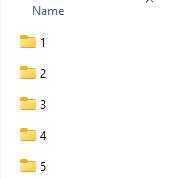
Before diving into PMF analysis, ensure you’ve completed the umbrella sampling workflow. Check that your project folder is well-organized, with numbered subfolders corresponding to the same system and reaction coordinate.
- For consistency, use the same reaction-coordinate setup across subprojects.
2. Load the Project
Switch to the WHAM Analysis tab in GROMACS Wizard. Here, you can either specify your project path manually or use the handy auto-fill option if the previously executed project was umbrella sampling. This automates the process of populating paths and parameters.

3. Customize Settings
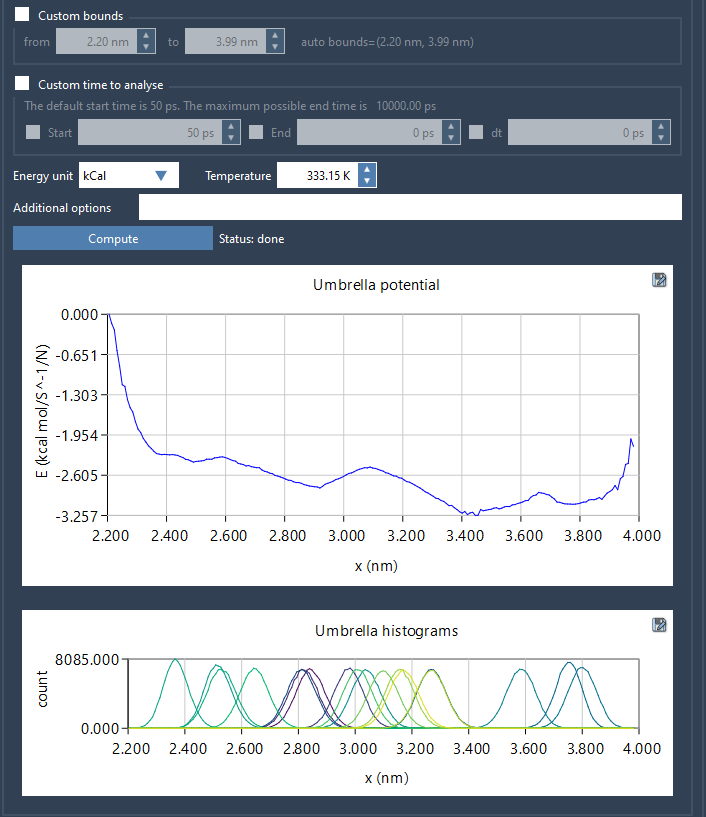
Select the reaction coordinate and tweak optional settings if necessary. For example, you can set custom bounds, a specific time range, and preferred energy units. These preferences help ensure the results meet your specific modeling requirements.
4. Perform the Computation
Once you’ve finalized your setup, click Compute. The GROMACS Wizard processes your data and generates two key visualizations:
- The PMF profile—your main result, showcasing the free energy profile.
- A histogram indicating how well the reaction-coordinate space is sampled, helping identify areas requiring additional data.
5. Saving and Reusing Data
All generated profiles, histograms, and plots are automatically saved in the wham_results subfolder of your project. Conveniently, if you decide to switch reaction coordinates later, the tool utilizes already computed data, saving time.
Useful Tips on Interpreting Your Results
The PMF histogram is more than just a visual—it’s a diagnostic tool. It allows you to assess the adequacy of sampling in different regions of the reaction coordinate. Poorly sampled zones indicate where you might need to revisit umbrella sampling and extend simulations for those specific windows.
Ready to Explore More?
Once you’re comfortable with PMF analysis, feel free to explore other workflows in the GROMACS Wizard. Whether it’s umbrella sampling or COM pulling, the tool’s flexibility and integration with SAMSON help streamline your modeling workflows.
To deep dive into this tutorial, visit the original documentation page here.
SAMSON and all SAMSON Extensions are free for non-commercial use. You can download SAMSON at https://www.samson-connect.net.