



When working with complex molecular systems in SAMSON, switching focus between different molecular components—like ligands, protein domains, or specific residue types—can become tedious. Typically, every time you want to reselect a region, you might need to dig through the Document view or retype selection expressions. Fortunately, Quick Groups offer a simple and efficient way to store and rapidly switch between selections using just a few keystrokes.
This feature is especially helpful for users involved in molecular design, simulations, or teaching. It enhances productivity and helps streamline comparative analyses and iterative workflows.
What are Quick Groups?
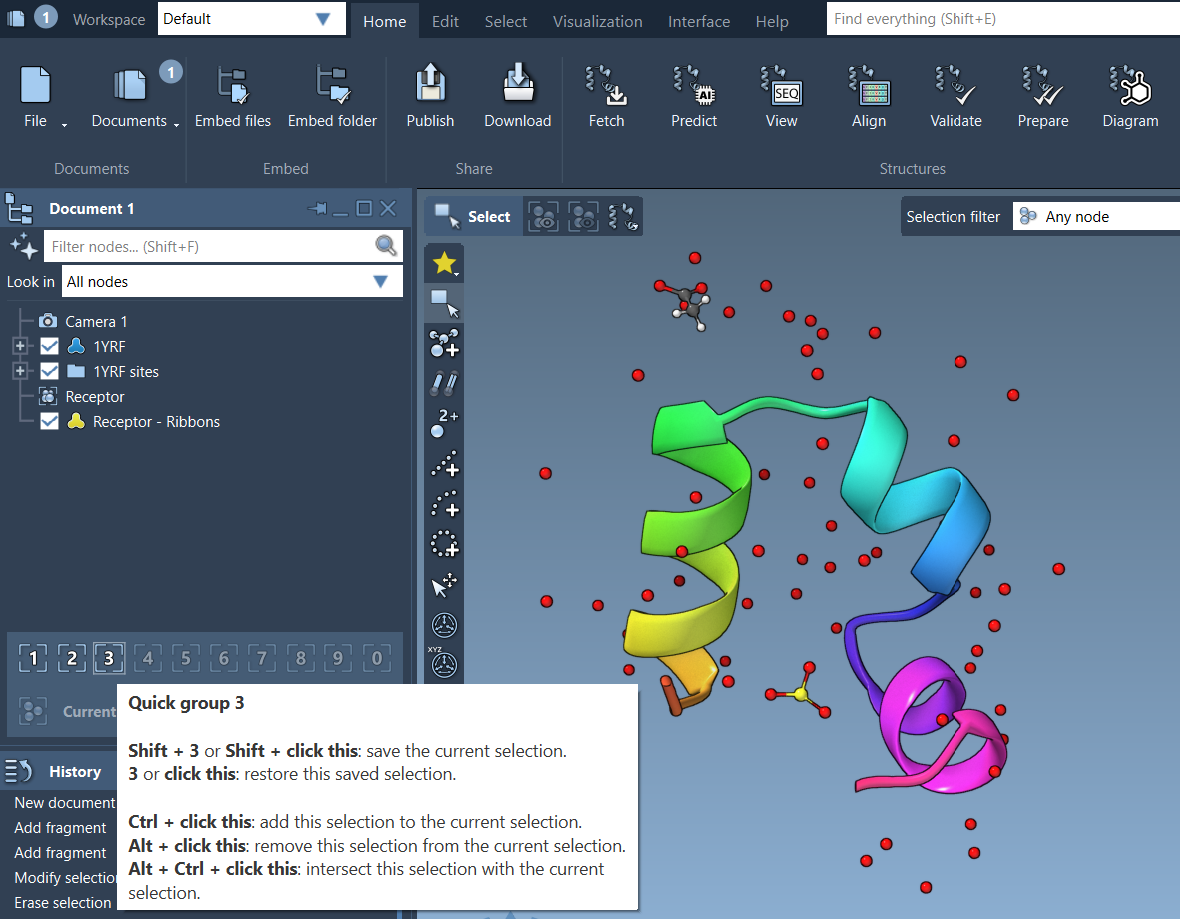
Quick Groups are temporary, unnamed selection groups that appear in the lower section of the Document view. They allow users to save and retrieve selections with only a keyboard shortcut or a mouse click. Each Quick Group stores a reference to selected nodes (e.g., atoms, residues, molecules) and makes it easy to return to a particular selection.
Common use cases
- Switch between a ligand, its binding site, and surrounding water molecules
- Compare different functional sites in a biomolecule
- Focus on alternate binding conformations during design
- Jump between regions of interest in large complexes
Creating a Quick Group
- Select the desired nodes in the viewport or Document view
- Assign to a Quick Group using one of the following methods:
- Mouse method: Hover over a Quick Group slot and press Shift + click
- Keyboard method: Press Shift + number key (e.g., Shift + 2) to assign to Quick Group 2
You can define up to 10 Quick Groups (slots 1–10). These are not saved permanently, but they are fast to assign and update, which is ideal during exploration or design sessions.
Navigating Quick Groups
Once you’ve created your groups, you can switch between them effortlessly:
- Press a number key (e.g., 1, 2, …) to reselect the corresponding Quick Group
- Double-press the number (e.g., 1 + 1) to center the camera on the group
- Click on the Quick Group slot in the Document view directly
This mimics the behavior used in many strategy and visualization games, making it intuitive for new users too.
Example scenario
Imagine you’re analyzing a protein-ligand system:
- Select the ligand and assign to Quick Group 1
- Select the binding pocket residues and assign to Quick Group 2
- Select neighboring water molecules and assign to Quick Group 3
Now, with a single keystroke, you can cycle between these components for focused inspections or modifications. Double-press a number key to zoom instantly to the region of interest. It’s a productivity boost that becomes second nature after just a few uses.
Wrap-up
Quick Groups in SAMSON help you stay focused, manage multiple selections, and reduce repetitive tasks. This is particularly useful when building, inspecting, or analyzing complex molecular systems.
To learn more, visit the full documentation on selecting in SAMSON.
SAMSON and all SAMSON Extensions are free for non-commercial use. You can download SAMSON at www.samson-connect.net.