



A protein–ligand structure can look complete and still be unready for simulation. The ligand may lack hydrogens, its topology may use a different residue name from the structure, or its parameters may depend on a force field that is not available in your setup. These mismatches are easy to overlook because they are not always visible in a molecular viewer.
This guide focuses on a practical workflow for preparing a non-covalent protein–ligand complex in SAMSON’s GROMACS Wizard. The key idea is to treat the ligand’s structure and topology as a matched pair, then check that both are correctly connected to the protein system before preparation.
1. Start with a ligand that the parameterization tool can read
If the ligand is not already a standard residue in the force field you plan to use, you will need ligand parameters and an include topology file, usually with the .itp extension. Choose a parameterization tool that matches your intended force field: the documentation lists Antechamber for AMBER, ATB for GROMOS96 54A7, CGenFF for CHARMM, and LigParGen for OPLS-AA.
Before exporting the ligand, check the input formats accepted by the selected tool. If you need another format, SAMSON can load a molecular file and save it in a different format. This small check can prevent a frustrating round trip in which the server rejects the input or does not receive the chemical information it needs.
2. Check hydrogens before submitting
Many parameterization tools require the ligand to have its hydrogens properly set. In SAMSON, use Edit > Add hydrogens. For a ligand listed in the Chemical Component Dictionary (CCD), SAMSON can add hydrogens using the names described in the CCD. For a ligand that is not in the CCD, hydrogen placement is based on valences, so make sure that aromatic rings and charges are already represented correctly.
If the ligand is part of a larger structure, select it in the Document view and use Home > File > Save selection as… to save it in a format accepted by your parameterization workflow. If you already have a ligand file with hydrogens, you can use that file directly.
Useful check: if the parameterization server returns an updated structure file, compare it with the ligand in your complex. The server may have changed atom names or added hydrogens. Those changes matter when you later combine the structure with the topology.
3. Keep the structure and topology in agreement
After parameterization, collect the ligand .itp file and, if available, the updated structure. Some workflows may also provide a custom force field. Before moving on, verify that the ligand name in the structure file matches the name used in the topology data. This is a crucial consistency check: the topology must describe the ligand that is actually present in the system.
If the ligand in your complex has not changed—for example, its atom names are still the same and no hydrogens need to be added—you may be able to keep the existing complex. If you need to replace the ligand, position the updated ligand at the old ligand’s location and then remove the old one. If you are assembling the complex from separate structures, place the ligand appropriately and ensure the structures do not overlap. The documentation also describes using SAMSON move tools, AutoDock Vina Extended for docking, or appending structures with separate chains or consecutive sequence numbering.
4. Add the topology and any required force field
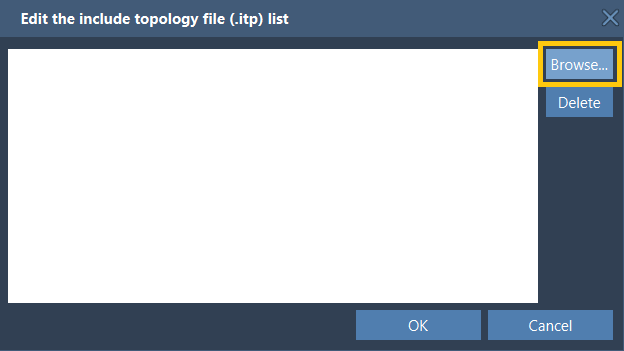
In SAMSON, open Home > Apps > Biology > GROMACS Wizard, switch to Prepare, select the protein–ligand system in the Document view, and click Set system. In the Choose model section, click Edit beside the include topology files and browse to the ligand .itp file.
Some topology files rely on a custom force field that is not included by default. For example, ATB may provide gromos54a7_atb. If your parameterization workflow supplies one, download it and add it using the force-field Add button. The added custom force field is stored by GROMACS Wizard for future use. You only need to add it once.

5. Prepare, then continue the workflow
Complete the remaining preparation choices, such as the solvent model, periodic boundary box, and ions, following the general preparation workflow. Click Prepare to run the step. You can inspect the output log from the GROMACS Wizard’s Output button and review any warnings that appear. Once preparation completes, the resulting system is saved in the results folder; loading it into SAMSON is optional if you want to inspect it.
This process is for non-covalently linked complexes. A covalent protein–ligand link needs additional treatment to parameterize the linking bond, so do not assume that the workflow above covers that case.
For the complete procedure and related guidance, see the SAMSON GROMACS Wizard tutorial for protein–ligand systems.
Note: SAMSON and all SAMSON Extensions are free for non-commercial use. Get SAMSON.