



Selecting a few atoms near a ligand sounds simple—until a query highlights an entire residue, structural group, or even the document node. In a molecular model, that mismatch is more than a visual nuisance: it can make it harder to inspect contacts or work with exactly the nodes you intended. SAMSON’s Node Specification Language (NSL) helps by letting you describe both what to match and which kind of node should be returned.
The key habit is to add a node-type constraint. NSL expressions operate on nodes at different levels of a molecular hierarchy: atoms, residues, groups, and other structures. A broad expression can therefore match a parent node because something inside it satisfies the condition. If you want atoms, say so explicitly with node.type atom, or its short form n.t a.
Start with the target node type
Suppose you want atoms within 5 Å of a named residue. This query specifies both the desired output and the distance condition:
node.type atom within 5A of "GLN 2"
The shorter equivalent is n.t a w 5A of "GLN 2". The quotes matter: names can contain spaces, so quote a full name such as "GLN 2".
There is one subtle detail: this query also includes atoms that belong to "GLN 2". If you want nearby atoms but not atoms in the named residue, exclude that structure explicitly:
node.type atom within 5A of "GLN 2" out of "GLN 2"
This pattern—first constrain the result, then exclude the target when needed—is useful whenever a proximity query returns more than the surrounding atoms you had in mind.

Why “not” can select unexpected things
Another common source of overly broad results is using not without first limiting the node type. For example, not residue.type CYS does not mean “all residues except cysteine.” Folders and other nodes are also not cysteine residues, so they may match too.
To ask specifically for non-cysteine residues, combine a type condition with the exclusion:
node.type residue and not residue.type CYS
Its short form is n.t r and not r.t CYS. In general, when using not, ask yourself: “Have I said which kind of nodes I want back?” If not, add that constraint.
Search by name without guessing every node
Quoted names support exact matching, simple wildcards, and regular expressions. Use "CA" for a node named exactly CA, "ALA*" for names beginning with ALA, or "*Backbone" for names ending in Backbone. The * wildcard matches zero or more characters; ? matches exactly one.
If you are unsure what a name looks like in the active document, type the start of it with an opening quote—for example, "ALA—and press Tab in the Find search box. Context-sensitive completion can show matching names, including residue, backbone, and side-chain nodes. This is often quicker and safer than guessing the full name.
Choose the right place to query
Use Select > Find when you want to search for and select matching nodes. Use the filter box in the Document view when you want to narrow the visible hierarchy interactively; press Enter to select the filtered nodes. Both accept NSL expressions.
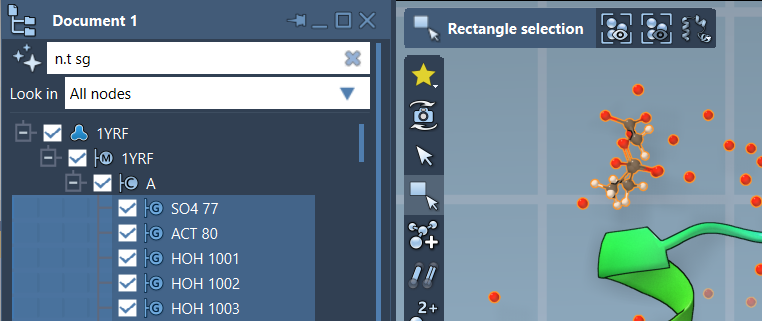
A practical troubleshooting sequence is: identify the node type you want, write that constraint first, add the property or distance condition, and then use out of if the target structure itself should be excluded. For example, n.t a limits results to atoms, while n.t r and not r.t CYS limits them to non-cysteine residues. These small additions can turn a surprising selection into a useful one.
For the full syntax and additional examples, see the SAMSON Node Specification Language documentation.
Note: SAMSON and all SAMSON Extensions are free for non-commercial use. Get SAMSON.