



If you often work with large molecular systems, you’ve likely found yourself repeatedly selecting the same groups of atoms, residues, or molecules. Whether it’s for applying display styles, running simulations, or preparing figures, manually reselecting the same regions adds friction to your modeling workflow.
Fortunately, SAMSON offers a helpful feature to streamline these repetitive tasks: Quick Groups. Once set up, Quick Groups let you hop between important molecular regions with a keystroke—no need to dig through menus or reselect anything by hand.
What Are Quick Groups?
Quick Groups are temporary, nameless sets of selections that you can assign and return to at any time using number keys (1–10). They live in the lower section of the Document View, making them easy to access visually or via keyboard shortcuts.
They are especially useful for:
- Switching focus between different parts of a structure, like ligands, receptors, and solvent.
- Applying different visual styles to regions without reselecting them each time.
- Simplifying simulation or analysis setup across multiple selections.
Creating and Using Quick Groups
- Select the atoms or residues you’re interested in, either in the Viewport or Document View.
- Assign the selection to a Quick Group:
- Use the mouse: hover over a Quick Group slot in the Document View and Shift + click.
- Or use the keyboard: press Shift + a number (e.g., Shift + 3 for Quick Group 3).
You can store up to 10 Quick Groups. They are temporary—perfect for temporary workflows and explorations.
Switching Between Groups
Once assigned, switching is instant:
- Press the associated number key (1, 2, …) to select that group again.
- Double-tap the number key (e.g., 2 2) to automatically zoom the camera to that selection.
- Or click directly on the Quick Group icon in the Document View.
Example Scenario
Imagine you’re working with a protein-ligand-solvent system:
- Select the ligand and assign it to Quick Group 1.
- Select the receptor and assign to Quick Group 2.
- Select water molecules and assign to Quick Group 3.
Now you can toggle between all three with a single key, zoom in on whichever you’re working on, and streamline visual comparisons or edits.
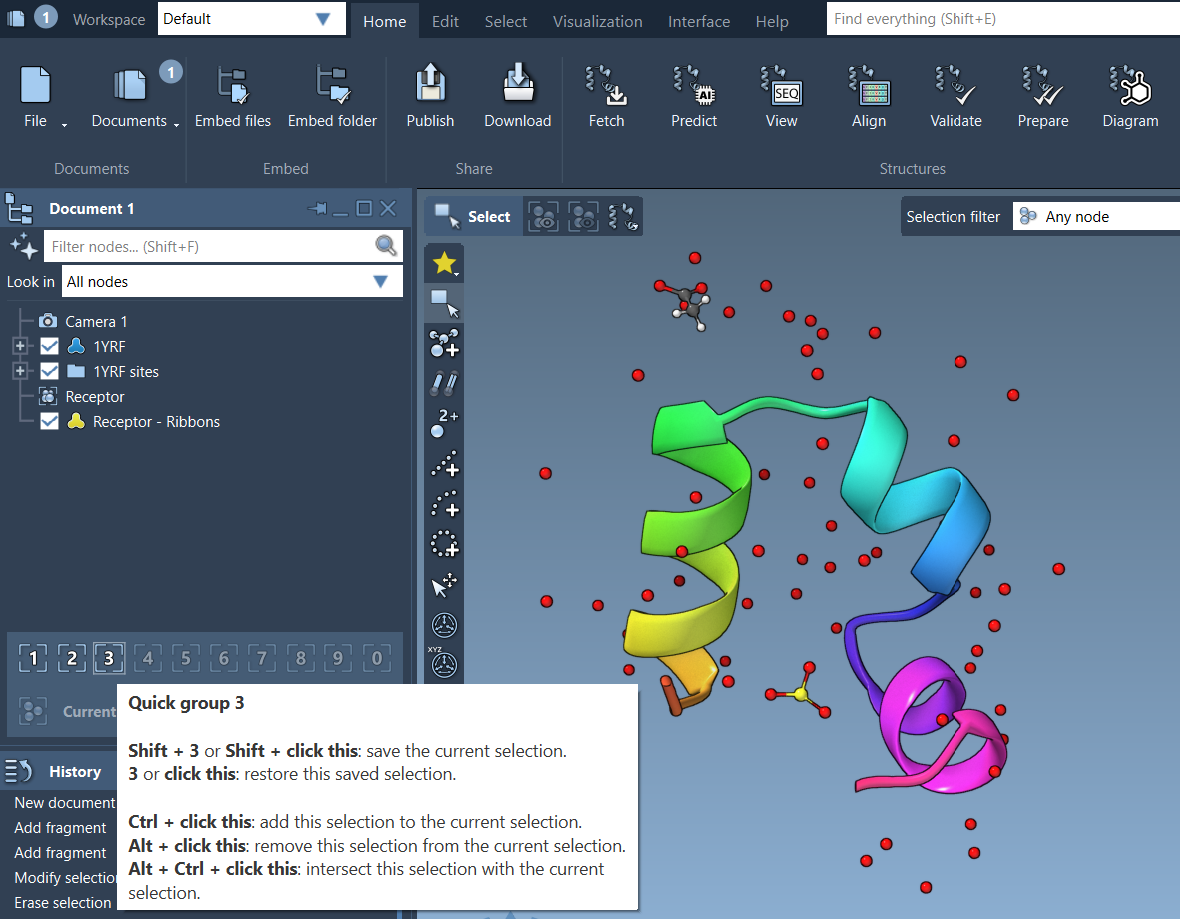
Bonus: Watch It In Action
If you’re curious about how Quick Groups work in practice, this webinar extract offers a visual walkthrough of the Quick Groups feature in SAMSON’s 2025 release.
Quick Groups are a small detail that can make a big difference, especially when you’re iterating on a project and need to frequently pivot between different molecular components.
To explore more about selection workflows in SAMSON, visit the full documentation: https://documentation.samson-connect.net/users/latest/selecting/
SAMSON and all SAMSON Extensions are free for non-commercial use. You can get SAMSON at https://www.samson-connect.net.