



Visualizing complex molecular structures often comes with a challenge: adequately exploring dense, intricate systems without losing depth perception or clarity. For molecular modelers, this can hinder analysis of internal binding sites, ligand environments, or creating clear presentations. Progressive Clipping, a feature in SAMSON, provides an elegant solution to this pain by offering a gradual transition for clipping molecular structures. This enhances both 3D exploration and the visual appeal of molecular systems.
What is Progressive Clipping?
Unlike traditional clipping, where sections of a structure are abruptly cut off in the view, Progressive Clipping offers a smooth fade-out effect based on the distance of structures from the camera. This gradual transition helps modelers visually understand distance and structure relationships more intuitively. Progressive Clipping also integrates fog rendering options, creating depth clarity that’s particularly valuable in dense molecular models like proteins.
How to Use Progressive Clipping
1. Load a Structure
To start, load any molecular structure. You can use the Home > Fetch option in SAMSON to quickly fetch a protein of your choice.
2. Engage and Control Progressive Clipping
The feature is activated by default. Here’s how to control it:
- Mouse + Keyboard: Use Ctrl (Windows/Linux) or Cmd (macOS) and scroll or slide to adjust the clipping distance.
- Thickness Adjustment: Hold Shift + Ctrl (Windows/Linux) or Shift + Cmd (macOS) while scrolling to modify the “viewing slab” thickness.
You can also access the clipping control panel from the clipping and fog control icon at the bottom of the viewport.
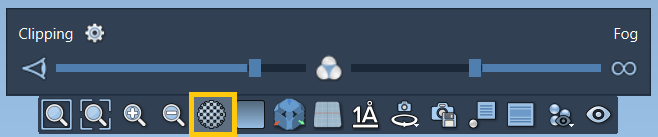
3. Fine-Tuning Clipping Preferences
Customizing the behavior or aesthetics of Progressive Clipping is straightforward:
- Access the Settings icon next to the clipping panel or navigate to Interface > Preferences > Rendering > Clipping.
- Choose from predefined presets for styles (e.g., progressive vs. sharp cuts).
- Modify border thickness for enhanced distinctions of clipped regions.
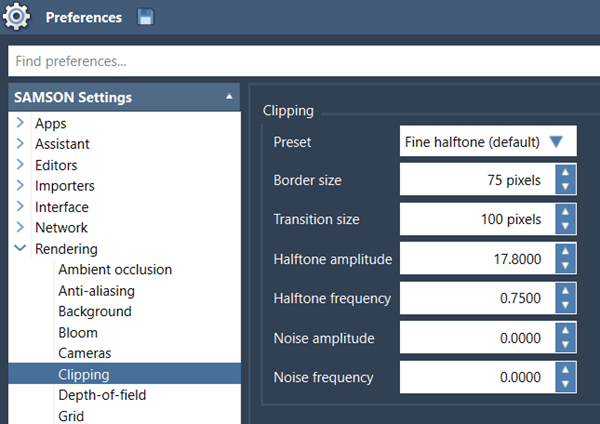
4. Enhance Visualization Further
For optimal presentations or interactive analysis, combine Progressive Clipping with SAMSON’s rich visualization tools:
- Alter the background color for better contrast.
- Enable silhouettes to highlight structural boundaries.
- Use visual presets and colorization options to emphasize key details.
With these tools, Progressive Clipping can help deeply analyze specific regions like binding sites or fine-tune visuals for presentations without losing clarity or context.
When is Progressive Clipping Most Useful?
- Exploring dense molecular environments, like protein interiors.
- Studying ligand-binding domains while maintaining a clear focus.
- Creating educational or professional presentations with improved depth perception.
To dive deeper into progressive clipping and complete step-by-step instructions, visit the official SAMSON documentation.
SAMSON and all SAMSON Extensions are free for non-commercial use. Explore SAMSON’s powerful features and download it at SAMSON Connect.