



A molecular path can contain a great deal of information—and that can make it hard to answer a simple question: where did this ligand or group of atoms move? Inspecting every atom at every point may obscure the overall direction of travel. A center-of-mass (COM) pathline offers a compact view: it traces the motion of one selected atom group’s center of mass along a path.
This is useful for getting oriented before investigating atomic details. For example, a pathline can help you see the route a ligand takes during unbinding, or how a selected region moves during a conformational change. It summarizes the group’s displacement without drawing a separate trajectory for every atom.
Start with the question you want to answer
Before creating a pathline, decide what should count as the moving group and which path or paths you want to inspect. A ligand is a natural choice when studying unbinding; a residue group or larger molecular region can be useful when looking at collective movement. The choice matters: the pathline represents the center of mass of the atoms you select, so changing the selection changes the motion being summarized.
The sample used in the SAMSON tutorial contains lactose permease (1PV7), its ligand thiodigalactoside (TDG), and two paths generated with Ligand Path Finder. It provides a concrete setting for exploring ligand unbinding.

Create a pathline with the right selection
- Load the sample document using Home > Download and the document link shown in the Pathlines tutorial.
- In the Document view, select the atoms whose center-of-mass motion you want to display, then select one or more paths. Hold Ctrl or Cmd while selecting to add multiple nodes.
- Open Visualization > Visual model > More… (or use Ctrl/Cmd + Shift + V), choose Pathline of the center of mass, and click OK.
One easy-to-miss detail is the default behavior: if no atoms are selected, SAMSON uses the entire system; if no paths are selected, it uses all paths in the document. If the resulting line does not match the question you had in mind, check your selections before interpreting it.

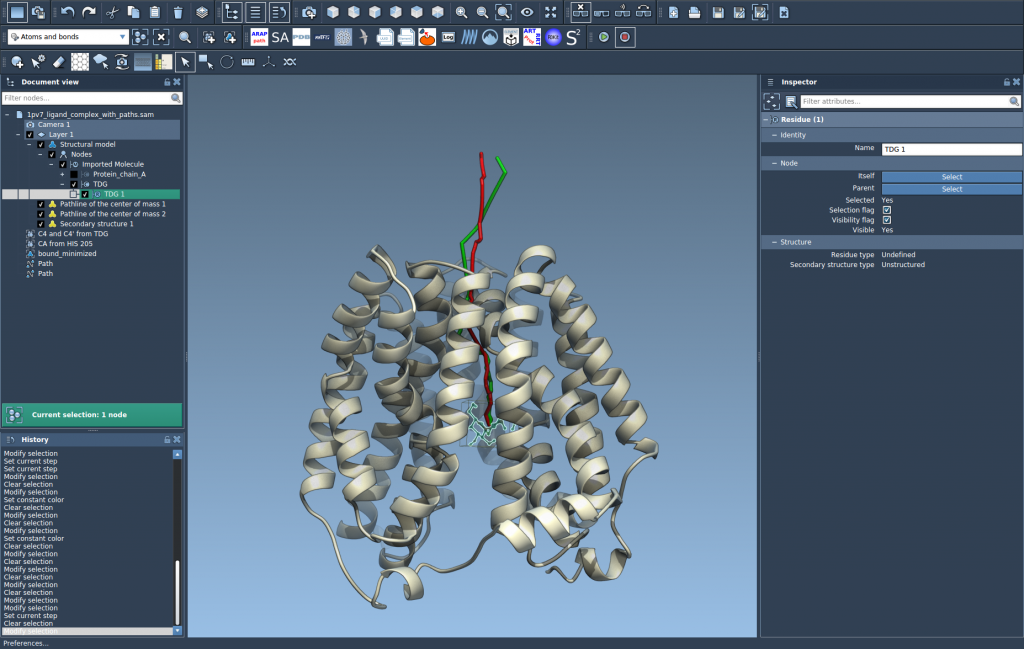
Use the trace as an overview, not the whole analysis
A COM pathline is deliberately a summary. It can make displacement and route easier to see, but it does not show how individual atoms move relative to one another. Two groups can have a similar center-of-mass trace while differing in their internal rearrangement or orientation. When those details matter, use the pathline to locate the motion of interest, then inspect the atoms and path frames directly.
You can double-click a path in the Document view to start or stop it, and right-click it to find path options. To access path controllers, select the path and open the Inspector with Ctrl/Cmd + 2. To adjust the pathline’s color or thickness, select the visual model and change its properties in the Inspector.
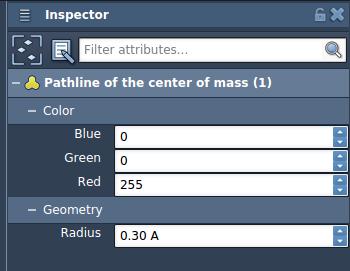
Pathlines are a practical first view for ligand unbinding routes, domain movement, and other workflows where the overall displacement of an atom group is the question. For a complete walkthrough and related guidance, learn more in the original Pathlines documentation.
Note: SAMSON and all SAMSON Extensions are free for non-commercial use. Get SAMSON.