



Have you ever wondered how proteins arrange themselves in their crystal structures or biological assemblies? For molecular modelers, reconstructing these arrangements is crucial for understanding protein interactions and designing experiments. The Symmetry Mate Editor in SAMSON offers a powerful way to generate symmetry mates using information stored in PDB files. In this blog post, we’ll focus on the difference between CRYST1 and BIOMT records for symmetry reconstruction and how to use this feature effectively.
CRYST1 vs. BIOMT: What’s the Difference?
PDB files usually contain a wealth of symmetry information, but it comes in two main formats: CRYST1 and BIOMT. Let’s break down what they mean:
- CRYST1: These records describe symmetry from the crystal lattice. They represent how the protein is organized within the repeating patterns of a crystal structure.
- BIOMT: These records describe symmetry based on biological assembly annotations. They focus on how proteins form functional quaternary structures, such as enzymes, protein cages, or other macromolecular complexes.
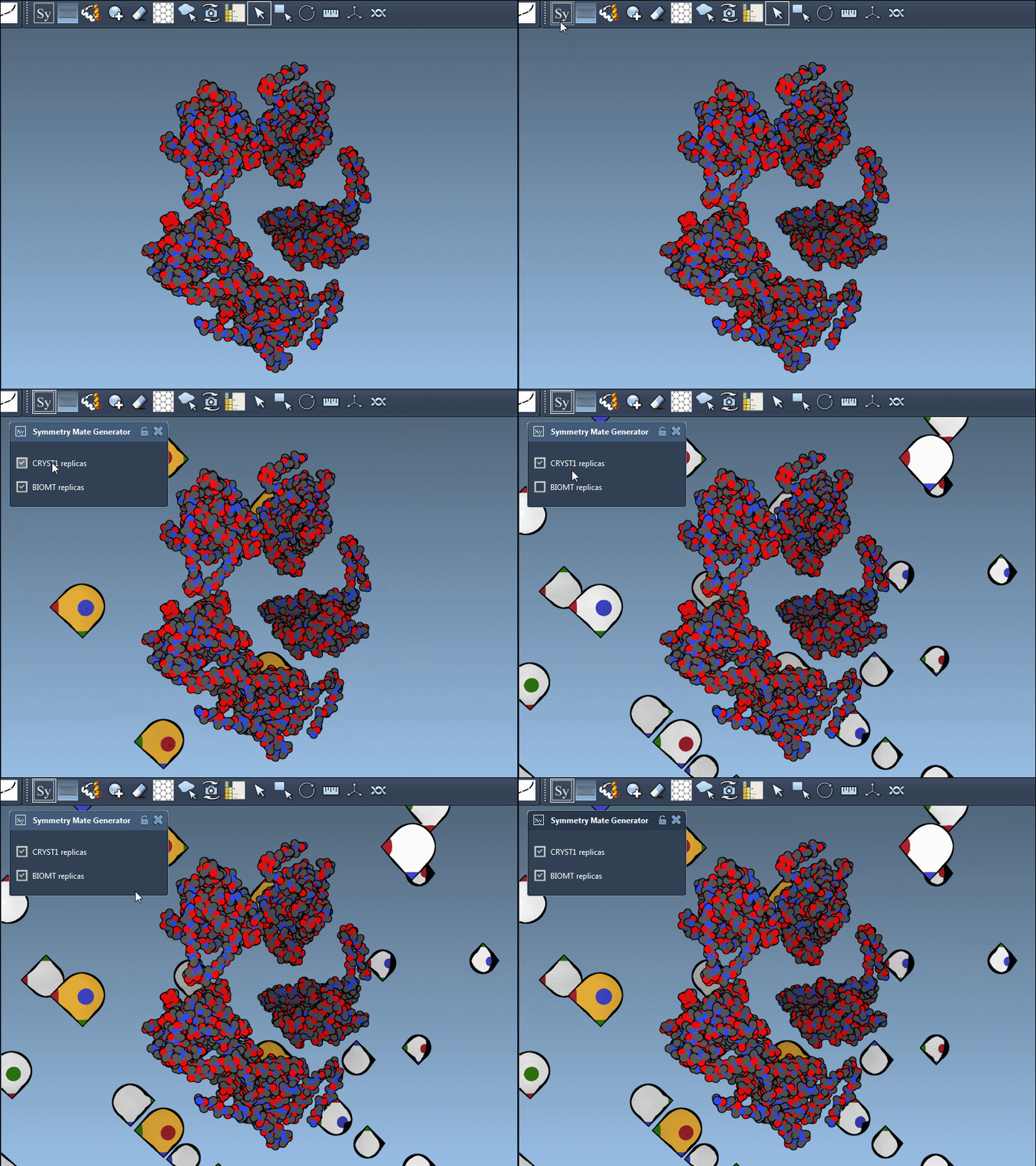
The Symmetry Mate Editor in SAMSON supports both types, allowing you to recreate either crystal packing arrangements or biologically relevant assemblies. To differentiate between the two in the interface, CRYST1 symmetry nodes are shown in white, while BIOMT nodes appear in yellow.
When to Use Each Record Type?
Understanding when to rely on CRYST1 or BIOMT is key to effective molecular modeling:
- Use CRYST1 when you need to analyze the crystal lattice itself, for example, to study the physical properties of a crystal or to investigate artifacts that arise during crystallography.
- Use BIOMT when studying a protein’s functional quaternary structure or simulating interactions between different parts of a biological assembly. This is especially important for molecular dynamics simulations or drug design.
By toggling between these options in the Symmetry Mate Editor, you have the flexibility to explore both perspectives seamlessly within the same modeling framework.
How to Toggle Between CRYST1 and BIOMT
The Symmetry Mate Editor makes it easy to switch between these symmetry types. After loading your PDB file, open the editor and simply toggle the symmetry mode using the provided interface. As you toggle, you’ll notice real-time updates to the arrangement of control nodes, helping you visualize the differences immediately.
For example, in the case of PDB structure 1B5S, you can use CRYST1 to view the crystal framework or BIOMT to visualize the biological assembly (as shown in the example gif above).
Applications and Next Steps
Whether you’re exploring protein-protein interfaces, visualizing quaternary structures, or preparing a simulation, understanding these two symmetry modes can level up your workflow. Once you’ve generated the replicas, inspect them to ensure they meet your modeling needs, and remove any unnecessary copies with the Undo feature.
Interested in diving deeper? Check out the full documentation on how to generate symmetry mates and make use of this powerful tool. Visit this link to learn more.
Note: SAMSON and all SAMSON Extensions are free for non-commercial use. You can download SAMSON at https://www.samson-connect.net.