



Molecular modelers often face the challenge of ensuring that their molecular structures are stable and realistic before running simulations or exploring molecular designs. Achieving optimized geometries often feels like a time sink, with some algorithms taking longer than desired or struggling with large-scale molecular motions. Thankfully, the FIRE (Fast Inertial Relaxation Engine) Minimizer offers a faster and efficient alternative for geometry optimization in SAMSON, addressing this pain point head-on.
Why Choose the FIRE Minimizer?
The FIRE Minimizer is a robust algorithm tailored for handling both small and large-scale molecular motions during geometry optimization. When compared to traditional methods like the steepest descent algorithm, FIRE is significantly faster, especially when complex collective motions are involved.
Here’s why the FIRE Minimizer is well-suited for your molecular modeling tasks:
- It is faster than steepest descent, particularly for tasks involving collective molecular motions.
- It is compatible with any SAMSON interaction model you are using.
- It is perfect for pre-simulation cleanup and structural relaxation of molecular systems.
How to Harness the FIRE Minimizer in Your Workflow
Using FIRE in SAMSON is simple. Here’s a step-by-step guide to get started:
1. Load a Molecular System
First, load your molecular structure in SAMSON. Supported formats include PDB, MOL2, and other common molecular file types used in computational chemistry. Need more guidance? The Loading Molecules Guide explains how to work with various file formats.
2. Add a Simulator
Once your system is ready, it’s time to add a simulator:
- Navigate to
Edit > Add Simulatorwithin SAMSON. - Select the interaction model that suits your molecular system.
- Under the “State Updaters” section, choose FIRE as the preferred minimization algorithm.
For detailed information about simulators, you can check the Simulators Overview.
Adjusting FIRE Minimizer Settings
Fine-tuning the FIRE minimizer settings ensures even better performance for your specific use case. Here are the main adjustment options available:
| Setting | Description |
|---|---|
| Step size | The initial integration step for minimization. |
| Steps | Number of FIRE steps between viewport updates. Raising this value provides less frequent but more visually pronounced updates. |
| Fixed | Optionally force the step size to remain constant throughout the process. |
Speed Comparison: FIRE vs Steepest Descent
In real-world scenarios, molecular systems often undergo significant structural shifts even when potential energy differences remain small. In such cases, the FIRE algorithm dramatically outperforms the steepest descent method, reaching convergence faster and enabling smoother workflows.
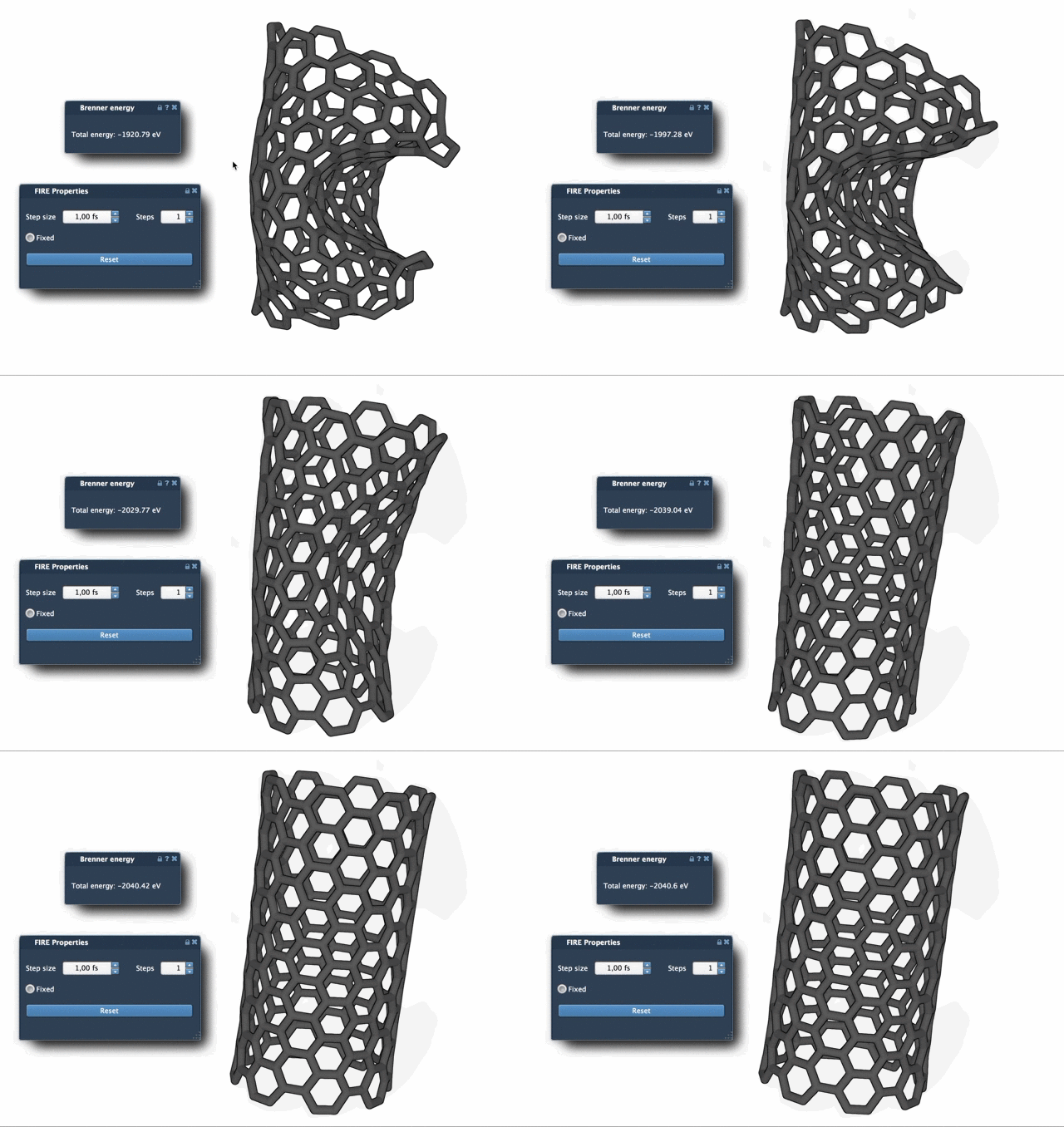
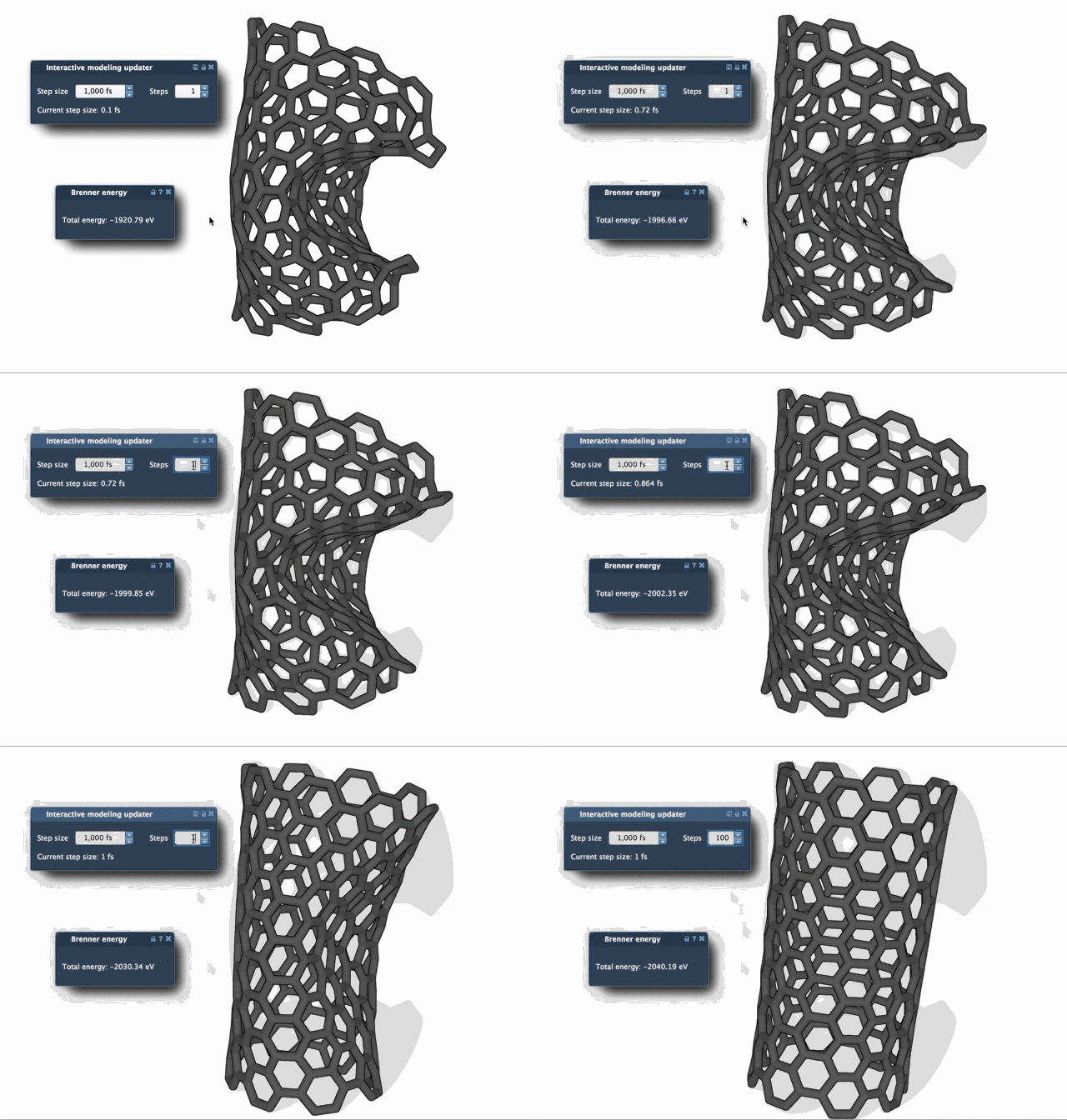
The visual examples above illustrate how FIRE can quickly stabilize the structure while the steepest descent method takes longer to reach similar geometry optimization.
Want to Dive Deeper?
If you’re ready to integrate FIRE Minimizer into your projects, check out the detailed documentation at https://documentation.samson-connect.net/tutorials/fire/ready-set-fire/. This guide offers insight into FIRE’s setup, customization, and applications within SAMSON workflows.
SAMSON and all SAMSON Extensions are free for non-commercial use. Get started with SAMSON and unlock powerful modeling capabilities for free by visiting SAMSON Connect.