



Molecular modeling can often feel overwhelming, especially when trying to visualize complex protein-ligand interactions or designing molecules from scratch. A major challenge for researchers is finding tools that seamlessly integrate both 2D and 3D representations of molecules—a critical requirement for intuitive exploration and design. If you’ve been searching for a solution, the Interaction Designer in SAMSON might be just what you need.
Why the Interaction Designer?
Typically, molecular modeling involves toggling between visualization and editing environments, which can disrupt workflow and lead to inefficiencies. The Interaction Designer solves this by offering an integrated platform for designing and visualizing molecular data in both 2D and 3D. This article will guide you through its 2D molecular design features, helping you understand how it can make your molecular modeling tasks easier and more efficient.
Getting Started with 2D Molecular Design
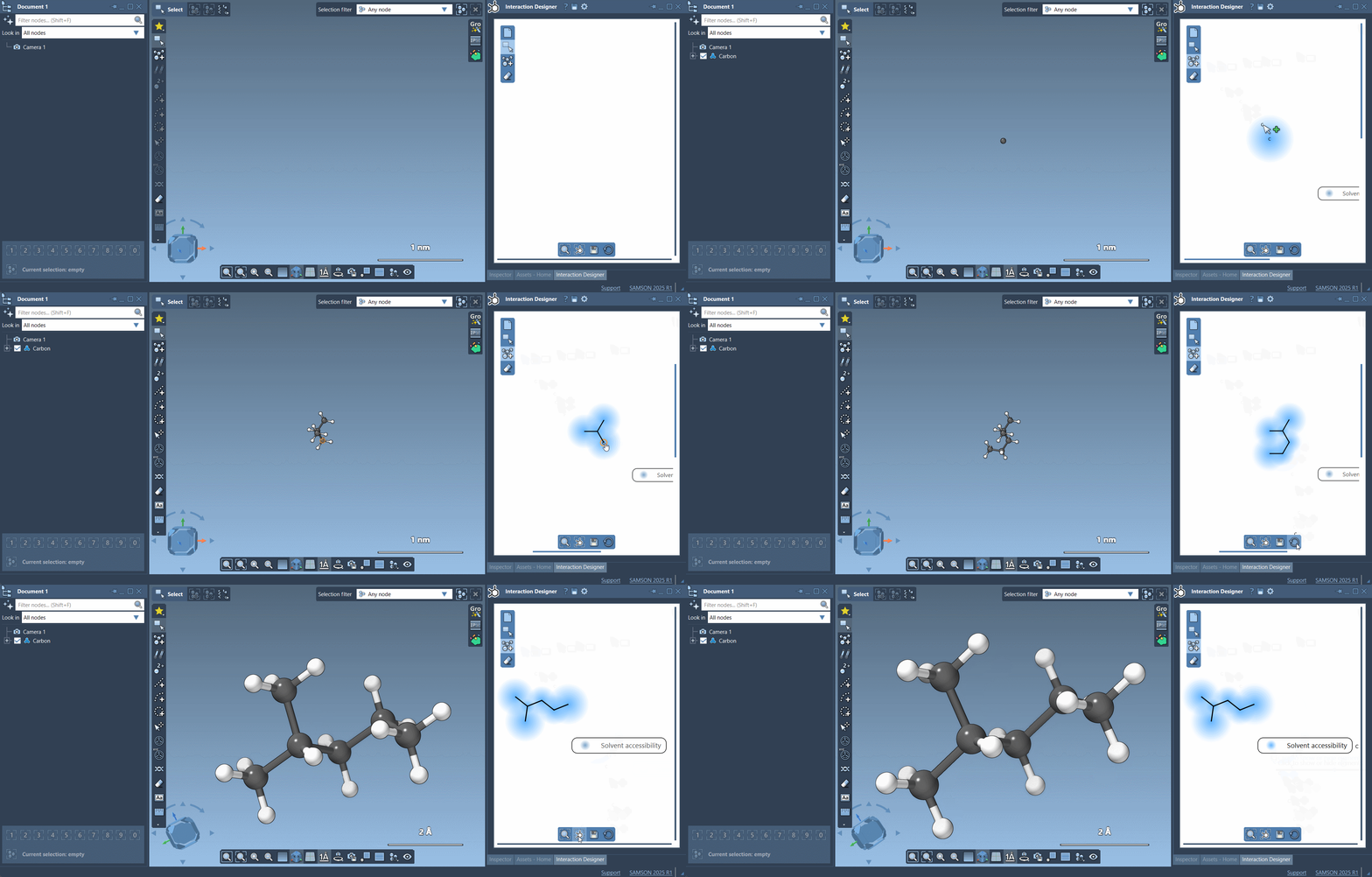
The Interaction Designer lets you create and edit molecules in 2D while keeping them synchronized with the 3D viewport. Here’s how you can start designing molecules directly within the 2D environment:
- Click on Edit > Design in the Interaction Designer menu to enter the drawing mode.
- Select an atom type (Carbon is set as default for building), and begin placing atoms by clicking anywhere in the design window.
- To extend or connect structures, click on an existing atom where you want to attach a new one.
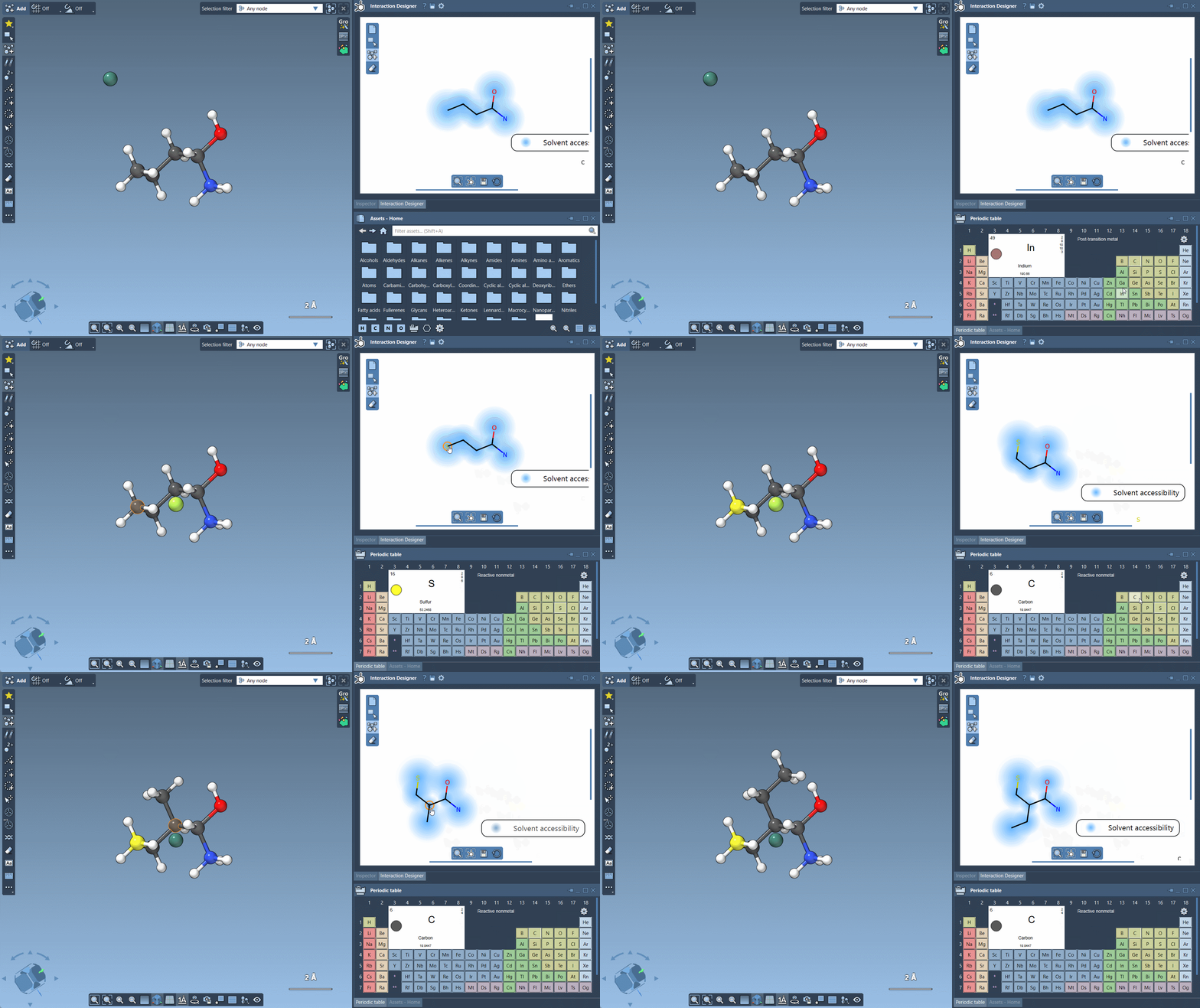
You can also choose a specific atom type via the Asset Browser. For common elements like Hydrogen, Carbon, Nitrogen, and Oxygen, you can use dedicated buttons at the bottom of the browser. For other elements, the Periodic Table is available, providing quick access to any atom you need.
Advanced Features
The Interaction Designer doesn’t stop at basic sketching; it offers powerful tools for customizing and editing molecular structures:
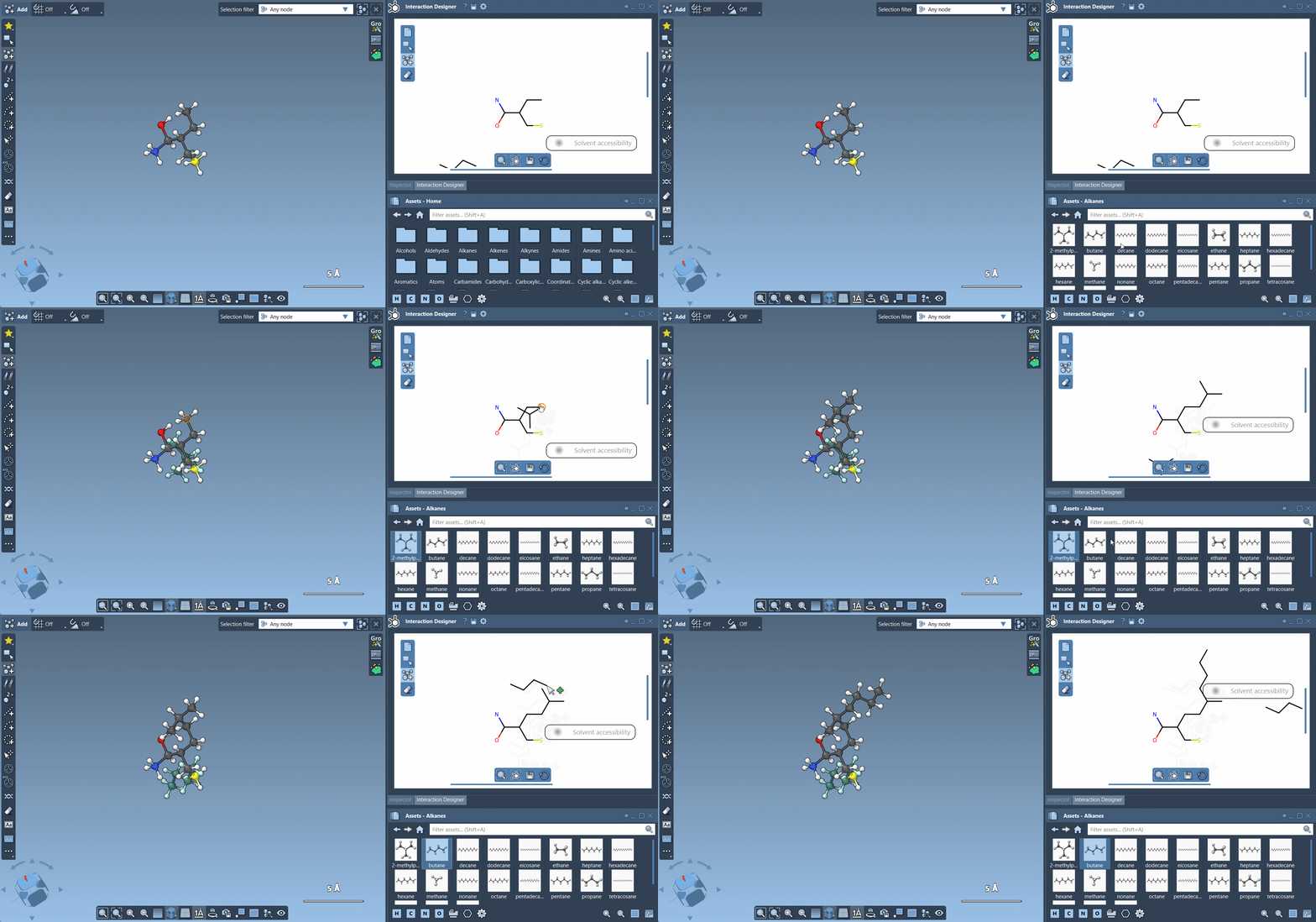
- Building with Fragments: Instead of adding one atom at a time, you can place ready-made molecular fragments. Simply choose the desired fragment in the Asset Browser, and click where you want it placed. Additionally, you can hold Ctrl/Cmd to change the pivot atom within the fragment.
- Erasing Atoms: To remove atoms or fragments, switch to the eraser mode by clicking on
 in the left panel. Then, delete atoms by clicking on them.
Exporting Your Work
After completing your designs, you can save them in various image formats, including png, jpg, jpeg, bmp, and svg. Simply click on the Save option in the Interaction Designer’s bottom panel to export your diagrams and 2D sketches seamlessly.
Conclusion
The Interaction Designer in SAMSON is a valuable tool for molecular modeling, offering convenience and efficiency for 2D molecular design. By integrating 2D and 3D views, providing easy-to-use atom and fragment manipulation features, and supporting versatile export options, it addresses the precise needs of molecular researchers.
To fully explore its capabilities, visit the official documentation page at https://documentation.samson-connect.net/users/latest/interaction-designer/.
SAMSON and all SAMSON Extensions are free for non-commercial use. Get SAMSON at https://www.samson-connect.net.