



One common challenge in the analysis of molecular simulation results is making sense of how ligands move in and out of protein binding pockets. While numerical data can help quantify these processes, the ability to intuitively visualize the motion of the ligand’s center of mass (COM) along unbinding pathways offers a powerful complement to more traditional analysis methods.
With the Pathlines Extension in the SAMSON platform, you can easily visualize this motion using COM pathlines—streamlined trajectories of user-selected atoms along precomputed or imported paths. This approach is especially useful when analyzing scenarios involving:
- Ligand unbinding and rebinding
- Conformational transitions of macro-molecules
- Probe diffusion through biomolecular systems
Why use COM-based pathlines?
Rather than showing every atom’s trajectory, Pathlines focuses on the center of mass of selected groups of atoms (for example, the ligand), across a path generated by a method like Ligand Path Finder. This reduces clutter in the visualization and highlights the main directionality and shape of motion.
Step-by-step: Ligand unbinding path visualization
Let’s walk through a practical example: visualizing the COM pathline of the TDG ligand diffusing out of the lactose permease (1PV7) protein binding site.
1. Load the sample system
Download the prepared sample document from SAMSON Connect. It contains the protein, ligand, and two unbinding paths precomputed using the Ligand Path Finder extension.

2. Select ligand and paths
In Document View, select the ligand (named TDG) and one or both of the available unbinding paths. SOMSON allows path selection alongside atoms by holding Ctrl (Windows/Linux) or Cmd (macOS).

3. Create the visual model
Now go to Visualization > Visual Model > More… or use the shortcut Ctrl/Cmd + Shift + V. In the dialog, choose “Pathline of the center of mass” and click OK.
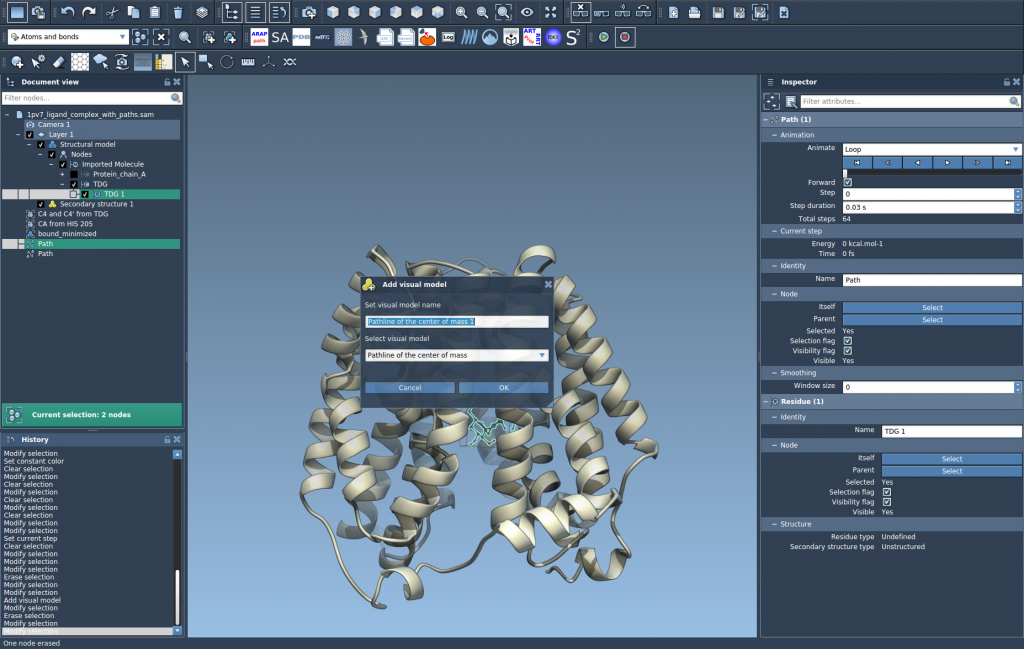
This will generate a visual model indicating how the COM of the ligand moves along the selected path(s).
4. Customize and explore
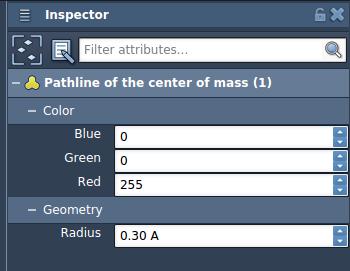
Double-click on the paths to begin animation, and use the Inspector panel to change visual model properties such as thickness or color. This allows you to adjust the scene depending on whether you’re preparing a publication figure, a presentation, or just analyzing movement patterns.
Why this matters
Pathlines make it easier to get an overview of what is happening during an unbinding event—particularly helpful when comparing multiple paths, assessing symmetry, or evaluating energy barriers. They help you move from a purely static view of the system to a more dynamic understanding shared in clear visuals.
To learn more about using the Pathlines extension for other use cases like domain motion tracking or reaction coordinate analysis, visit the full documentation at this page.
SAMSON and all SAMSON Extensions are free for non-commercial use. You can download SAMSON at www.samson-connect.net.