



For molecular modelers, one recurring challenge is understanding and leveraging the symmetry inherent in protein crystal structures and biological assemblies. Whether it’s for reconstructing complex assemblies, exploring protein-protein interactions, or designing nanostructures, symmetry plays a crucial role. This is where SAMSON’s Symmetry Mate Editor offers an intuitive solution, enabling you to visualize and generate symmetric replicas of proteins based on data in PDB files.
Why Symmetry Matters in Molecular Modeling
Protein structures are often stored as asymmetric units in PDB files, but these can represent only a fraction of the actual biological or crystallographic assembly. To accurately study quaternary structures, protein-protein interfaces, or binding sites across assemblies, generating symmetry mates is essential. Symmetry is also fundamental in designing symmetric biomolecular scaffolds or preparing models for molecular simulations. Accurate visualization of symmetrical arrangements can often differentiate between a successful and an inefficient workflow.
How SAMSON’s Symmetry Mate Editor Simplifies This Task
With SAMSON’s Symmetry Mate Editor extension, you can generate symmetry mates with precision using transformation data stored in PDB files. The tool supports both CRYST1 (crystal lattice symmetry) and BIOMT (biological assembly symmetry) records, making it versatile for addressing different modeling scenarios.
The editor allows you to:
- Visualize symmetric biological assemblies from crystallographic units.
- Reconstruct quaternary structures for simulations and designs.
- Preview replicas in real-time and generate replicas with minimal clicks.
- Toggle between crystal lattice and biological assembly symmetries while color-coding these options for easier identification.
Key Features of the Symmetry Mate Editor
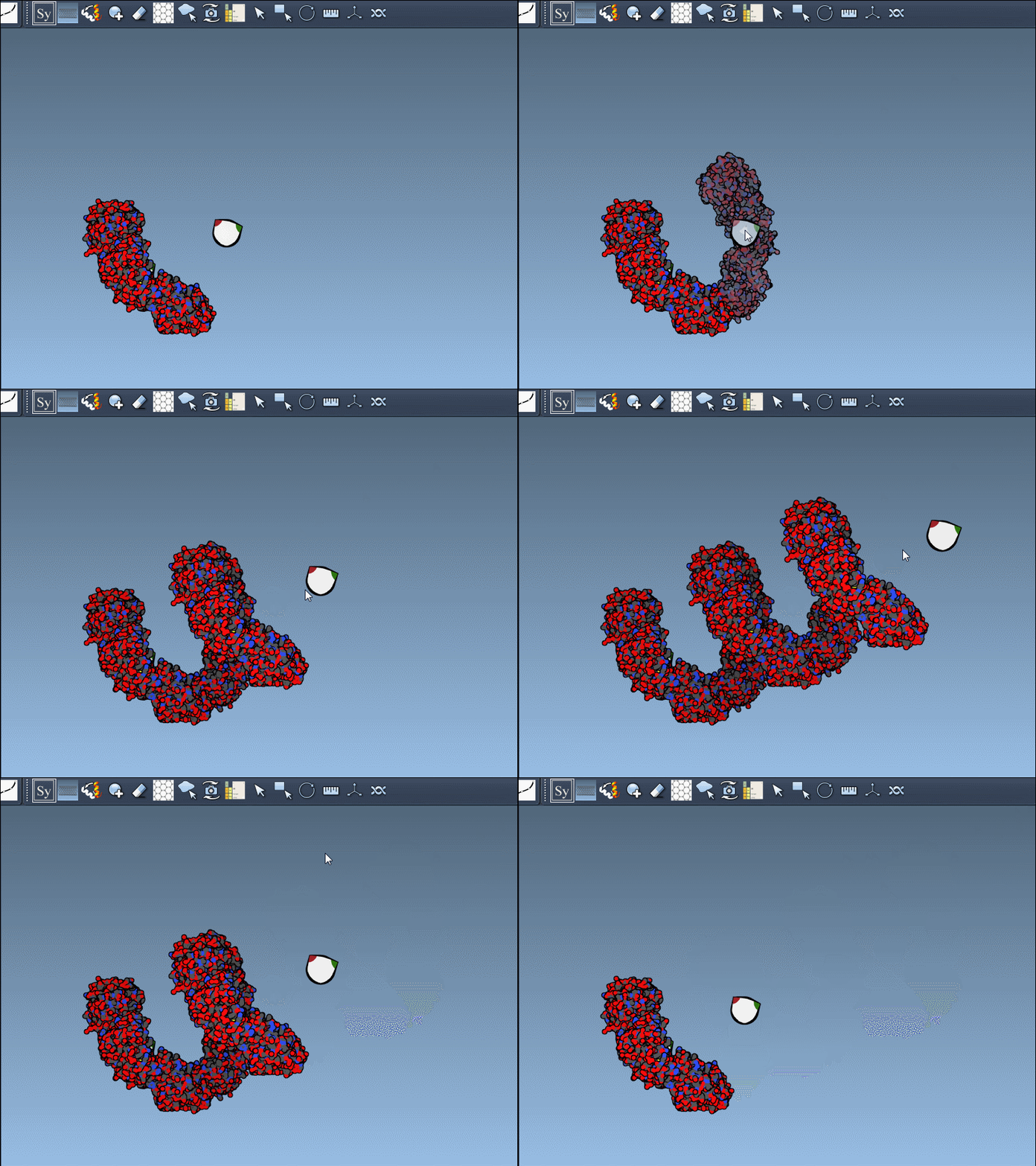
Once you activate the Symmetry Mate Editor, control nodes representing symmetry transformations appear in the viewport. These nodes provide the flexibility to:
- Preview replicas: Hover over a control node to view the symmetry mate before committing to generate it.
- Scale the display: Use Ctrl/Cmd + mouse wheel to increase or decrease the number of visible replicas.
- Permanently generate replicas: Left-click on a control node to add the replica permanently.
- Generate all replicas at once: Hold Ctrl/Cmd, hover over a control node, and left-click to preview and create all symmetry mates simultaneously.
Here’s an example GIF showing this feature in action:
A Useful Comparison: CRYST1 vs. BIOMT Records
Understanding the difference between CRYST1 and BIOMT records can refine your workflow. These two record types are conveniently differentiated in the Symmetry Mate Editor:
| Record type | Description | Widget color |
|---|---|---|
| CRYST1 | Symmetry from crystal lattice | White |
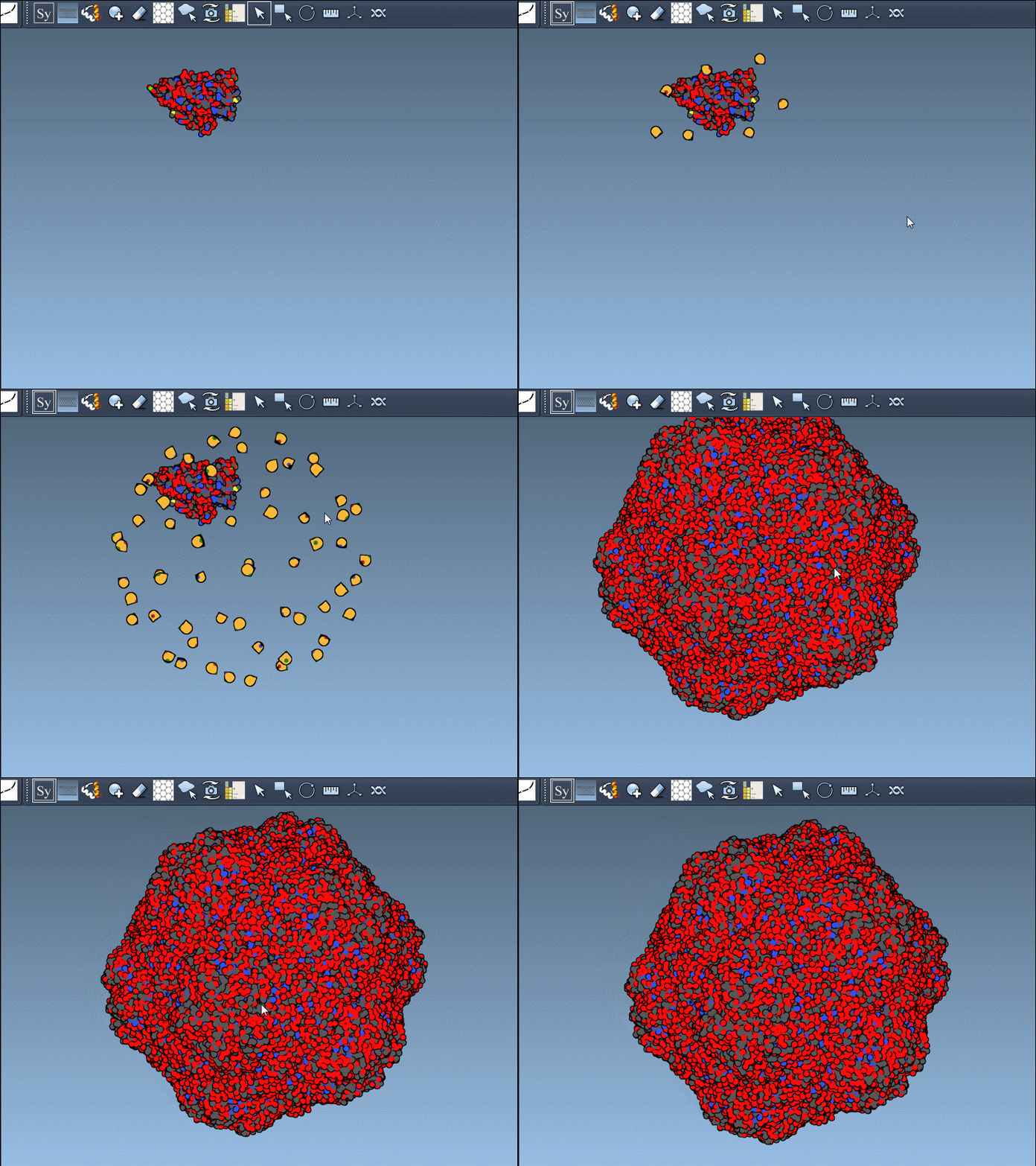
| BIOMT | Symmetry from biological assembly annotations | Yellow |
You can toggle between CRYST1 and BIOMT records directly in the interface, ensuring maximum adaptability for your needs.
Practical Applications in Molecular Design
The Symmetry Mate Editor is not just a tool for visualization—it’s a gateway to optimized molecular design. You can use it to:
- Build complete oligomeric assemblies from asymmetric units.
- Create symmetric protein cages and scaffolds for nanostructure design.
- Test the repetition of functional binding sites across symmetric assemblies.
- Set up molecular dynamics simulations for symmetric structures.
Ready to Dive In?
To get started with generating symmetry mates and exploring symmetrical assemblies, install the Symmetry Mate Editor extension and follow the tutorial on how to activate and use the editor effectively. It’s a step toward simplifying intricate workflows in molecular modeling and design.
For more information, visit the original tutorial page: SAMSON Symmetry Mate Editor Documentation.
Note: SAMSON and all SAMSON Extensions are free for non-commercial use. Get SAMSON today at https://www.samson-connect.net.