



A crystal model can look convincing and still miss an important part of the material: its disorder. A CIF file may describe sites that are occupied only some of the time, but it is easy to treat those entries as if every atom were always present. That can leave you modeling an idealized crystal when your question depends on defects.
Here is a practical workflow for adding a simple vacancy to a diamond structure in SAMSON, then checking that the defect is represented in the model.
Start with a CIF, not just a picture
Crystal Creator can import CIF (Crystallographic Information File) files and build a structural model from them. Open a CIF in SAMSON and choose the number of unit cells to import. The import window also lets you choose whether to import only the data without symmetries and whether to display the mesh. The resulting structure and its property model appear in the data graph.
If you need a sample structure, the documentation points to the American Mineralogist Crystal Structure Database and the RRUFF Project Database. Quartz, Macdonaldite, and Zorite are suggested starting points for exploring crystals.
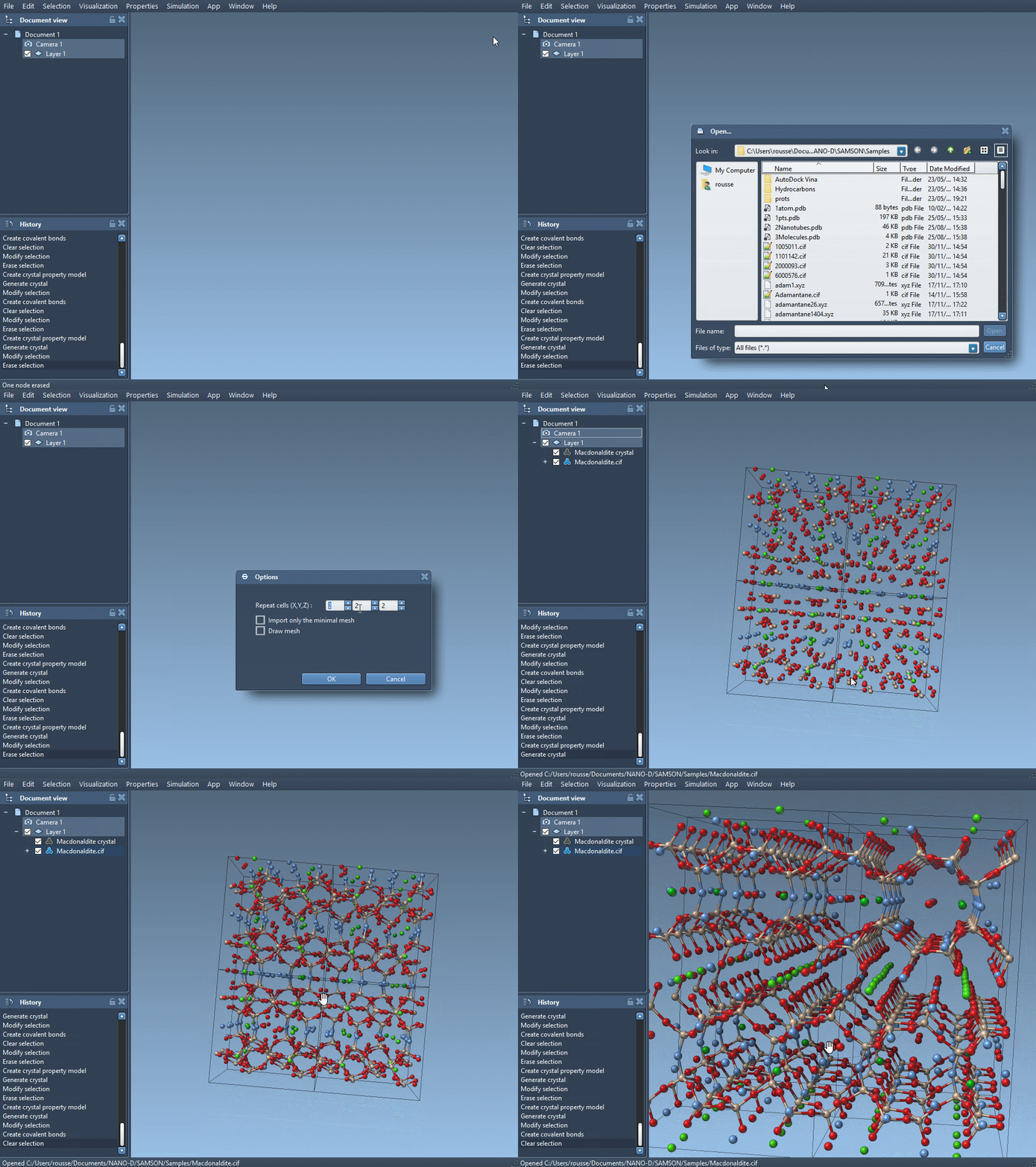
One useful distinction: a crystal’s unit cells do not always contain an identical, fully occupied set of atoms. CIF data can describe defects and substitutions, and Crystal Creator uses that information to create a crystal with those features represented.
Add an occupancy to a diamond site
For the tutorial’s diamond example, first load a diamond CIF, create its bonds, and minimize the structure with the Brenner interaction model. Then make a copy of the CIF and edit the copy in a text editor. In the atom-site section, replace the sample entry with an occupancy column and value:
|
1 2 3 4 5 6 7 |
loop_ _atom_site_label _atom_site_fract_x _atom_site_fract_y _atom_site_fract_z _atom_site_occupancy C 0.00000 0.00000 0.00000 0.95 |
The added value, 0.95, means that the carbon site has a probability of 0.95 of being present. In other words, the site is not specified as fully occupied. This is a compact way to express a defect in the structure description; it is different from simply deleting an atom from a finished model without recording why it is absent.
Save the edited CIF, load it into SAMSON, and create the bonds for the resulting structure. You can then inspect how the structure with defects differs from the original diamond model.
Check the model instead of assuming
After importing a crystal, right-click its property model and choose Properties. The first tab provides crystal tools, including controls for finding the crystal, displaying its mesh, cutting it by Miller indices, and generating another crystal. The second tab checks whether the generated crystal contains the intended amounts of defects and substitutions. Select Check atoms ratio to inspect the presence or absence ratio for each atom site.
This check matters because an occupancy value describes a proportion, not a visual guarantee that every small region will look identical. A structure can look mostly like ordinary diamond while still containing vacancies. Checking the atom ratios gives you a more direct way to verify that the generated model reflects the site occupancies you intended.
A small habit that prevents confusion
Keep the original CIF unchanged and edit a copy. Then you can compare the input and modified files, return to the original if needed, and keep a clear record of which model includes the defect. When comparing structures, use the same basic workflow for each: load the CIF, create bonds, and inspect the models under consistent conditions.
For more details on importing CIF files, building custom unit cells, cutting crystal slabs, and working with defects, see the Crystal Creator tutorial.
Note: SAMSON and all SAMSON Extensions are free for non-commercial use. Get SAMSON.