



A crystal structure can look perfectly ordered in a viewer, even when the experimental structure describes sites that are occupied only some of the time. That distinction matters when you want your model to reflect defects or substitutions rather than an idealized arrangement. In SAMSON, Crystal Creator can read CIF files that describe these features and use them when creating a crystal model.
This walkthrough focuses on a practical question: how can you represent and check a partially occupied site in a diamond crystal?
Start with a CIF structure
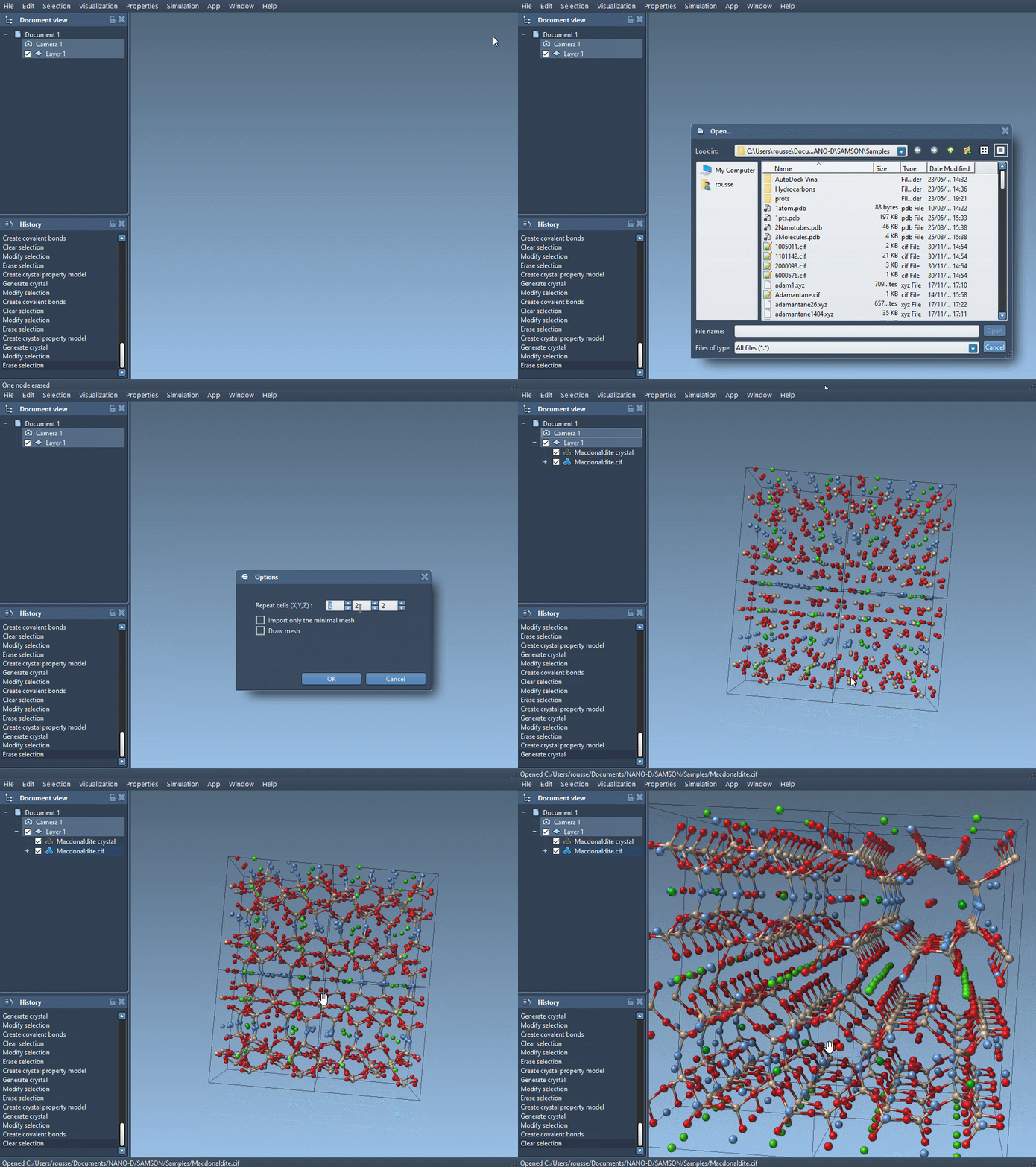
Install the Crystal Creator Extension if needed, then open a CIF file in SAMSON. During import, the dialog lets you choose the number of unit cells and whether to import only the data without symmetries, as well as whether to show the mesh. After you click Open, the crystal structure and its property model appear in the data graph.
CIF files can describe randomly distributed defects or substitutions. Crystal Creator uses that information to generate a crystal with the corresponding defects and substitutions. So the CIF is more than a list of ideal atom positions: its site information can affect the model you build.
Make a diamond site partially occupied
To explore the effect of a defect, begin with a diamond CIF file. The tutorial workflow is to load the diamond, create its bonds, and minimize its structure with the Brenner interaction model. Then make a copy of the CIF file and edit the copy in a text editor.
In the copied file, locate the atom-site loop. A basic version lists the atom label and its fractional coordinates:
|
1 2 3 4 5 6 |
loop_ _atom_site_label _atom_site_fract_x _atom_site_fract_y _atom_site_fract_z C 0.00000 0.00000 0.00000 |
Add the occupancy column and a value to the site entry:
|
1 2 3 4 5 6 7 |
loop_ _atom_site_label _atom_site_fract_x _atom_site_fract_y _atom_site_fract_z _atom_site_occupancy C 0.00000 0.00000 0.00000 0.95 |
Here, 0.95 means the carbon site has a 0.95 probability of being present. The coordinate values remain the same; the added occupancy value is the information that describes the partial presence of that site. Save the edited file as a separate copy so you can compare it with the original.
Compare and check the generated model
Open the edited diamond CIF in SAMSON and create the bonds. Compare the resulting structure with the original model to see how the defect information changes the generated crystal. The crystal’s exact unit cells can differ depending on the CIF, so inspect the model you actually imported rather than assuming every crystal has the same contents.
For an additional check, right-click the property model and select properties. In the second tab, use check atoms ratio to inspect whether the presence or absence ratios are respected for each atom site. This gives you a way to check site ratios in the generated crystal instead of relying only on its appearance.
A useful modeling habit
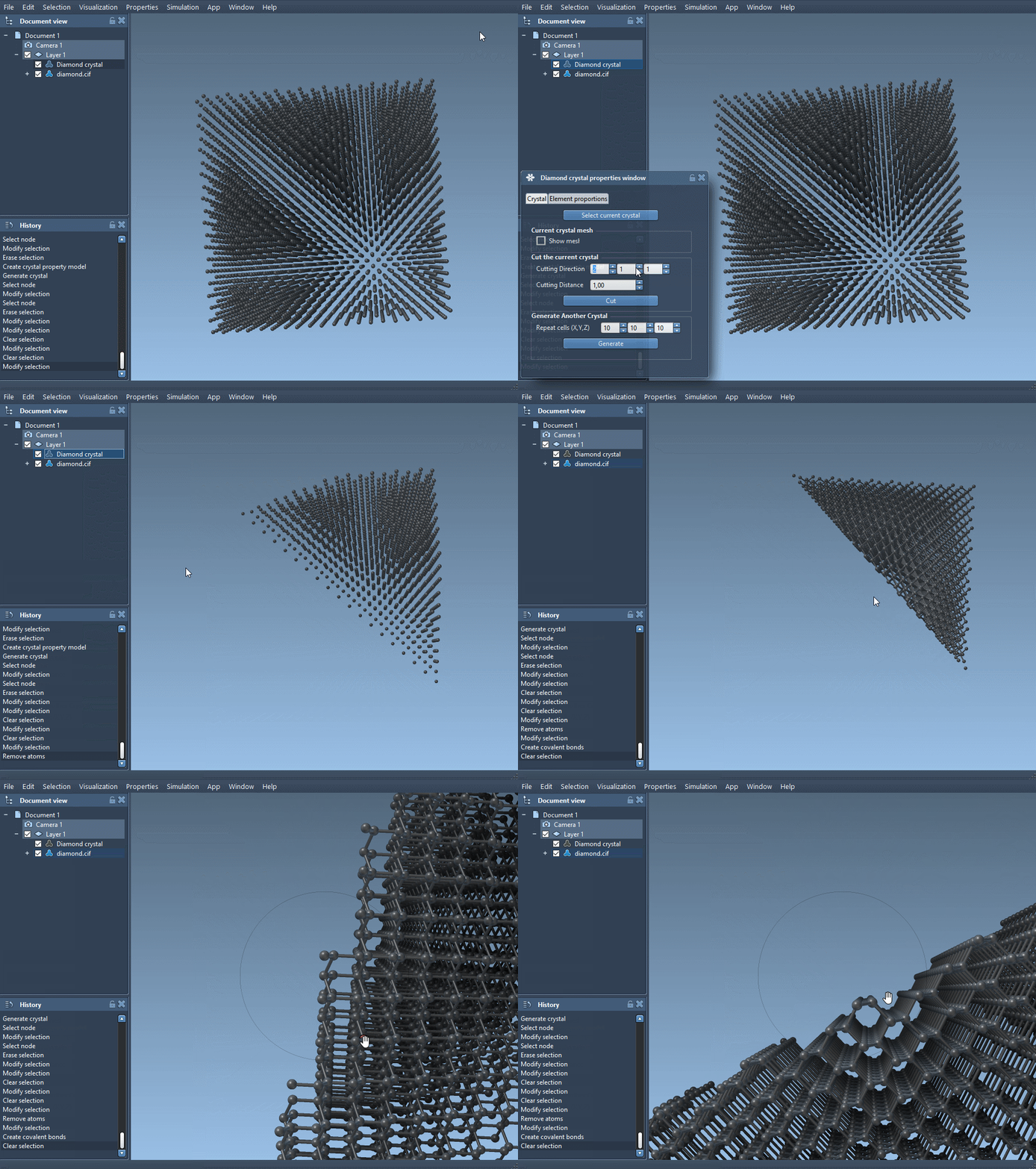
Keep the original CIF, the edited CIF, and the generated models clearly separated. That makes it easier to trace a visual difference back to the input data, especially when testing occupancy or substitutions. If you want to explore other crystal-building workflows, the Crystal Creator tutorial also covers importing crystals, cutting slabs, and defining a unit cell and its atoms.
Note: SAMSON and all SAMSON Extensions are free for non-commercial use. Get SAMSON at samson-connect.net.