



A molecular structure can look crowded without telling you which neighbors matter. Is a solvent gathering around a ligand? Are two selected groups repeatedly found at particular separations? A radial distribution function (RDF) helps turn those questions into a distance-based view of local packing and interaction patterns.
The challenge is that a curve is only useful when you know what it counts, which groups it compares, and whether its scale is normalized. Here is a practical way to set up and read an RDF in SAMSON’s Path Analyzer without confusing a visual peak for a stronger conclusion than the data supports.
Start with a question, not a curve
Before choosing atoms, decide what relationship you want to inspect. For example, you might compare a solute with solvent, a ligand with a pocket selection, or one residue subset with another. These are examples of useful group definitions, not a requirement to use any particular chemistry. The key is to make Group A and Group B correspond to the two populations whose separations you want to examine.
Both groups must be atom-containing selections. If a selection does not contain atoms, it cannot provide the pair distances needed for this analysis. Clear group definitions also make the resulting plot easier to interpret: the curve describes the relationship between the selected groups, not every atom in the model.
Set the distance window and resolution
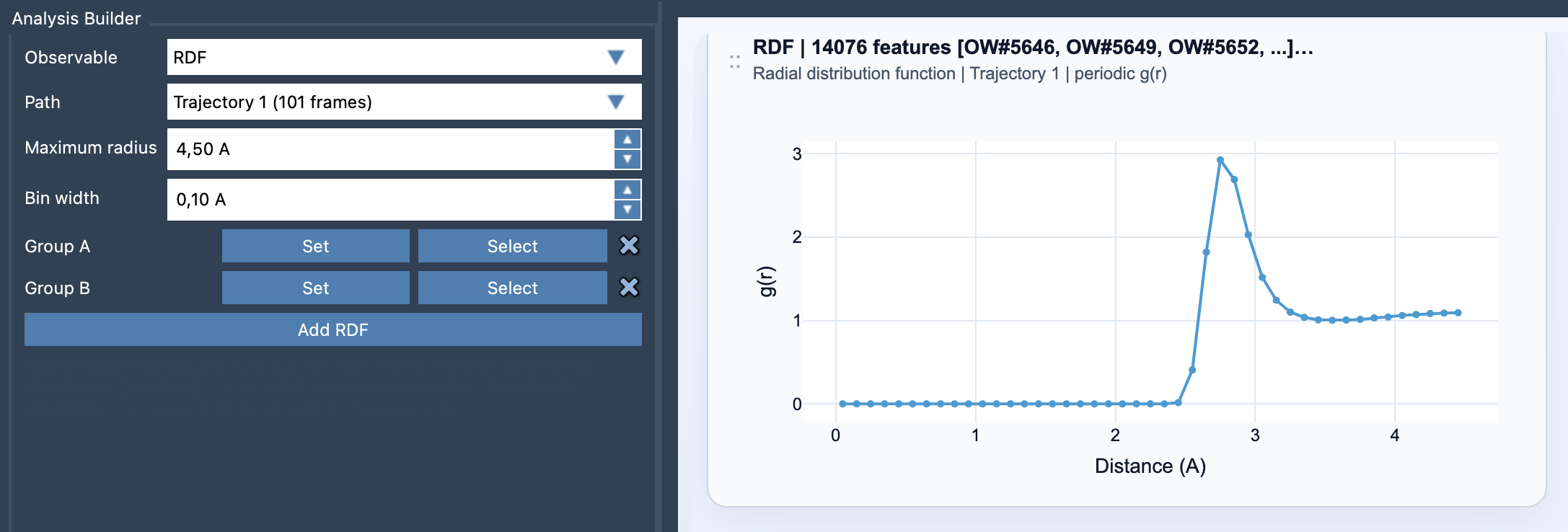
In Path Analyzer, open the observable list and choose RDF. Select a path, define Group A and Group B, then set the Maximum radius and Bin width before clicking Add RDF.
The maximum radius sets how far from the selected groups the distribution is sampled. Choose a range that covers the distances relevant to your question; a larger range is not automatically more informative. Bin width controls radial resolution. Narrow bins can help resolve nearby features, but if they are too narrow the curve can become noisy. Wider bins smooth the result but may blur detail. A useful choice balances visible structure against a jagged curve.
Read peaks as distance patterns
An RDF is a one-dimensional curve showing distribution against distance. At a simple level, it counts sampled pairs in thin spherical shells around a distance r. Shells farther from the center have more volume, so the count is related to the shell volume, which grows approximately as 4πr²Δr. This is why the curve is more than a raw list of pair distances: the interpretation depends on how those distances are sampled and normalized.
Peaks can point to distances where pairs from the chosen groups are frequently observed. Use them as clues about characteristic separations or local packing, then interpret them in the context of your selections and molecular system. A peak does not, by itself, prove a particular chemical interaction or explain its cause. Ask whether the groups are chemically meaningful and whether the distance range and bin width are appropriate before drawing conclusions.
Check the units behind the curve
When valid periodic unit-cell information is available, Path Analyzer can normalize the shell counts against the expected ideal-gas occupancy and report a properly scaled g(r). If periodic normalization is not possible, it falls back to an RDF-like curve in arbitrary units. In that case, treat the curve as a useful distance-distribution view, but do not interpret its height as a normalized value or assume that absolute heights can be compared directly with a properly normalized g(r).
One more detail matters when analyzing a path: RDF cards are not frame-linked, because they summarize the path globally. The result is therefore intended as a path-level view, rather than a display tied to one individual frame.
A quick checklist
- Define two atom-containing groups that match the comparison you want to make.
- Choose a maximum radius that covers the distances of interest.
- Adjust bin width to balance peak detail and noise.
- Check whether periodic cell information allows normalized
g(r), or whether the result is in arbitrary units. - Interpret peaks as distance patterns, not as proof of a specific interaction.
For the full workflow and additional notes, see the RDF documentation.
Note: SAMSON and all SAMSON Extensions are free for non-commercial use. Get SAMSON.