



A molecular trajectory can produce a long list of distances, RMSD values, energies, or radii of gyration. Turning those numbers into a histogram is a natural first step—but the picture can change noticeably when you change the bin width. Too many bins can make the distribution look jagged; too few can hide its shape. That makes it harder to answer a basic question: which ranges of values occur often in the samples?
Path Analyzer’s Density curve offers another way to view that distribution. Instead of assigning samples to histogram bins, it estimates a smooth one-dimensional density from the saved scalar values. The result can make clusters or broad regions of frequently sampled values easier to see, without making the plot depend on a particular set of bins.
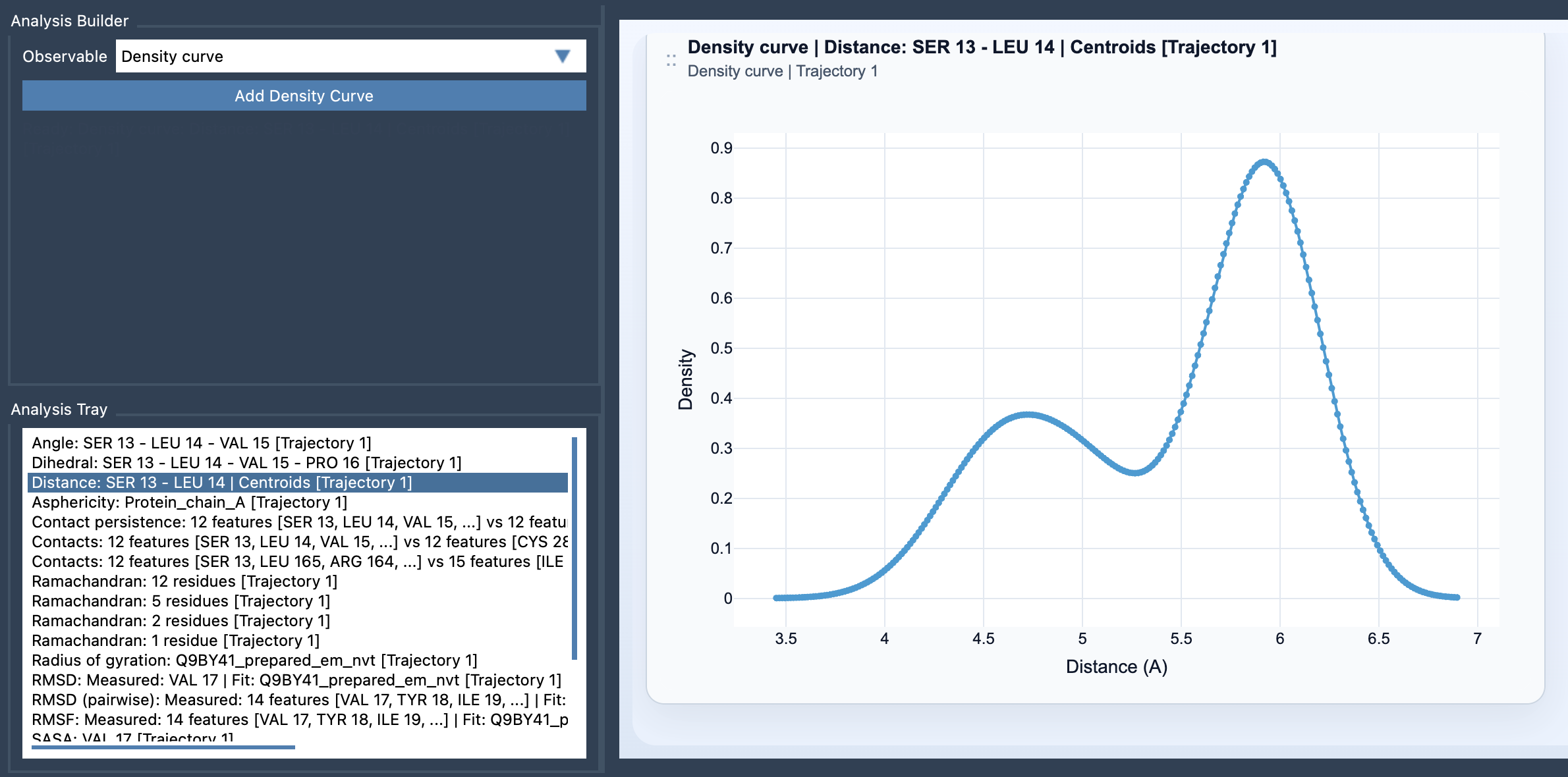
What the curve tells you—and what it does not
The horizontal axis represents the value from the source analysis. The curve shows the estimated density across that value range. A higher region indicates that more of the sampled values lie nearby, after smoothing; a lower region indicates fewer. In practical terms, peaks can help you spot value ranges that appear frequently, while shoulders or multiple peaks may suggest that the distribution has more than one prominent region.
It is important to read this as a summary of a population of values, not as a timeline. The curve does not tell you when a value occurred, how long the system remained there, or which frame came before another. It also does not prove that a peak is a stable molecular state or, by itself, establish a thermodynamic interpretation. Those conclusions require context from the analysis and sampling that produced the values.
Path Analyzer estimates the curve with a Gaussian kernel density estimate. In simplified terms, each sampled value contributes a smooth Gaussian-shaped bump, and those contributions are combined. The bandwidth, h, determines the smoothing scale and is chosen automatically. This is why the curve is useful for an overview, but why very fine details should be interpreted cautiously: smoothing can soften narrow features, and the samples themselves determine what the estimate can reveal.
Build a curve from a saved analysis
- Open Path Analyzer.
- Create or reuse a scalar analysis and save it in the Analysis Tray. Suitable examples include Distance, RMSD, Energy, and Radius of gyration.
- Choose Density curve in Observable.
- Select exactly one saved scalar analysis in the tray, then click Add Density Curve.
This is a derived analysis: it takes its input from the Analysis Tray rather than from a new direct selection of atoms. If you want a density curve for a different observable, first prepare and save that scalar analysis, then create a separate curve from it.
A useful way to use it
Start by asking what the plot can answer. If your question is whether the sampled values concentrate in one range or several, a density curve provides a compact view. If the question is about transitions, timing, or frame-by-frame behavior, use a time-aware view as well; the curve intentionally discards that ordering. And if you need to compare two observables together, a one-dimensional curve is not the whole picture. Path Analyzer also documents a 2D density map and an Energy landscape for related analyses.
In short, use a density curve when a histogram’s bin choices distract from the overall distribution. Treat its peaks as clues about where the sampled values gather—not as a substitute for the underlying trajectory or the scientific interpretation of your model. Learn more in the Density Curve documentation.
Note: SAMSON and all SAMSON Extensions are free for non-commercial use. Get SAMSON.