



A molecular pathway can be useful before it is physically convincing. A ligand may have a plausible starting pose and destination, yet the intermediate structures can be unevenly spaced or take an awkward route. That makes the trajectory harder to inspect and can limit its usefulness as a starting point for further analysis.
The Parallel Nudged Elastic Band (P-NEB) app in SAMSON addresses this particular problem: it refines a candidate path by optimizing its intermediate images while spring forces keep neighboring states distributed along the path. It is a refinement step, not a pathway generator. You need an initial path or a sequence of conformations first.
Start with a candidate path
For a ligand-unbinding study, an initial route might come from a path-finding workflow such as Ligand Path Finder. Other options include creating intermediate conformations, for example by interpolation, or using another path-generation method. P-NEB then works on that candidate route; it does not discover the starting pathway for you.
The distinction between input types matters. A path stores a trajectory for selected atoms. A conformation stores the positions of selected atoms at one state. Although P-NEB can process either, the tutorial recommends using a path when possible: for the same system and number of steps, optimizing a set of conformations takes longer. If you have conformations, select them and use Conformation > Create path from conformations to combine them into a path.
A practical refinement workflow
- Load a model and candidate route. The tutorial includes sample documents for a Zinc ligand unbinding trajectory and a lactose permease–thiodigalactoside complex. You can download a sample from this smaller test system or the protein–ligand example.
- Open P-NEB. Find it under Home > Apps > All > P-NEB, or use the “Find everything…” search box. The app requires the P-NEB extension and the FIRE state updater.
- Set the initial parameters. The tutorial’s example uses a spring constant of
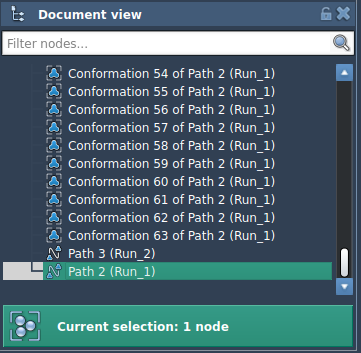
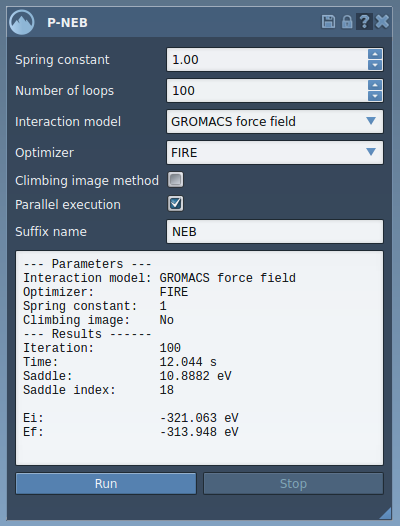
1.00,100loops, the Universal Force Field, and FIRE as the optimizer. Leave the climbing image option unchecked for the first run; it can be tried afterward if you want to use the climbing image strategy to locate the saddle point. Enable parallel execution if you want the app to run one thread per conformation. - Select the input and run. In the Document view, select the path, then click Run in P-NEB. When the Universal Force Field setup asks whether to use existing bonds, choose to use them and confirm. The status bar shows progress while initialization and computation proceed.
- Inspect the result. When optimization finishes, SAMSON adds a new path to the Document view. Select it and examine it with the Inspector, or double-click the path to start and stop its animation. Review the resulting conformations rather than treating optimization alone as proof that the route is biologically or chemically validated.
What this step can—and cannot—tell you
NEB helps relax the intermediate images and distribute neighboring states using spring forces. The P-NEB app implements the climbing image nudged elastic band method, but the tutorial’s basic run leaves that option off. A refined path is a better-organized candidate for inspection and subsequent workflows; it should not be confused with experimental confirmation or a complete free-energy calculation.
A useful habit is to preserve the original route, run P-NEB on it, and compare the new path with the input. That makes it easier to see what changed and decide whether the refined trajectory is suitable for your next step, such as exporting atom trajectories or continuing with a simulation workflow.
For the full interface walkthrough and related details, read the P-NEB tutorial.
Note: SAMSON and all SAMSON Extensions are free for non-commercial use. Get SAMSON.