



A molecular structure can look nearly right and still contain awkward geometry: atoms may be displaced, or parts of the system may need to move together before the structure is ready for further modeling. Manually nudging atoms can help, but it is hard to know when the geometry has settled—and manual changes during minimization can complicate the optimizer’s history.
In SAMSON, the FIRE Minimizer offers a way to relax a molecular system using its interaction model. FIRE stands for Fast Inertial Relaxation Engine. It is designed to converge faster than steepest descent in situations involving collective motions, where the geometry can change substantially even as potential energy changes are small. Here is a practical workflow for using it, and what to keep in mind when tuning its controls.
Set up the system before minimizing
First, load the molecular system you want to work on. SAMSON supports formats such as PDB and MOL2, among others. If you are new to loading structures, see the Loading Molecules Guide.
Next, add a simulator using Edit > Add Simulator. Choose the interaction model you want to use, then select FIRE in the State Updaters list. This pairing matters: FIRE is the state updater that performs the optimization, while the interaction model supplies the model under which the system is evaluated. For more context, see the Simulators Overview.
Understand the controls before changing them
- Step size is the initial integration step for minimization. It is the setting to pay attention to when you are adjusting how the minimization proceeds.
- Steps controls how many FIRE steps occur between viewport updates. It changes how often you see the optimization progress—not the number of minimization steps in the overall run.
- Fixed optionally forces the step size to remain constant.
That distinction between Steps and the minimization itself can be easy to miss. If the structure appears to update only occasionally, increasing Steps makes viewport updates less frequent but more pronounced. It changes the visibility of progress, not the underlying goal of geometry optimization.
There is no single setting that is right for every system. A useful approach is to begin with a small test system, observe the behavior, and change settings deliberately rather than adjusting several controls at once. This makes it easier to connect what you see in the viewport with the control you changed.
Know when to reset the history
If you manually move atoms while FIRE is minimizing, press Reset to clear the FIRE history. This is a simple but important step: you have changed the structure outside the minimizer, so clearing its accumulated history helps it continue from the manually edited geometry rather than carrying that history forward.
Compare the motion, not just the final pose
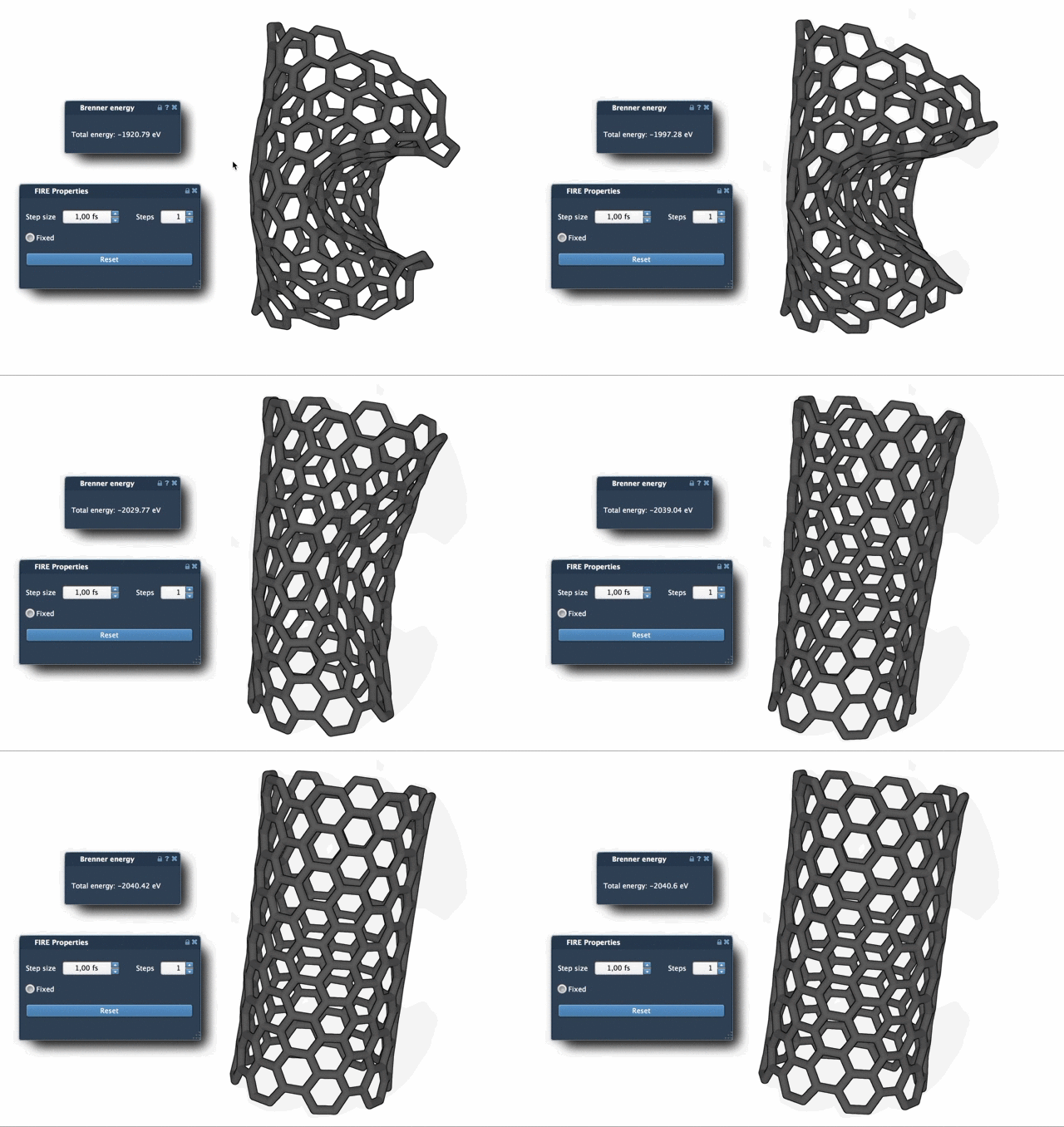
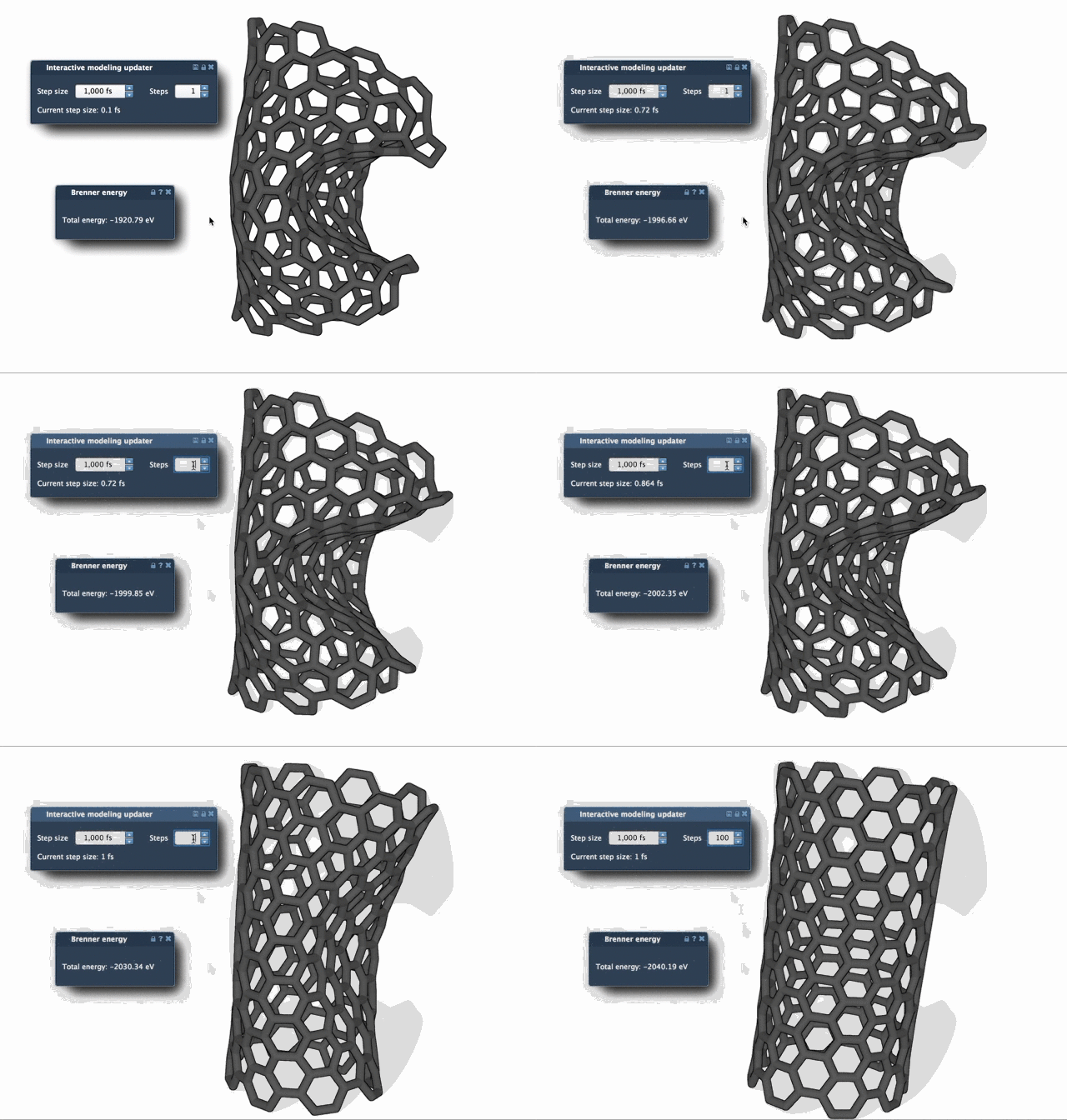
FIRE can be especially useful when the structure needs collective movement. The animations below illustrate FIRE relaxation alongside steepest-descent relaxation. Comparing the motion can help explain why a minimizer’s behavior matters: two approaches may both seek lower-energy geometries, yet progress through the structure differently.
A short workflow to remember
- Load the structure you want to relax.
- Add a simulator and choose an interaction model.
- Select FIRE as the state updater.
- Watch the geometry and use Steps to control how often the viewport updates.
- If you manually move atoms during minimization, press Reset.
FIRE is also implemented as a SAMSON State Updater, so it can be used in workflows that need geometry optimization. For example, the Molecular Restrainer extension uses it for energy minimization of NMR-derived structures.
For the complete tutorial and additional details, visit the FIRE Minimizer documentation.
Note: SAMSON and all SAMSON Extensions are free for non-commercial use. Get SAMSON.