



A large protein assembly can be difficult to interpret at a glance. Repeating chains may suggest symmetry, but visual inspection alone can leave important questions unanswered: Is the assembly truly organized around a recognizable symmetry group? Which axis should you use? And what should you do when the analysis proposes more than one plausible answer?
These questions matter when you are checking an experimental structure, studying repeated interfaces, or preparing a model for a symmetry-aware workflow. The Symmetry Detection extension in SAMSON helps by finding and displaying symmetry axes in biological assemblies. The key is to treat the result as something to inspect and compare—not just a label to accept.
Start with the right structure
Before computing symmetry, open the biological assembly or multimeric complex you want to study. You can fetch or load examples such as 3NQ4, 1CHP, or 1B4B. Depending on the importer, you may need to select an option to import biological assemblies. This matters because the structure you analyze should contain the assembly whose organization you want to evaluate.
Then launch Home > Apps > Biology > Symmetry Detection and click Compute symmetry. The extension supports cyclic groups (Cn), dihedral groups (Dn), and cubic groups, including tetrahedral, octahedral, and icosahedral symmetry. It may return more than one candidate group, especially for a large complex.
Compare candidates instead of guessing
When several groups appear, the documentation recommends preferring higher-order groups with small RMSD values. RMSD is useful here as a way to compare how closely a proposed symmetry relates the structure’s repeated parts. Consider the candidate group and its RMSD together: a higher order is not, by itself, a reason to ignore a poorer fit.
There is no universal RMSD cutoff given for every assembly, so avoid treating one number as an automatic pass or fail. Instead, compare the candidate results for your structure, inspect the corresponding axes, and consider whether the proposed organization makes sense for the assembly you loaded. A symmetry result helps describe structural organization; it does not, on its own, establish the biological role of an interface.
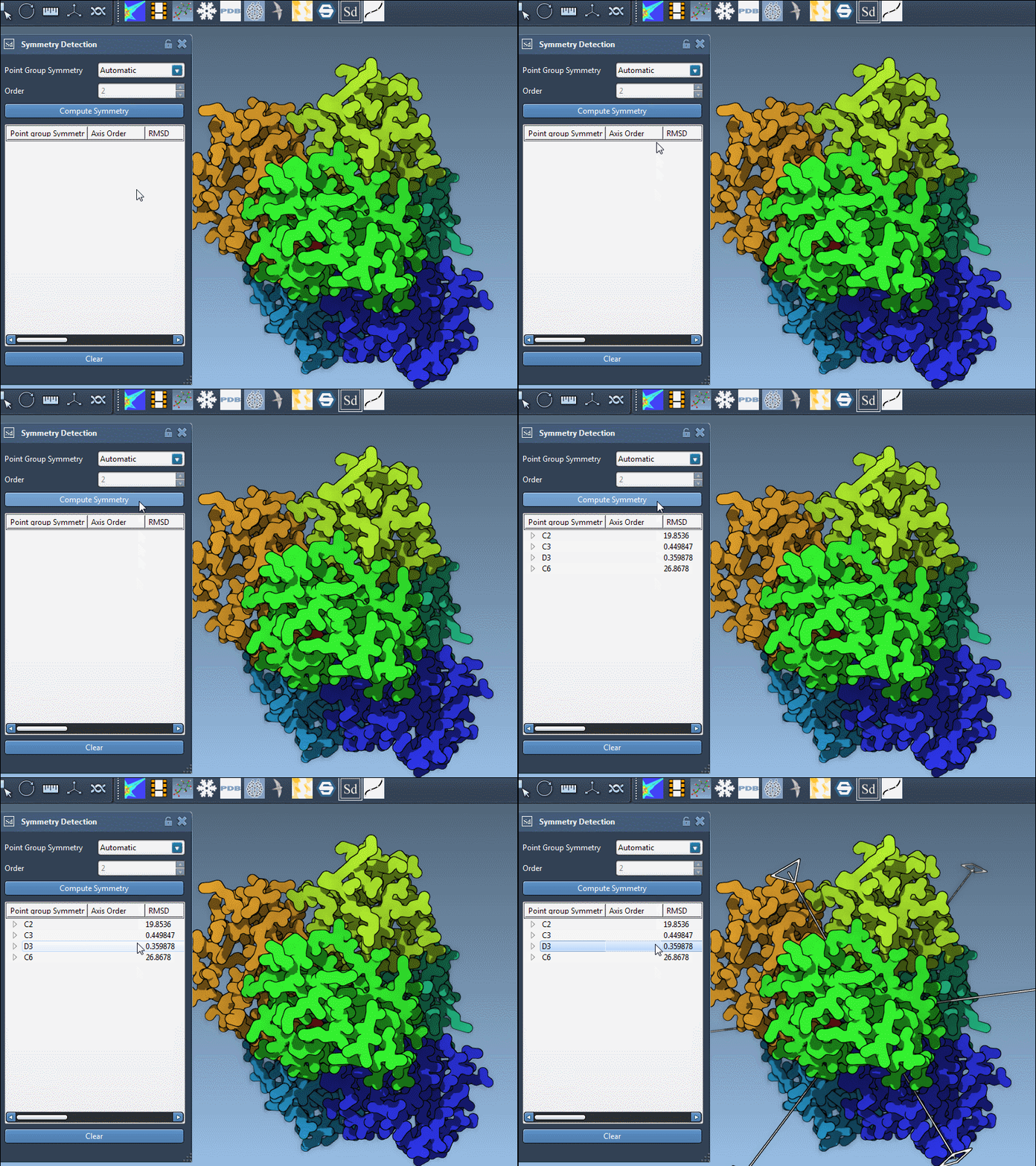
For example, the tutorial uses 1B4B to show a dihedral symmetry of order 3, written D3. If you already know the expected group, you can also select the symmetry group and order manually from the drop-down lists, then inspect the result.
Use the axes to check the result visually
A group can contain several axes, each with its own RMSD score. Expand a group to see its axes, then click an axis once to highlight it in the viewport. Double-clicking an axis aligns the camera so you look down it. This makes it easier to relate the analysis to the assembly’s shape and to see how the proposed axes pass through the structure.
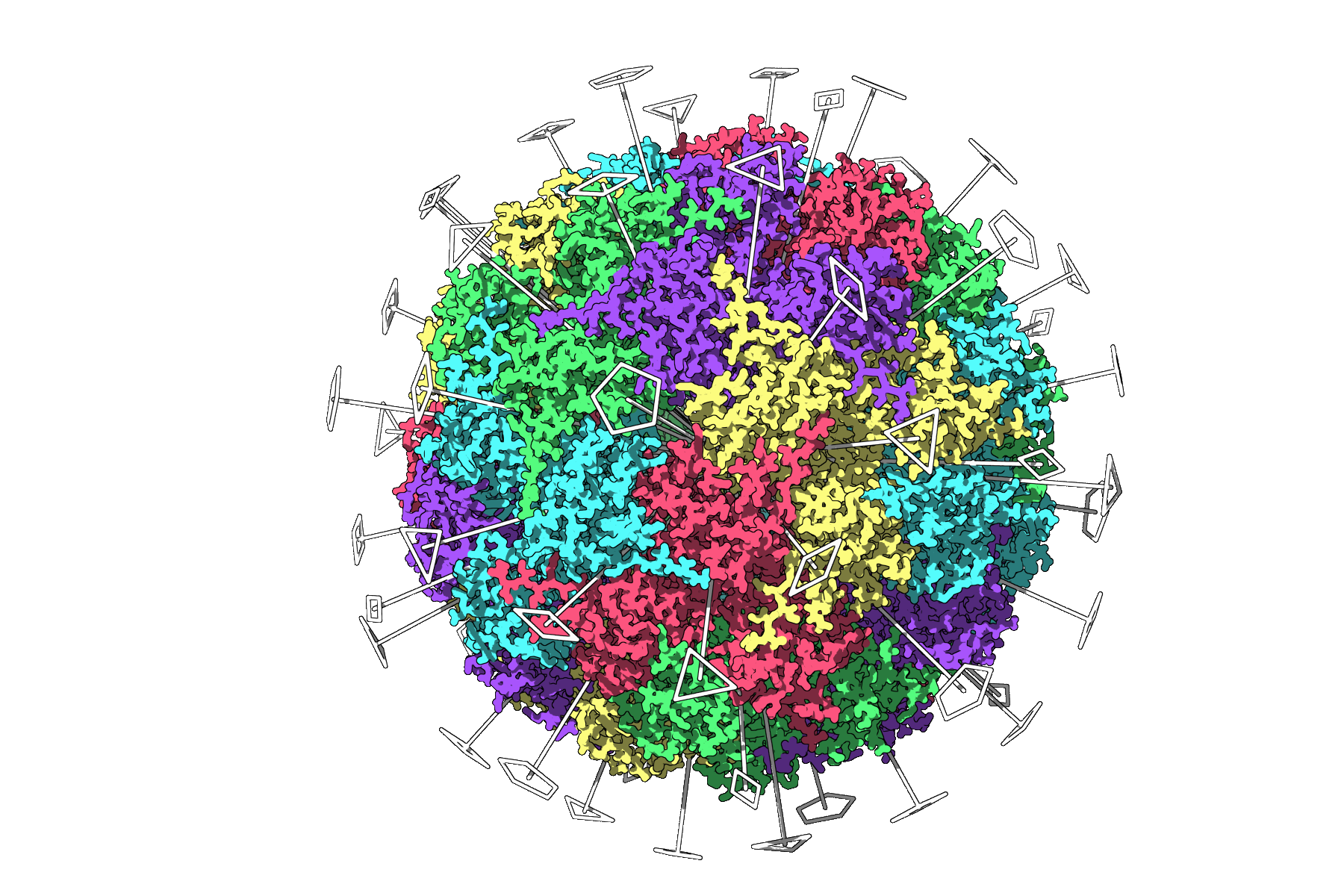
For an icosahedral example, the extension identifies the 2-, 3-, and 5-fold axes in the 3NQ4 capsid. Seeing these axes together can help you understand the overall organization and identify a unique asymmetric unit before setting up a heavier simulation.
Make the visualization easier to read
Symmetry axes are most useful when you can see them in context. The tutorial suggests combining them with Ribbons or Surface visual models, and coloring chains differently to make repeated units easier to distinguish. You can also use viewport snapshots to capture a view for a presentation or publication.
Once you have chosen a group and inspected its axes, the result can guide follow-up work: checking repeated interfaces, considering an asymmetric unit for focused modeling, or exploring symmetric designs. The practical benefit is not simply seeing a symmetry label—it is having a clearer, inspectable basis for deciding how to work with a complex assembly.
For the full workflow and additional examples, see the SAMSON symmetry detection tutorial.
Note: SAMSON and all SAMSON Extensions are free for non-commercial use. Get SAMSON.