



Designing new molecules in 3D can often feel overwhelming. Aligning atoms, exploring fragments, checking for clashes — it’s a lot to keep track of in three dimensions. But what if you could start your molecule design in a clean, simplified 2D space, fully synchronized with your 3D viewport?
This is where the Interaction Designer in SAMSON offers a practical solution. It lets you sketch molecules directly in 2D while keeping an instant connection with the 3D structure. Whether you’re iterating on a ligand, modifying a scaffold, or assembling from fragments, beginning in 2D can make early decisions faster and more visual.
Why use 2D to build molecules?
- Clarity: Working in a simplified 2D view reduces clutter and helps you focus on molecular composition and connectivity.
- Speed: Add, modify, or erase atoms and fragments with a few clicks. Switching between atom types or fragments is directly accessible.
- Synchronization: Every action in 2D is reflected in 3D in real-time — no need to rebuild or re-import data.
How it works
To enter 2D design mode in the Interaction Designer, use the menu: Edit > Design.
You can start from scratch or base your new design on an existing molecule or selection from your active scene.
Adding atoms
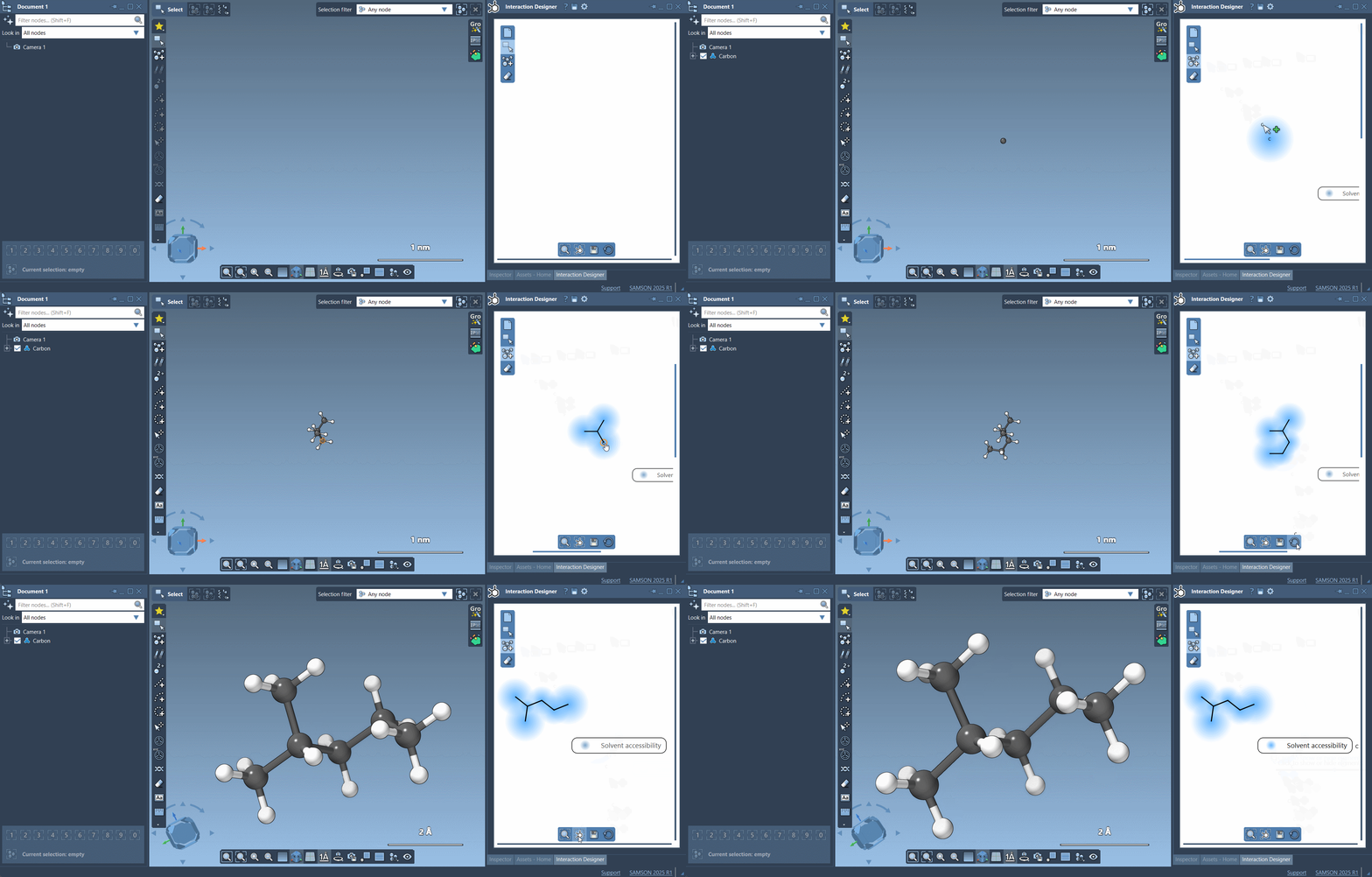
In the left panel, click Add to activate building mode with Carbon as the default atom. Click in the design window to add atoms, and click again to define bonds. Here’s what that looks like:
Changing atom types
To use elements like H, N, or O directly, use the shortcuts at the bottom of the Asset Browser:
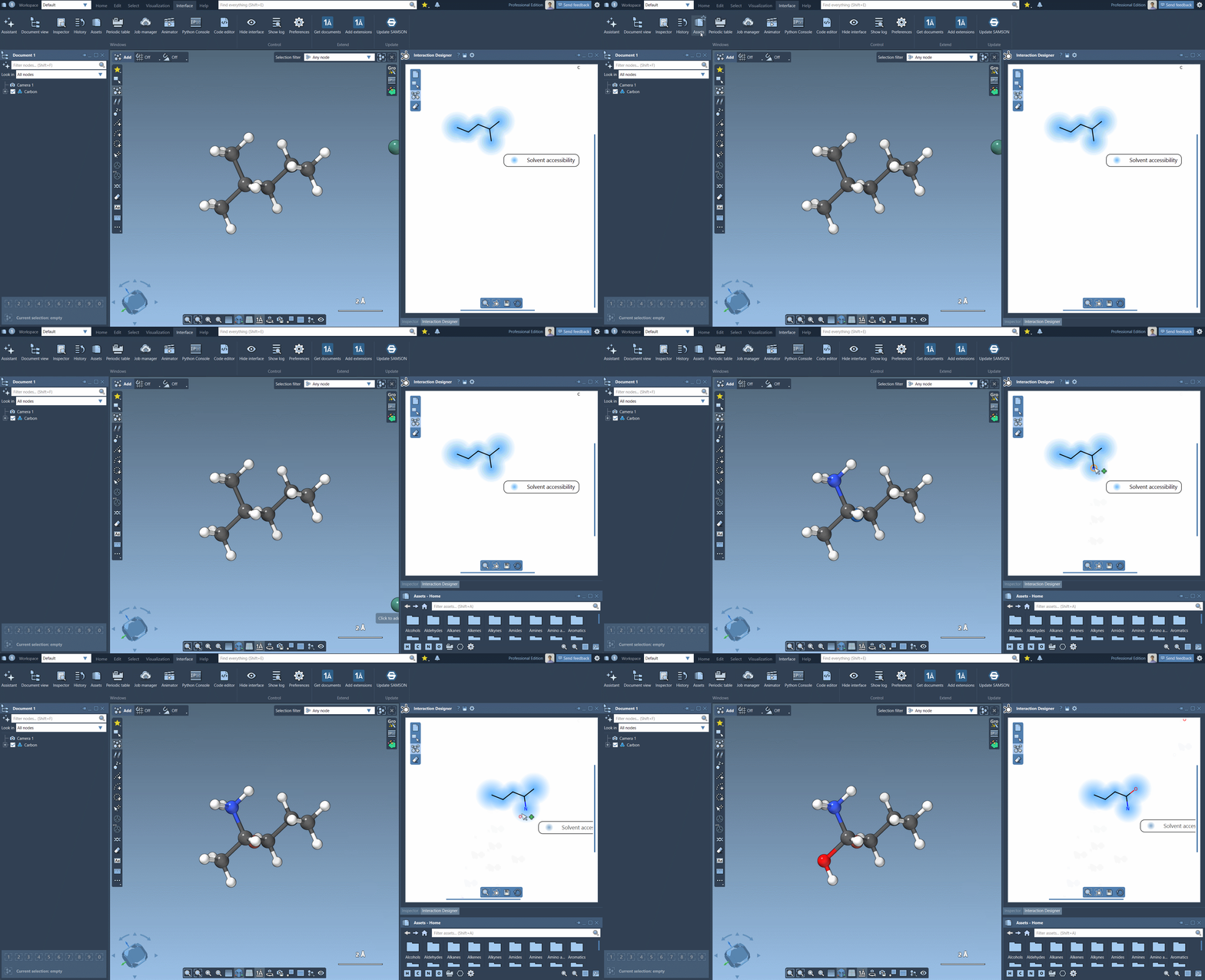
For other elements, click on the  Periodic Table icon to select from the full set of elements.
Using molecular fragments
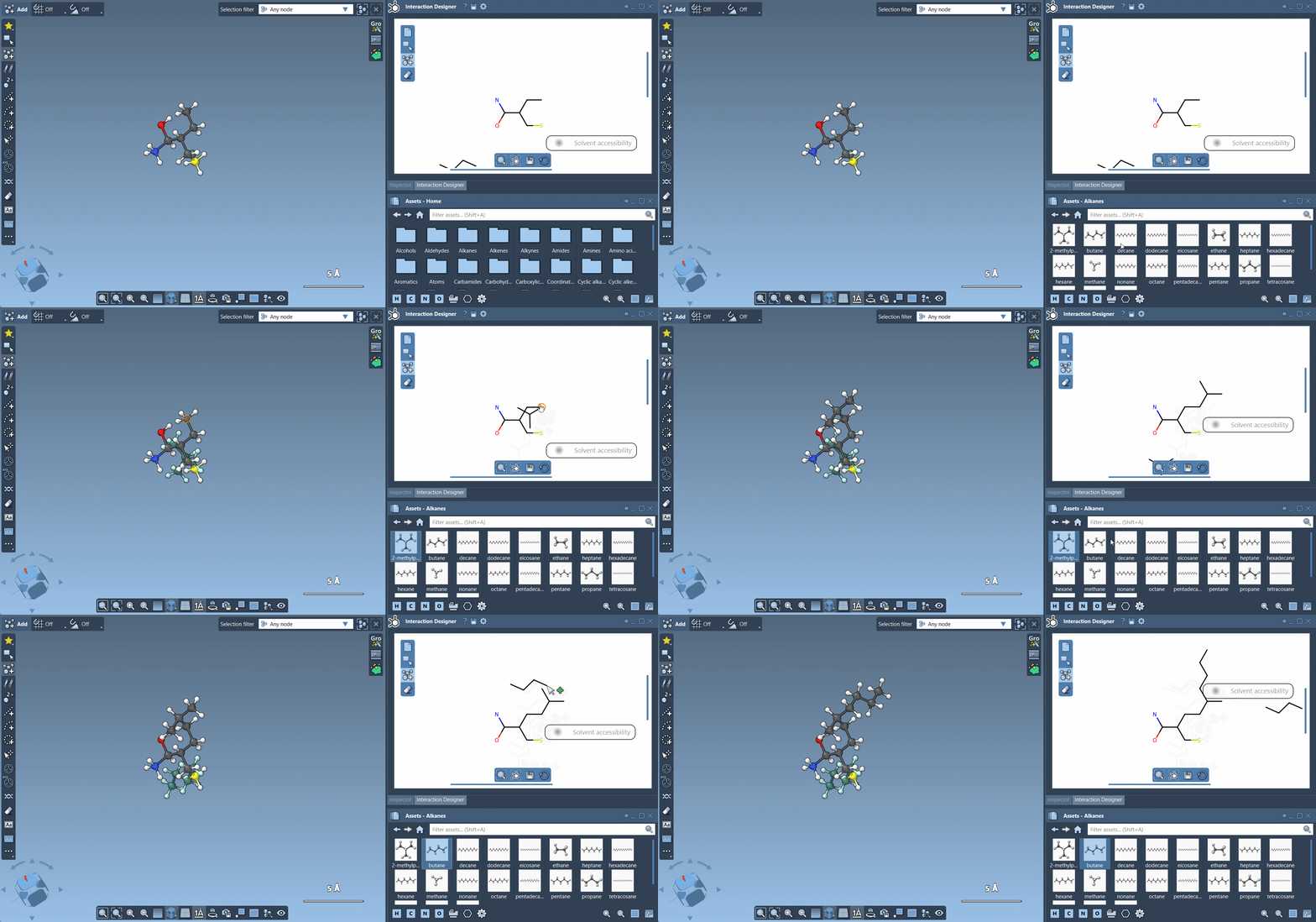
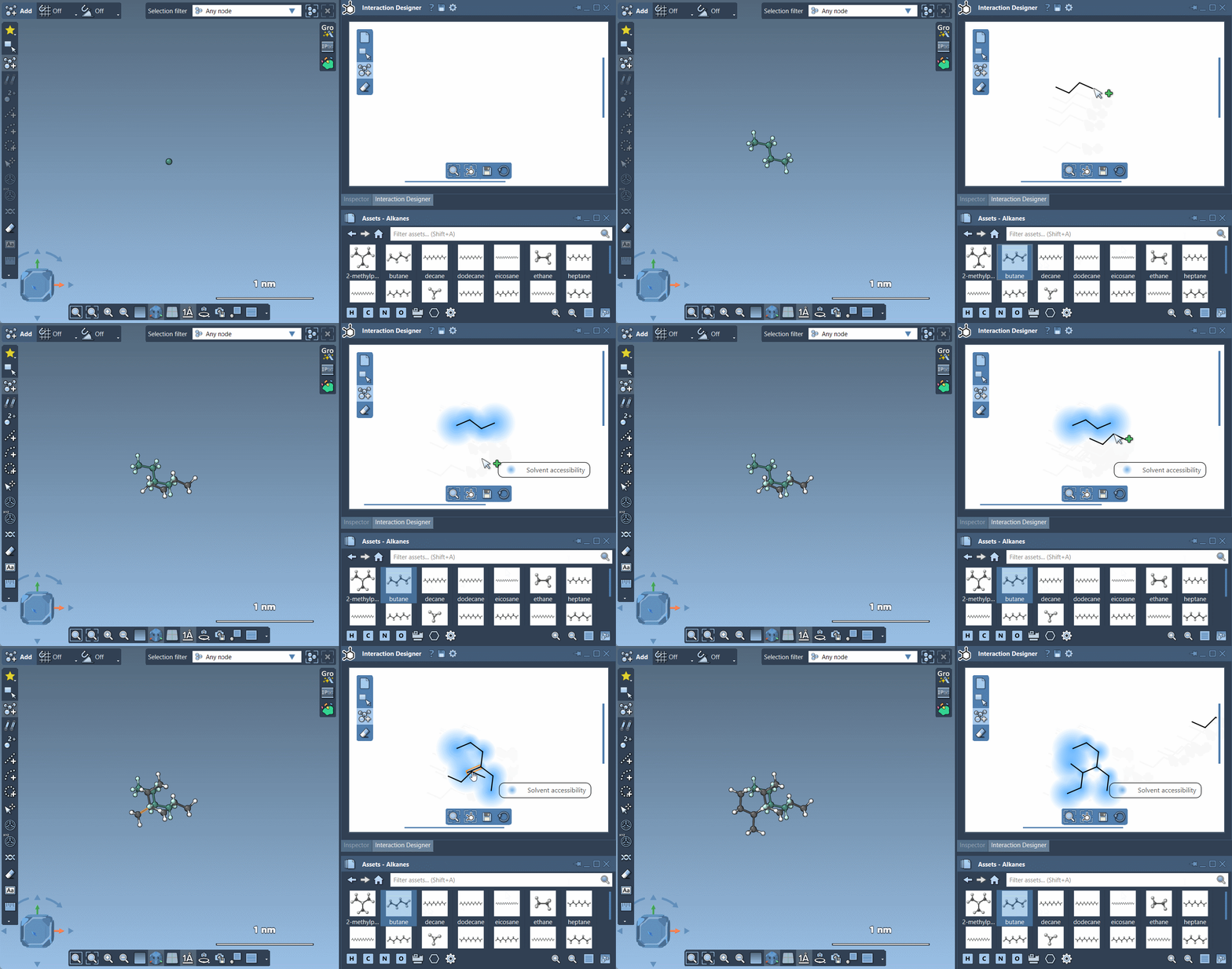
If you prefer to start from common fragments — rings, chains, etc. — select your desired fragment from the Asset Browser. Use Ctrl-click / Cmd-click on the atom you want to serve as the pivot point when placing it into the scene:
Erasing atoms and editing
To remove elements, click the Erase icon  in the left panel. Click on any atom to delete it.
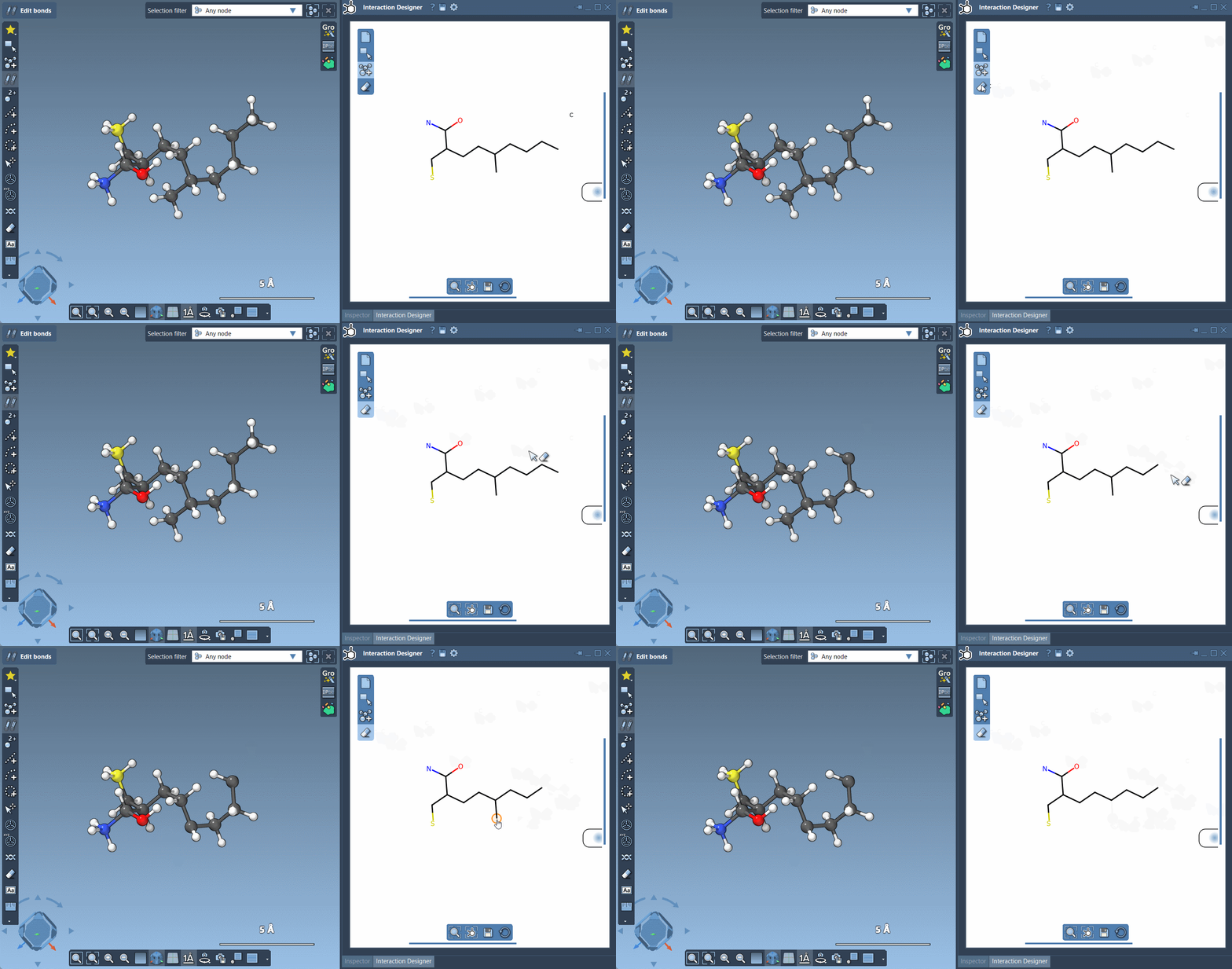
Exporting your design
Ready to share or move to another format? Click Save in the bottom panel to export your 2D sketch in PNG, JPG, BMP, or SVG — perfect for documentation or communication.
Who is this for?
If you’re exploring chemical ideas, sketching out initial designs, or communicating early concepts with colleagues, the 2D design space is an intuitive and productive place to begin.
Whether you’re an experienced modeler or just getting started, it’s a practical way to make quick progress before diving into deeper energetic or structural analysis in 3D.
Learn more in the official documentation: Interaction Designer Documentation.
SAMSON and all SAMSON Extensions are free for non-commercial use. You can download SAMSON at https://www.samson-connect.net.