



A molecular trajectory can produce many useful measurements: distances, energy values, RMSD, radius of gyration, solvent-accessible surface area, and more. But inspecting each measurement separately can leave an important question unanswered: How do these quantities change in relation to one another?
For example, does a distance increase as energy changes? Do structures with higher RMSD also have a larger radius of gyration? Does solvent exposure shift alongside a particular distance? A Custom scatter plot in SAMSON’s Path Analyzer brings two saved scalar analyses together, making these relationships easier to explore.
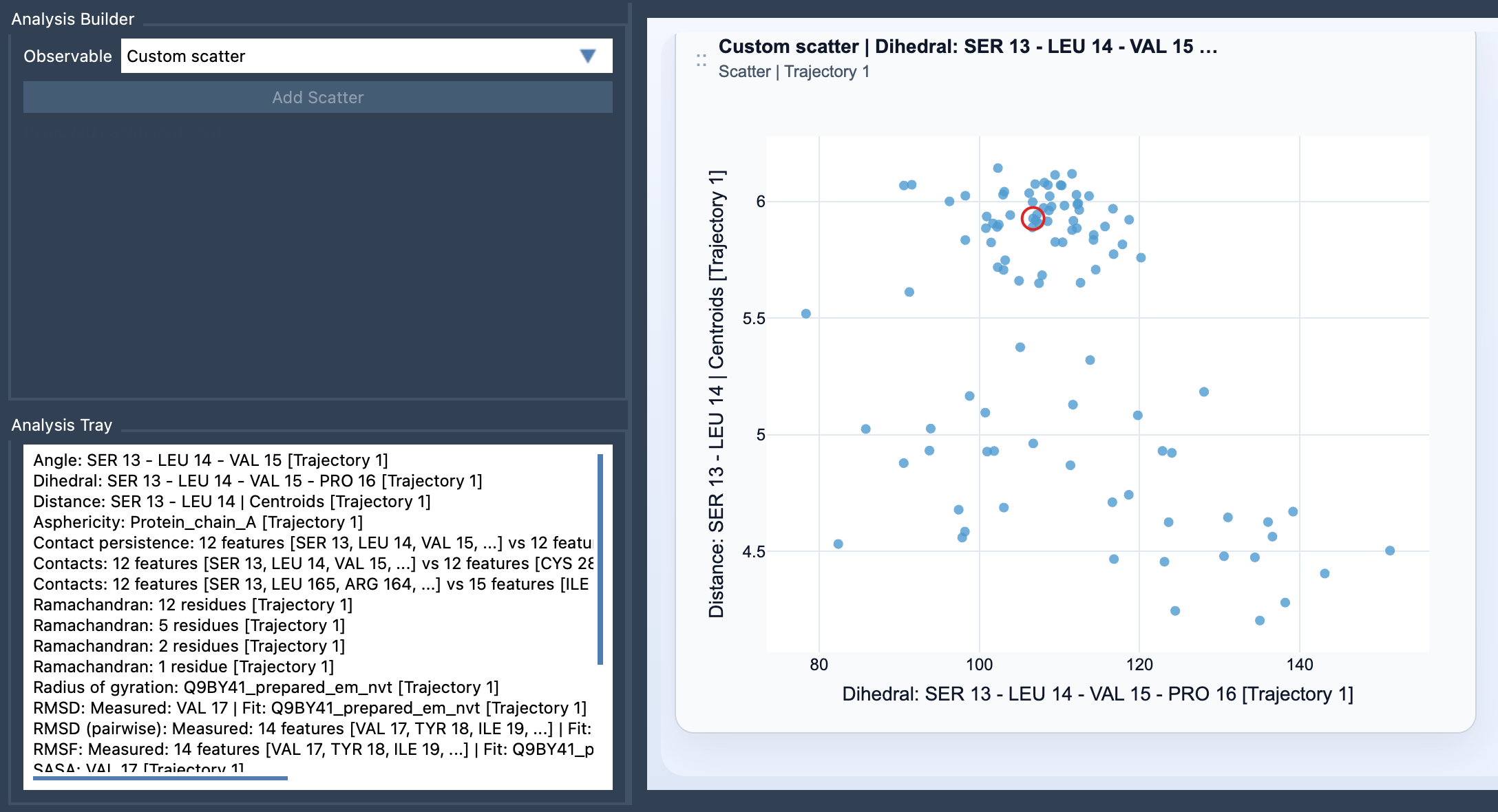
Turn two measurements into one view
A scatter plot represents each sampled pair of scalar values as a point. One analysis provides one axis; the other provides the second. Looking at the point cloud can help you spot patterns that are difficult to recognize when viewing the measurements independently: a general upward or downward trend, distinct clusters, or a more complex arrangement that may suggest different regions of behavior along a path.
This is especially useful when you have a specific scientific question in mind. Rather than plotting measurements simply because they are available, choose a pair that expresses the relationship you want to examine. Examples include Distance vs Energy, RMSD vs Radius of gyration, and SASA vs Distance.
Build the plot
- Open Path Analyzer.
- Create or reuse two saved scalar analyses in the Analysis Tray.
- Choose Custom scatter under Observable.
- Select exactly two saved scalar analyses in the tray, then click Add Scatter.
Custom scatter is a derived analysis: it uses saved analyses in the Analysis Tray rather than direct atom selections. Both inputs must be scalar analyses, and the plot requires exactly two of them. If you are unsure which pair will be informative, start with a question about the system—for instance, whether a structural change coincides with an energy change—then select the analyses that represent those two quantities.
Read the pattern, not just the points
Once the plot is created, each point corresponds to one sampled pair of values. A visible trend can suggest that the two observables vary together or in opposite directions; separated groups of points may indicate that the sampled data occupy distinct regions in the two-observable space. These are clues for further investigation, not explanations by themselves. A scatter plot shows how the selected values relate; it does not establish why they relate or prove that one observable causes a change in the other.
Keep the question and the chosen observables in mind while interpreting the plot. A relationship can be useful even when it is not a simple straight-line pattern: grouping and transitions can also help you decide what to inspect next. And because the result depends on the two analyses you choose, a different pair may reveal a different aspect of the same path.
Connect the plot back to the path
If both source analyses come from the same path and remain frame-linked, the scatter plot can stay connected to the current frame. In that case, clicking a point can move the path to its corresponding frame. This makes the plot more than a summary of two measurements: it can provide a way to return from a pattern in the data to the structure associated with a sampled point.
After using a scatter plot to identify a region or pattern worth examining, it can also serve as a starting point for a 2D density map or an Energy landscape.
For setup details, visit the Custom Scatter documentation.
Note: SAMSON and all SAMSON Extensions are free for non-commercial use. Get SAMSON.